An Identity Provider provides network
services and operates the AAA infrastructure required to authenticate subscribers.
Navigating to the Identity Provider
profiles tile, you can see the SAML and Hotspot
2.0 tabs, which allows you to view the following information about all
the identity providers associated with your RUCKUS One account. The information is
displayed in table format, reflecting a default subset of columns. You can control
which
information is included and excluded by clicking the  icon and
selecting or deselecting column names in the drop-down list.
icon and
selecting or deselecting column names in the drop-down list.
The following information about the Hotspot 2.0 Identity Providers is displayed.
| Name |
Name of the HS 2.0 Identity Provider. This is a sortable
field. |
| NAI
Realm |
List of network access identifier (NAI) realms corresponding to the
Service Providers (SPs) or other entities whose networks or services are
accessible through an associated Wi-Fi network. Up to 16 NAI realm
entries can be created. Each NAI realm entry can contain up to four
Extensible Authentication Protocol (EAP) methods. Each EAP method can
contain up to four authentication types. |
| PLMN |
The total number of Public Land Mobile Networks (PLMNs) defined for
the identity provider. Hover your cursor over the number to display a
list of the PLMNs. Up to 16 PLMN entries can be created. Each PLMN
contains a Mobile Country Code (MCC) and a service-provider-specific
Mobile Network Code (MNC); this is used when the controller sends MAP
authentication information. |
| Roaming
Consortium OI |
The total number of Roaming Consortium Organization Identifiers (OIs)
defined for the identity provider. Hover your cursor over the number
to display a list of the Roaming Consortium OIs.
A Roaming Consortium OI, as defined in IEEE 802.11u, is a unique
value assigned to one (or a group of) subscription service providers
that support Hotspot 2.0 roaming.
During network discovery and selection, the client device receives
the list of OIs and determines if any of them meet the device’s
connection and roaming policies.
Up to 12 Roaming
Consortium entries can be created and can adjust the order since the
AP takes up to 3 OIs in the beacon.
|
| Auth Service |
Authentication Service to map a realm to an external RADIUS server
that is preconfigured. Click the Authentication Service entry to view
detailed information. |
| Accounting Service |
Accounting Service to map a realm to an external RADIUS server that
is preconfigured. Click the Accounting Service entry to view detailed
information. |
| Networks |
The total number of Hotspot 2.0 Access networks associated with the
Wi-Fi operator. Hover your cursor over the number to display a list of
Hotspot 2.0 networks. |
The following information about the SAML Identity Providers is displayed.
| Name |
Name of the SAML Identity Provider. This is a sortable field. |
| IdP Metadata |
IdP metadata that is provided by the identity provider. Click on the
 icon to view the IdP metadata. icon to view the IdP metadata. |
| SAML Request Signature |
Specifies whether the SAML request signature option is on or off. If
it is on, then you may click the blue SAML Request
Signature link to view more details. |
| SAML Response Encryption |
Specifies whether the SAML response encryption is on or off. If it is
on, then you may click the blue SAML Response
Encryption link to view more details. |
| Networks |
The number of networks associated with a SAML IdP profile. Pause your
cursor over the network number to view more details. |
Identity Provider
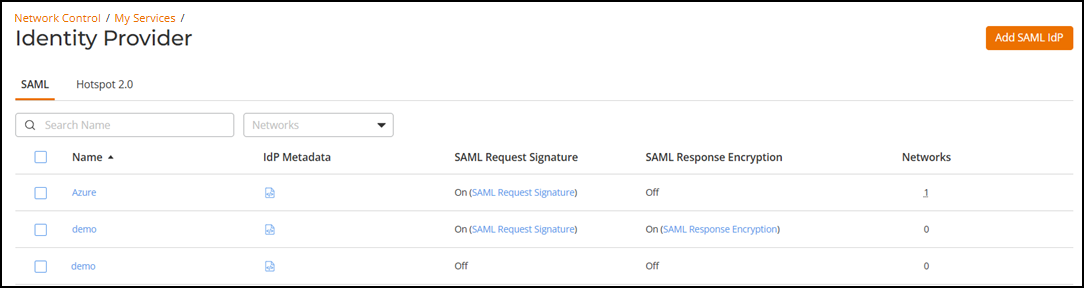
You can search the results using the
Search field.
Enter the Identity Provider name in the Search field. All
matching Identity Providers are displayed.
You can filter the list of Identity
Providers by selecting a specific SAML or Hotspot 2.0 Access network from the Networks drop-down list.
When any filter is being used, a Clear Filters button
appears, allowing for a quick reset to the full list of all Identity Providers.
You can customize which fields appear in
the Hotspot 2.0 table by clicking the icon and
selecting or deselecting the desired column names. Optionally, you can click Reset to default to have
the default subset of columns appear in the Hotspot 2.0 table.