Adding MAC Registration Lists
You can add MAC registration lists to
authenticate the devices based on MAC address. You can configure the expiration for
the
entries as: Never expire, By date, and
After, and also configure to automatically clean the expired
entries.
- From the navigation bar, select
. Alternatively, You can click on . The Service Catalog page is displayed.
- Find the MAC Registration
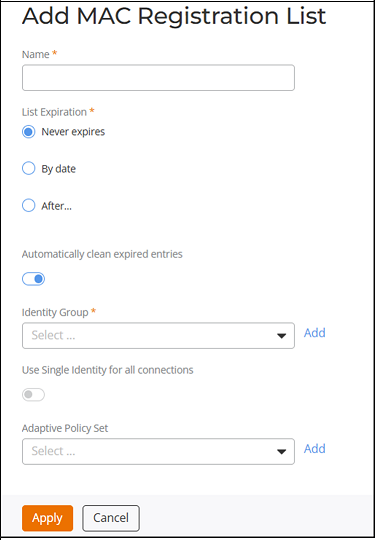
List tile and click Add.The Add MAC Registration List page is displayed.
- Note:
- If a MAC registration list exists without an associated identity group, the system will automatically create one. When devices connect, corresponding identities will be automatically created within that group.
- While creating a MAC registration list, you must select an identity group that will own this MAC address.
- Enter MAC registration list name.
- For List Expiration, choose one from the following options.
- (Optional) Click the Automatically clean expired entries toggle to disable this option (which is enabled by default).
- For Identity Group, select an existing Identity Group from the drop-down or click Add to add an Identity Group. For more information on how to add an Identity Group, refer to Adding an Identity Group.
- (Optional) Toggle the Use Single Identity for all connections button to configure a single identity for all connections.
- (Optional) Under Adaptive Policy Set, select an adaptive policy set from the list, click Add to configure and add a new adaptive policy set, or you can add MAC addresses after you create the MAC Registration List.
- Click Apply to save the
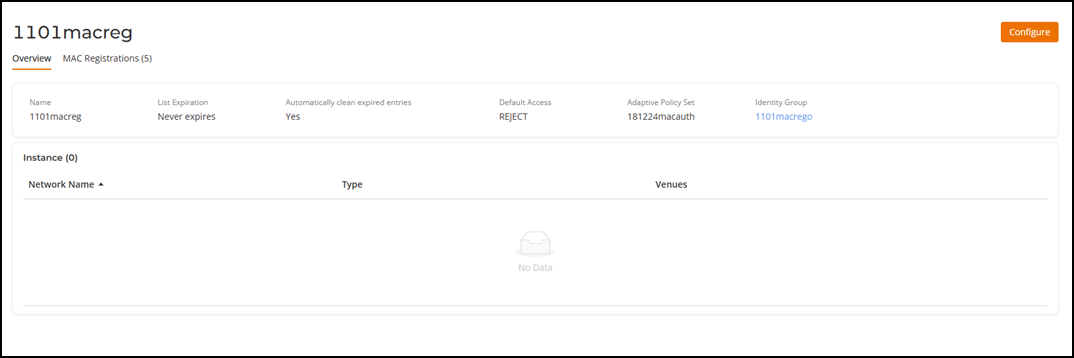
changes.The newly created MAC registration lists is displayed in the table.
- Click created <MAC Registration List name> on the Name column.
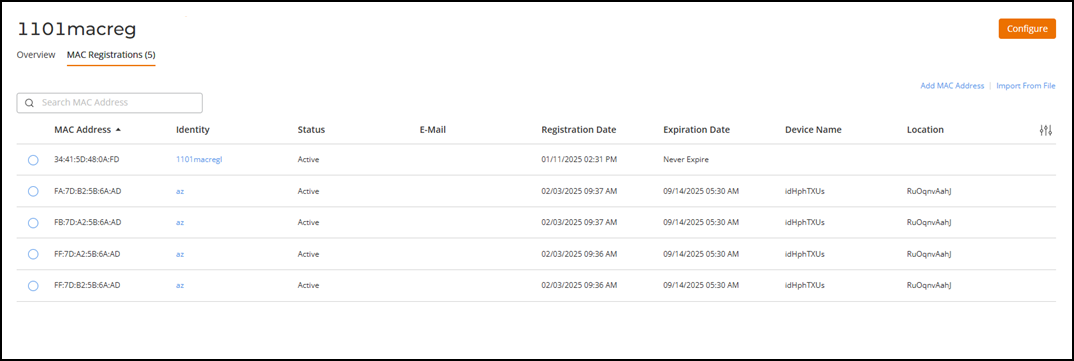
- Click MAC Registrations tab.
- You can add new MAC addresses or import the MAC addresses to the created
MAC Registration Lists.
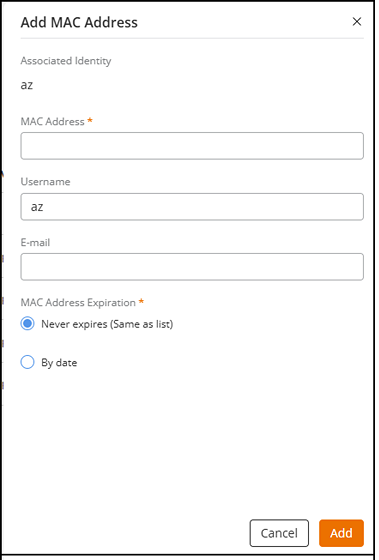
- Click Add MAC Address. The Add MAC Address dialog box is displayed.
- Complete the following fields:
- Click Add.
- Click Import from File. The Import from File dialog box is displayed.
- Click Download template to download the template.
- Using a spreadsheet program, open the CSV file.
- Complete the following fields to add the MAC addresses:
- Save the CSV file.
- In the Import from File dialog box, click Browse, and then locate the CSV file, and then click Open. Alternatively, drag and drop the CSV file to the gray box in the Import from File dialog box.
- Click Import.