Configuring a Custom PoE Schedule for a Switch Port
A custom PoE schedule allows you to
control when PoE is enabled or disabled for a specific switch port during a specific
time
frame.
- From the navigation bar, select , then click on a switch name.
- In the Overview page, select the Ports sub-tab.
- Access the PoE Schedule using
one of the following methods:
- Choose one or more PoE-capable port checkboxes, then click
Edit.
In the Edit Port sidebar, scroll to the PoE Enabled section, click Edit next to the PoE Schedule field.
When you select multiple PoE-capable ports, additionally, you must select the PoE Schedule checkbox, only then the Edit option becomes available.
- Click Custom
Schedule in the PoE Schedule
column. Note that this option is available only after a custom schedule has
been initially configured.
In the Preview PoE Schedule window, click Edit PoE Schedule.
- Choose one or more PoE-capable port checkboxes, then click
Edit.
- Configure the custom
schedule:
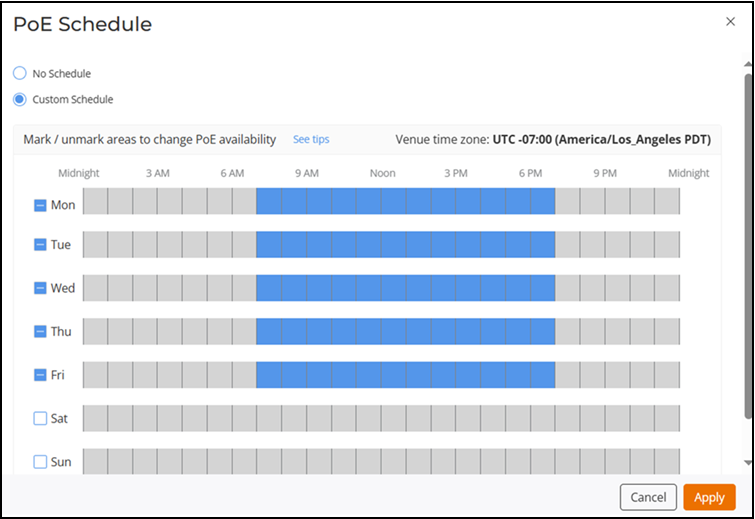
- In the PoE Schedule window, select
Custom Schedule.Use the weekly table (Monday through Sunday) divided into one-hour time slots to define your schedule.
- Click the checkboxes to select or deselect entire days, or click and drag across the multiple time slots to enable or disable PoE for specific periods.
- Click Apply to save the changes.
Note: Manually enabling or disabling the PoE Enabled option for the port does not override the configured schedule. The PoE schedule automatically takes effect again at the beginning of the next hourly time slot.To understand how PoE schedules affect port behavior, refer to .
- In the PoE Schedule window, select
Custom Schedule.