Configuring a VLAN at the Switch Level
- From the navigation bar, select .
- In the Switch List page, click the name of a specific ICX switch or switch stack.
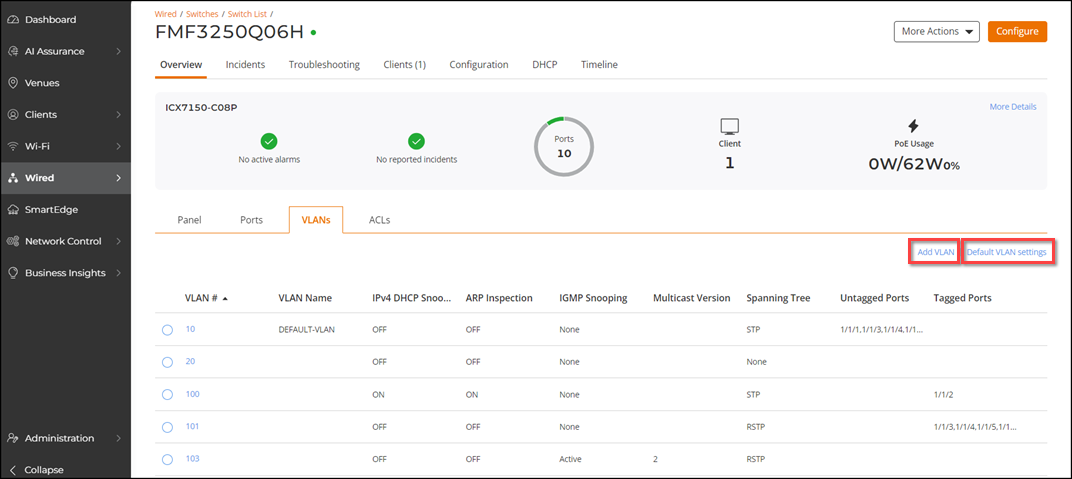
- Select the VLANs sub-tab and click Add VLAN.
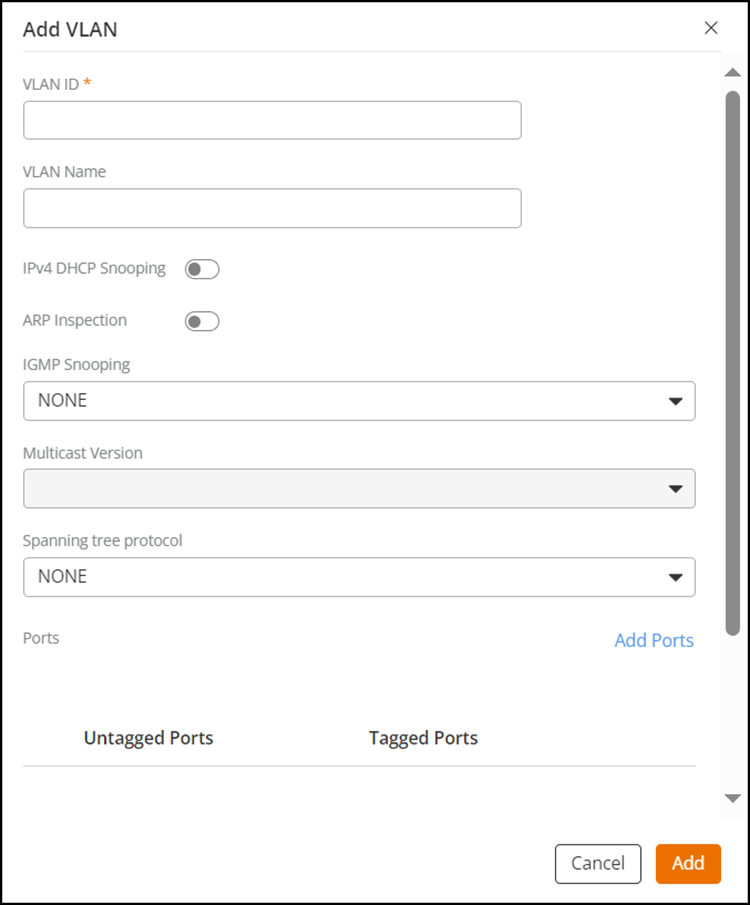
- Enter the VLAN ID and optionally enter the VLAN name.
- Configure these optional settings in the Add VLAN
sidebar:
- Toggle ON the IPv4 DHCP Snooping and ARP Inspection options to enhance network security.
- IGMP Snooping is disabled by default (drop-down option is set to NONE). You can use the drop-down list to select Active or Passive. If Active or Passive is selected, then the Multicast Version option becomes active.
- Select Multicast Version from the list (Version 2 or Version 3) depending on which version is supported by your network and the network devices it is compatible with. The default value is Version 2.
- Select Spanning tree protocol from the list (RSTP, STP, and NONE).
- Click Add Ports to select the untagged and tagged ports from the switch panel in the pop-up Add Ports window. Click Add to close the window.
- Click Add on the sidebar to add the switch-level VLAN.
- (Optional) From the
VLANs tab, click Default VLAN
Settings to edit the default VLAN settings, such as VLAN ID and
Spanning tree
protocol.Note: It is recommended not to change the default VLAN ID unless the VLAN ID already exists on the switch(es).
- (Optional) To edit a VLAN setting, click a specific VLAN ID checkbox, click Edit, and in the Edit VLAN sidebar, update the desired fields and click Save.
- (Optional) To delete a VLAN, click a specific VLAN ID checkbox, click Delete. In the Delete confirmation message that appears, click Delete. A message confirming successful deletion is displayed.
You can also add a VLAN using the following methods:
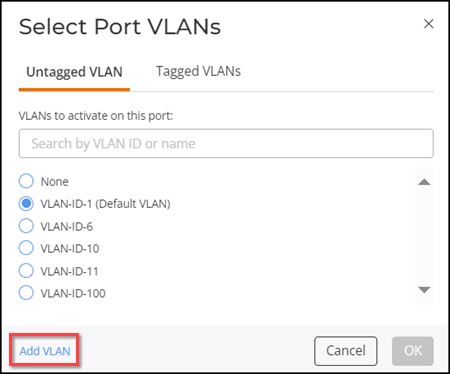
- From the Ports page for a specific switch: From the Overview page of a specific switch, select the Ports sub-tab. Click a specific Port Number checkbox and click Edit. In the Edit Port sidebar, for Port VLANs, click Edit. In the Select Port VLANs dialog box, click Add VLAN.
- From the Port
List page for a switch device in a venue: From the navigation
bar, click Venues. From the Venues page, click a
specific Venue
name, select the sub-tab, and click the
 icon. Click a specific Port Number checkbox and click Edit. In the
Edit Port sidebar, for Port VLANs, click
Edit.
In the Select Port VLANs dialog box, click Add VLAN.
icon. Click a specific Port Number checkbox and click Edit. In the
Edit Port sidebar, for Port VLANs, click
Edit.
In the Select Port VLANs dialog box, click Add VLAN.
You may navigate to to view the entry for this action, such as the date and time of the action, and whether it was a success or failure.