ESXi Specific Configuration
Consider the following hypervisor
configurations if you are deploying vSZ-D on a VMware ESXi.
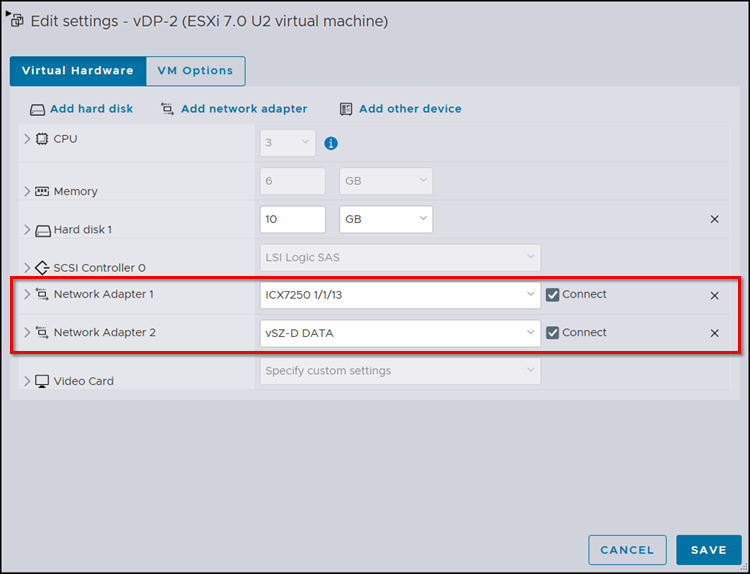
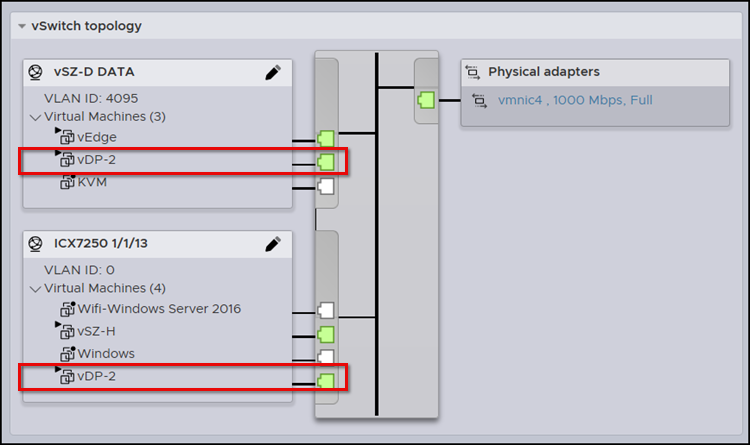
- Assign the virtual machine Network Adapters to different subnets (the Management interface uses VLAN untagged traffic while the Data interface uses VLAN tagged traffic). To modify the Network Adapter configuration, in the ESXi web GUI, select Virtual Machines, right-click the VM corresponding to your vDP, and select Edit settings. Select the appropriate Port Group for each Network Adapter and click Save.
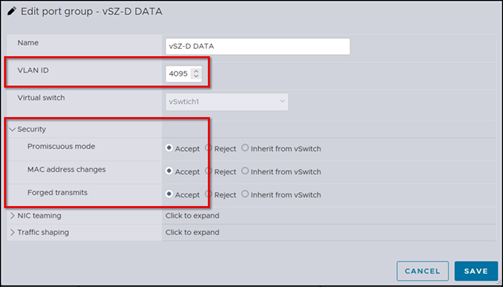
- Ensure the Port Group for the Data interface allows all VLANs.
- Ensure the Port Group for the Data interface
allows Promiscuous
Mode, MAC
Address Changes, and Forged Transmits in
the security configurations.
Note: To check the Port Group settings, in the ESXi web GUI, select Networking and click the Port groups tab. Right-click the Port Group name in the list and select Edit settings.
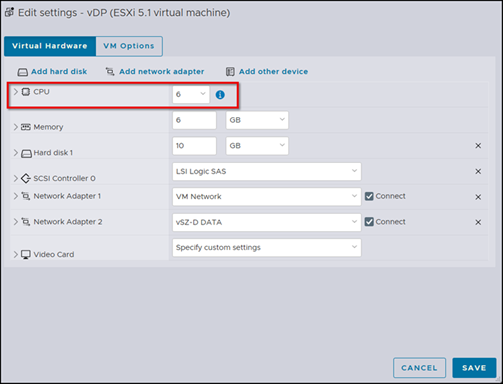
- Modify the number of CPU cores (if needed) before powering on vSZ-D. To check the CPU settings, in the ESXi web GUI, select Virtual Machines, right-click the VM corresponding to your vDP, and select Edit settings.