Data Plane Network Settings
The following sections describe the configuration options available within each of the tabs of the Edit Data Plane Network Settings window.
Network
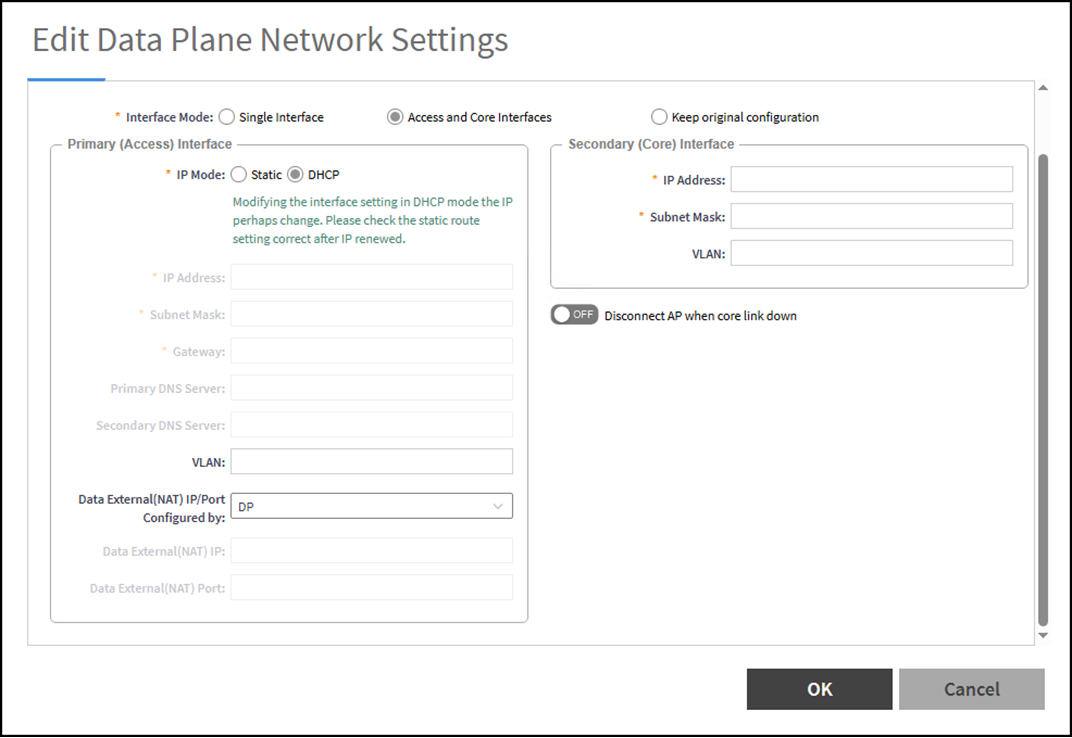
For the Interface mode setting, choose between Single Interface, Access and Core Interfaces, and Keep original configuration and observe how the available configuration options vary depending on your selection. Configuration options for each interface mode are as follows:
- Single interface. In this mode the DP
sends and receives all traffic through a single interface. Use this when you do not
need
to separate access and core networks. Configure the Primary (Access) Interface
with the following:
- IP Mode. Choose between Static and DHCP. If you are assigning a static IP address, enter the IP details such as IP Address, Subnet Mask, Gateway, and DNS servers.
- VLAN. Configure the VLAN number (select from 1 through 4094). Use this VLAN for the AP-to-DP tunneled traffic.
- Data External(NAT) IP/Port Configured by. Remote APs use the external NAT IP address and port to contact the DP from their remote location and through the internet to the DP location in a data center. Choose either Controller or DP from the drop-down menu. If you are selecting the Controller, also configure the Data External(NAT IP) and Data External(NAT) Port fields. Select DP to keep the initial settings.
- Access and Core Interface. In this
mode the DP uses separate interfaces for access and core networks:
- Configure the Primary (Access) Interface (as explained in the preceding Single Interface description).
- Configure the Secondary (Core) Interface values for IP Address, Subnet Mask, and (optionally) VLAN. The Secondary (Core) Interface does not support DHCP for the IP address configuration. Notice this interface does not have a field for the default gateway, instead, when the DP must reach destinations in the core that are outside the core subnet (for example, a northbound tunnel endpoint), you add static routes for those destinations. VLAN tagging is supported.
- Optionally, switch on the Disconnect AP when core link down toggle to disconnect the APs when this interface is down.
- Keep original configuration. Preserves the DP CLI configuration, as discovered by the controller, without altering its current interface layout or addressing. Select this when you have pre‑provisioned the DP and want the controller to retain that configuration.
Static Routes
Use this tab to define routes the DP should use to reach destinations that are not reachable via its directly connected subnets. Typical use cases include reaching core‑side services or tunnel endpoints that are outside the configured core subnet.
To create a static route, enter the following:
- Network Address. Refers to the destination IP address. This can be either a network address or a specific host address.
- Subnet Mask. Defines which portion of the IP address represents the network and which portion represents the host.
- Gateway. The IP address of a router that resides in the same subnet as the secondary interface, is reachable by the data plane, and can route traffic to the destination network.
DHCP Profile
Select from the drop-down menu the DHCP Profile to run on this DP. Only existing profiles appear. Create or edit profiles before binding them to the DP in this tab.
- Note:
- You can create DHCP profiles in the controller web GUI by selecting . For complete instructions, refer to Working with DHCP and NAT.
- DHCP services on the DP require the appropriate licensing. For complete instructions, refer to Tunnel and Data Plane Licenses.
NAT Profile
Select from the drop-down menu the NAT Profile to run on this DP. Only existing profiles appear. Create or edit profiles before binding them to the DP in this tab.
- Note:
- You can create NAT profiles in the controller web GUI by selecting . For complete instructions, refer to Working with DHCP and NAT.
- NAT services on the DP require the appropriate licensing. For complete instructions, refer to Tunnel and Data Plane Licenses.
Syslog
Switch on the Enable DHCP Syslog and Enable NAT Syslog toggles to export DP‑resident service logs for DHCP and NAT, respectively, to an external syslog server. When at least one of the toggles is enabled, the following fields appear: