Creating a SoftGRE Profile
A SoftGRE tunnel profile enables
encapsulation of wireless LAN (WLAN) traffic from access points (APs) to third-party
gateway
servers using Generic Routing Encapsulation (GRE). When applied, the profile defines
gateway
addresses, failover behavior, and keep-alive parameters, allowing you to control
how AP
traffic is routed and maintained in multi-vendor or distributed environments.
- In the controller web UI, select .
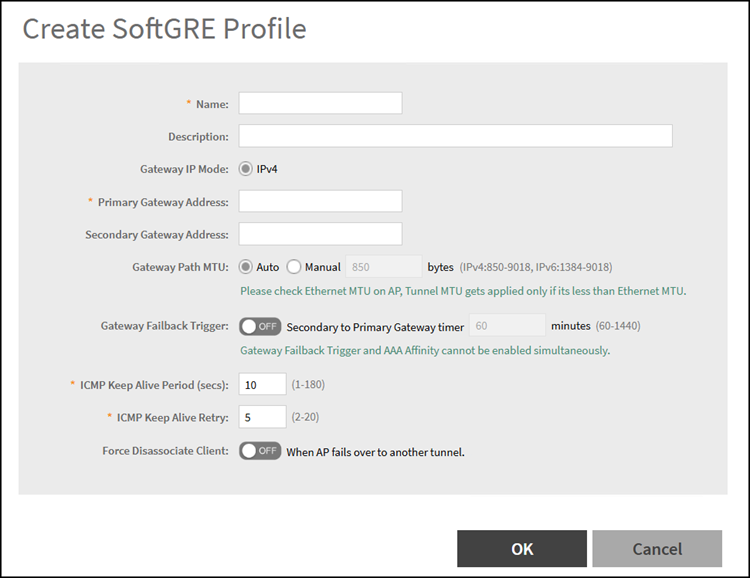
- Click Create.The Create SoftGRE Profile page is displayed.
- In the Name field, enter a descriptive name for the profile.
- (Optional) In the Description field, enter a brief description.
- Under Gateway IP Mode, select IPv4 or IPv6 addressing.
- In the Primary Gateway Address field, enter the IP address or fully qualified domain name (FQDN) of the primary gateway server. This is the main destination for AP tunnel traffic. Use a routable, reliable address.
- In the Secondary Gateway Address field, enter the IP address or FQDN of the secondary gateway server. If the primary gateway is unreachable, APs will automatically attempt to connect to the secondary gateway.
- For
Gateway Path MTU, set the maximum transmission unit (MTU) for the gateway path.
Select one of the following options:
- Auto: This is the default option. Permits the system determine the optimal MTU size for the tunnel. Recommended for most environments to avoid fragmentation and ensure compatibility.
- Manual: Specify the MTU value (range: 850–1500 bytes). Use manual configuration if your network has known MTU constraints or if troubleshooting fragmentation issues.
- (Optional) Enable
Gateway Failback Trigger:
- Toggle Gateway Failback Trigger to ON if you want APs to revert to the primary gateway after failover.
- Set the Secondary to Primary Gateway timer (in minutes) to define how long the AP waits before switching back (default: 60; range: 60–1440).
For more information, refer to SoftGRE Gateway Failback Trigger . - In the ICMP Keep Alive
Period field, enter the time interval in seconds for APs to send
keep-alive messages to the active gateway. The range is from 1 through 180
seconds. The default value is 10 seconds. Note: Shorter intervals increase responsiveness to gateway failures but may add network overhead.
- In the ICMP Keep Alive
Retry field, enter the number of keep alive attempts before
failing over to the standby gateway. The range is from 2 through 10 attempts.
The default value is 5 attempts. Note: Higher values increase tolerance for transient network issues; lower values trigger failover more quickly.
- Under Force Disassociate Client, enable Disassociate client when AP fails over to another tunnel if you want clients to be disconnected during tunnel failover. Use this option to ensure client sessions are reset when APs switch tunnels for authentication consistency.
- Click OK to save the profile.