Wizard Application User Experience
After the user has gone through the enrollment prompts, the Wizard runs to configure the wireless network settings on the device.
Loading System Configuration
The Wizard opens and begins the configuration process. You may receive a status message on your device such as: "Loading Configuration."
Configuring the Device
The application begins the configuration process.
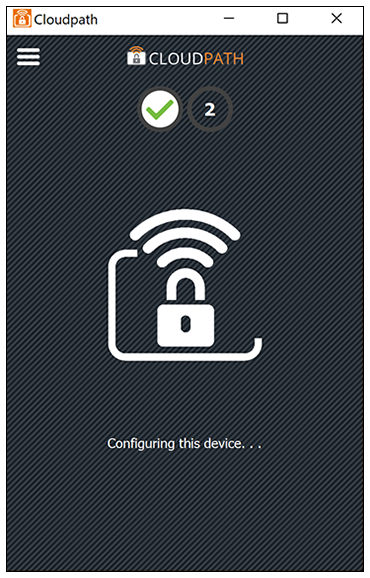
Click Yes if asked to install the certificate. The entire configuration process should take less than one minute.
The application continues with the authentication process.
Connecting to Secure Network
The application attempts to associate to the wireless network. You may receive a status message on your device such as: "Attempting to connect to the network..."
Validating Connectivity
The application continues with the validation process.
When the association with the secure network is successful, the application attempts to acquire a network address. A screen may appear briefly to indicate that connectivity is being validated.
The application continues with the connection process.
Connected to Secure Network
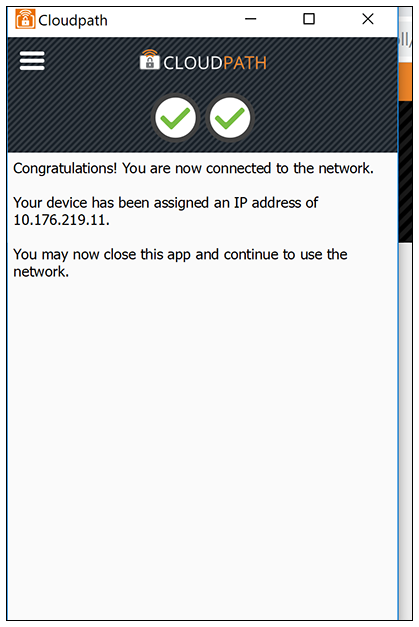
When the application displays a message that you have received an IP address, you are connected to the secure network.
Verify Network Connection
Whether using the application to migrate the device, or manually connecting to the network, use the airport icon in the menu bar to verify the network to which you are connected.
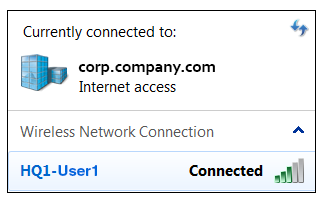
The Wireless Network Connection panel displays the network to which you are connected.