Enrollment Workflow
During enrollment, the Chrome OS is detected and Cloudpath provides Chrome OS-specific instructions for downloading the configuration file and installing it on the device manually, or automatically if extensions are configured. After the configuration file is installed, the user simply connects the secure network.
The following section provides an example of the Chromebook user experience.
- The user connects to the deployment URL (either directly, or through a Captive Portal).
- The Cloudpath Welcome screen displays.
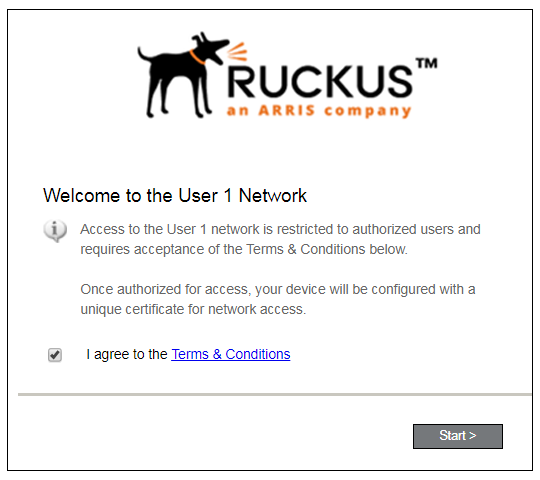
The login screen is typically customized with the logo, colors, and text for the organization or institution. The screens in this example use the default look and feel of the application.