Configuration Wizard
The Wizard application can be set to start automatically or start manually from the download page. These user experience options are set in the Cloudpath Admin UI, but the user experience can also vary depending on the Java version detected (if installed), the browser, or the OS version on the device.
Download and Run Application
The default user experience setting for Windows devices is to download the application to the user device, run the application to configure the wireless settings, and migrate the device to the secure network.
Download Page
The application detects the device user agent and displays the appropriate Windows-specific instructions.
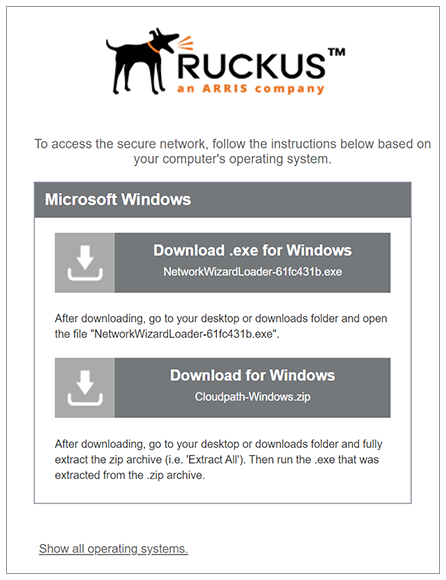
Click the down arrow to download either the .exe file or the zip file.
Locate and Open the File
If you downloaded the zip file, extract it, and then run the .exe file. If you downloaded the .exe file, run it directly. The wizard begins the configuration and migration process.
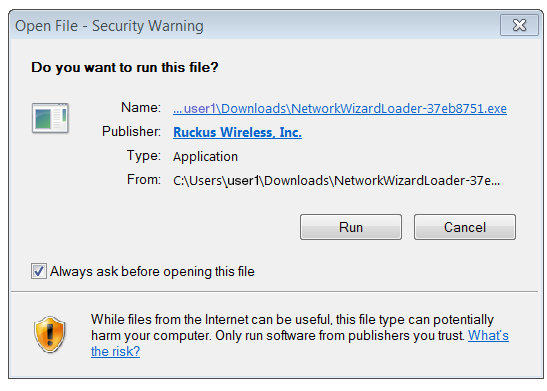
Confirm Running the File
Your browser or operating system may prompt you to confirm that you want to run the application file.