Download Certificates
From the Other Operating Systems tab on the configuration instructions screen, tap the down arrow to download the certificates.
Download CA Certificates
Tap the down arrow next to Step 1: Install The CA Certificate. You are prompted to Save the certificate with the default name or enter a different name.
Note: If you rename the certificate, it is only renamed in the Downloads folder. The BlackBerry OS saves to the certificate store using the default certificate name.
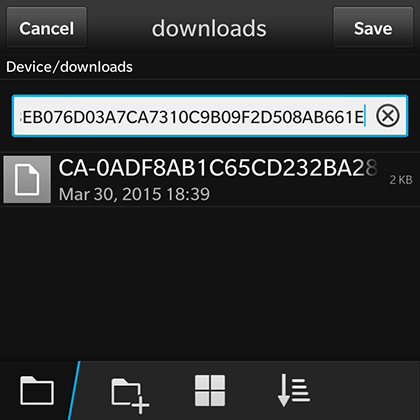
Tap Save to download the certificate. The screen displays a brief message to confirm that the download was complete.
CA Certificate in Downloads Folder
The certificate is listed in the Downloads folder.
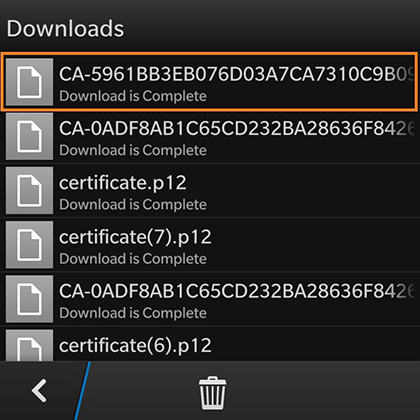
Tap the back arrow at the bottom left to return to the configuration instructions screen.
Download User Certificate
Tap the down arrow next to Step 2: Install Your Certificate. You are prompted to Save the certificate with the default name or enter a different name.
Note: If you rename the certificate, it is only renamed in the Downloads folder. The BlackBerry OS saves to the certificate store using the default certificate name.
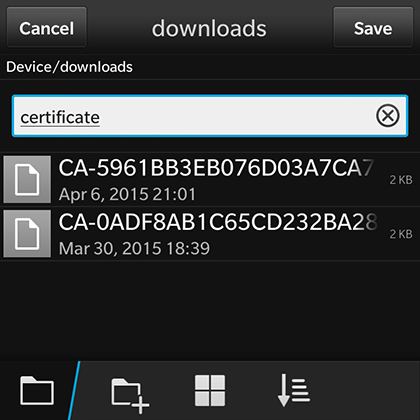
Tap Save to download the certificate. The screen displays a brief message to confirm that the download was complete.
User Certificate in Downloads Folder
The certificate is listed in the Downloads folder.
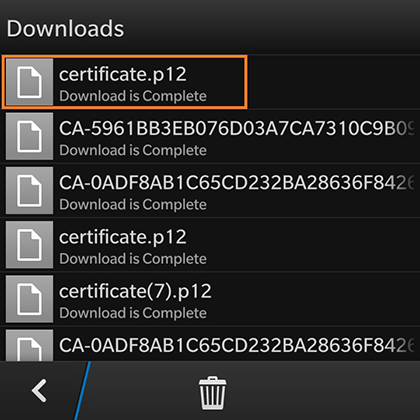
Tap the back arrow at the bottom left to return to the configuration instructions screen.
Configuration Instructions
After the certificates have been downloaded, you are returned to the configuration instructions screen.
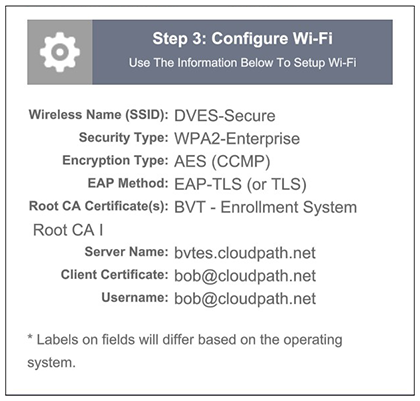
This final step contains all the information you need to configure the wireless settings on your device. Make note of the CA Certificate, Client Certificate, and Wireless Network Name before you continue.
The next step is to import the CA and user certificates to the certificate store.