Enrollment Steps
This section displays the user prompts for a typical enrollment workflow.
Welcome Screen With AUP
When the user enters the enrollment URL on their device, the login (or welcome) screen displays. The login screen is typically customized with the logo, colors, and text for the organization or institution. The screens in this example use the default look and feel of the application.
Note: If you have set up a captive portal, the user connects to onboarding SSID and is redirected to the Cloudpath Welcome page to start the enrollment process.
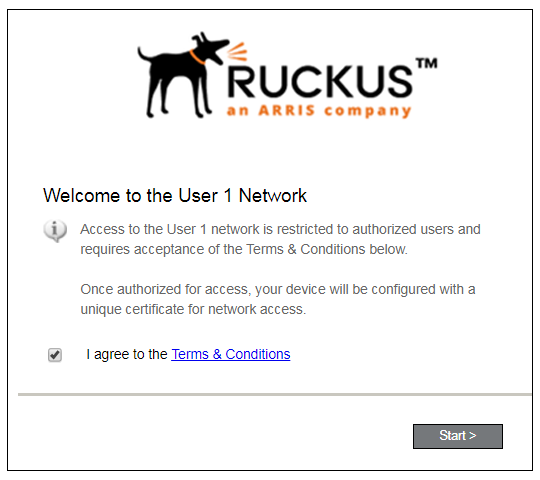
An acceptable use policy (AUP) prompt displays a message and requires that the user signal acceptance to continue. The text on the Welcome page and Start button can be customized.