Configure Wi-Fi Settings
Return to the device System Settings screen to configure the wireless network settings.
System Settings
The Wi-Fi settings are configured in Network and Connections.
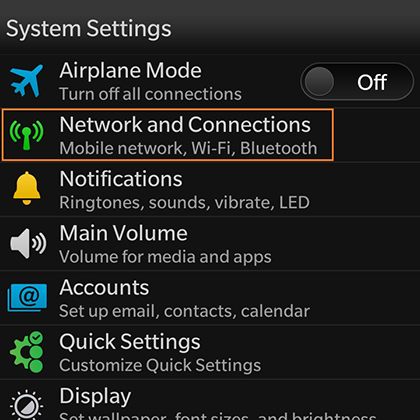
Network and Connections
The Wi-Fi setting displays your current wireless network connection.
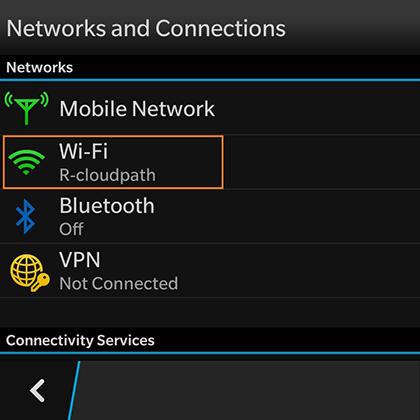
Wi-Fi Networks
The Wi-Fi Networks tab lists the available wireless networks.
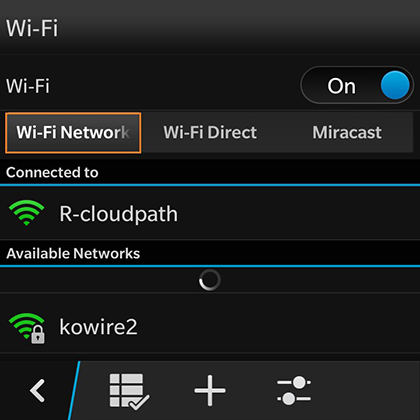
Swipe through the list of Available Networks to locate the Wireless Network Name from the configuration instructions. See the Configuration Instructions section to review the correct settings.
Wi-Fi Settings - User Credentials
The secure wireless settings require your user credentials.
Enter the same user credentials from the enrollment workflow steps. See the User Credentials section to review these settings.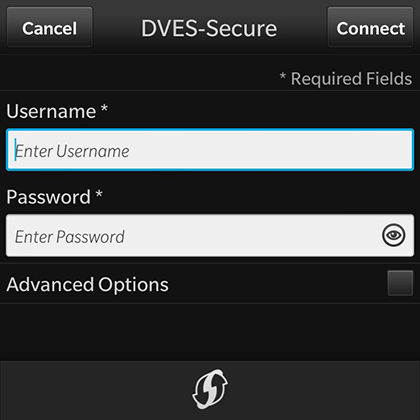
Advanced Options
The secure wireless network requires additional settings.
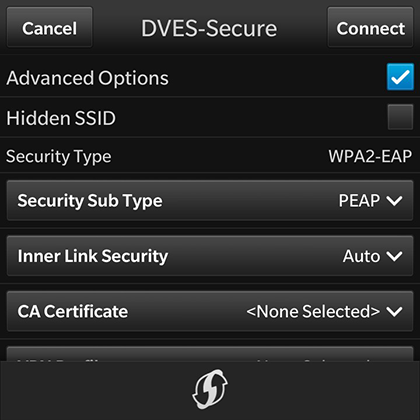
Check the Advanced Options box to expose additional wireless configuration settings.
Wi-Fi Settings - Security Type Settings
The secure wireless network requires that you select the correct Security Type, Security Sub Type, CA Certificate, and Client Certificate settings.
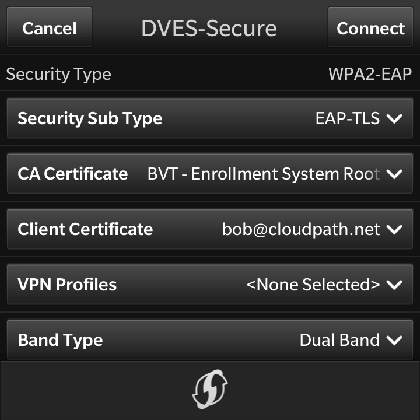
Use the following selections for the secure wireless network:
Wi-Fi Settings - Optional Settings
Typically, the secure wireless network does not require the optional settings.
Note: The network administrator might require a different setting for these options. If you have difficulty connecting, contact the network help desk for assistance.
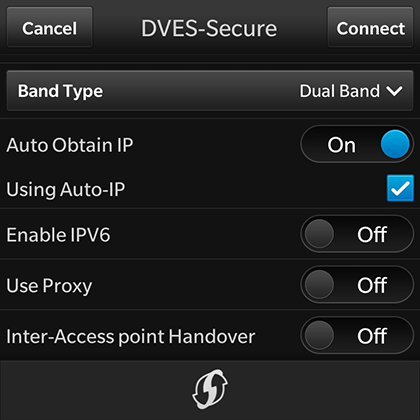
In most cases, the following settings can be left in their default positions:
- Auto Obtain IP = On
- Using Auto-IP = Selected
- Enable IPV6 = Off
- Use Proxy = Off
- Inter-Access point Handover = Off
Device Connected
You should now be connected to the secure wireless network.
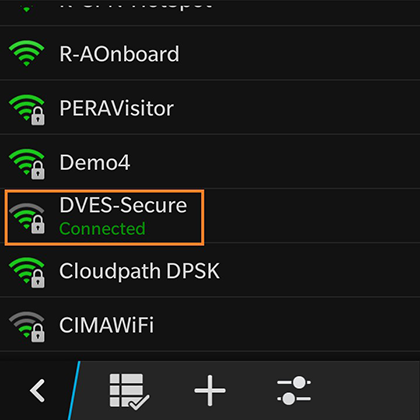
The Wi-Fi screen displays the secure wireless network to which you are connected.