Other Methods for Launching Application
The network administrator can elect to configure other user experience settings, such as automatically launching the application, or, if using the Internet Explorer browser, the user can manually launch the application using ActiveX.
Starting Application from Java Applet
If your configuration is set up to automatically run the Java applet, the Download page does not appear. Instead, a Java console opens and the application automatically starts. If this is your network setting, go to the Wizard Application User Experience section to view the end-user experience.
You can also launch the Java applet manually from the download page. Use the launch via Java applet link, instead of downloading and installing the application manually.
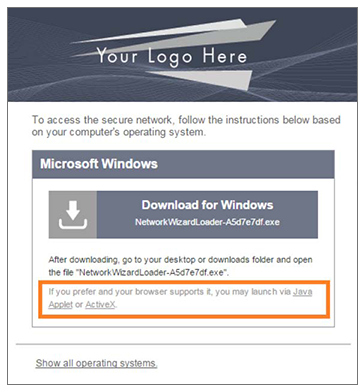
The application launches as a Java applet.
Load Application
The application loads onto the device.
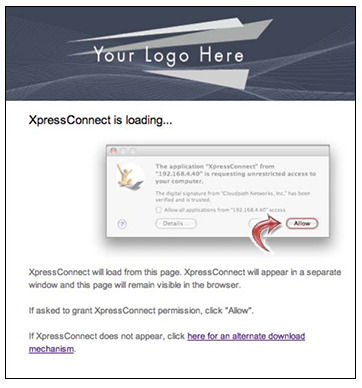
The application continues to check the device settings.
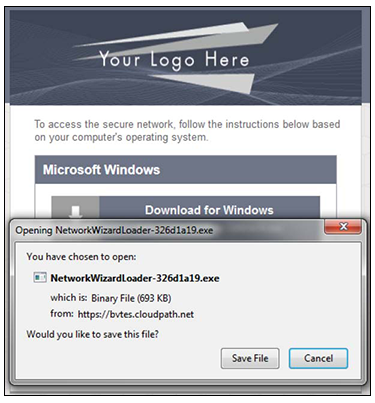
Save File
Confirm that you want to save the Cloudpath application to your downloads folder.
Trust Application
The Windows operating system might prompt you to trust the Cloudpath application.
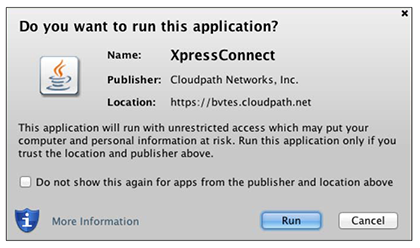
Click Run to continue. The configuration wizard starts.
See the Wizard Application User Experience section to view the end-user experience.
Launch Application Using ActiveX
If your configuration is set up to automatically run the Java applet, the Download page does not appear. Instead, a Java console opens and the application automatically starts. If this is your network setting, go to the Wizard Application User Experience section to view the end-user experience.
You can also launch the application manually from the download page using ActiveX, instead of downloading and installing the application manually.
Double-click the ActiveX link to launch the application.
Load Application
ActiveX loads the application on the device and it automatically starts the configuration and migration process.
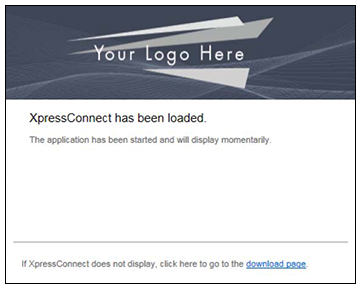
See the Wizard Application User Experience section to view the rest of the end-user experience.