Troubleshooting Possible Chromebook Extension Issue
Under some circumstances, a Chromebook extension hangs during enrollment at the following step:
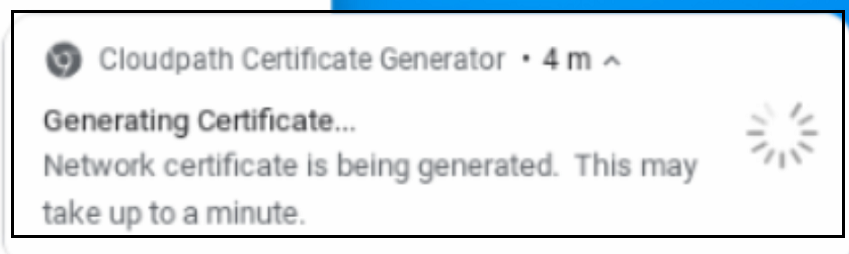
If this occurs to the enrolling user, the issue is likely either a mismatch API key between the Google configuration and Cloudpath configuration, or an issue where either the Chromebook or Cloudpath are not set with the correct time for their respective timezones. To first verify that the API key is properly set up, perform the following steps.
- Verify that Google API Key is enabled for the Verified Access API in the Google Cloud Console. For information about setting up the Goodle API key on the Google console, refer to the Cloudpath Enrollment System Chromebook Configuration Guide.
- Check that the Google API key matches the Google API key configured in the Cloudpath
UI:
- In the Cloudpath UI, navigate to Certificate Authority > Manage Templates, then click on the wrench icon of the template in question.
- Click the Chromebook Enrollment tab.
- On the ensuing screen, click Edit.
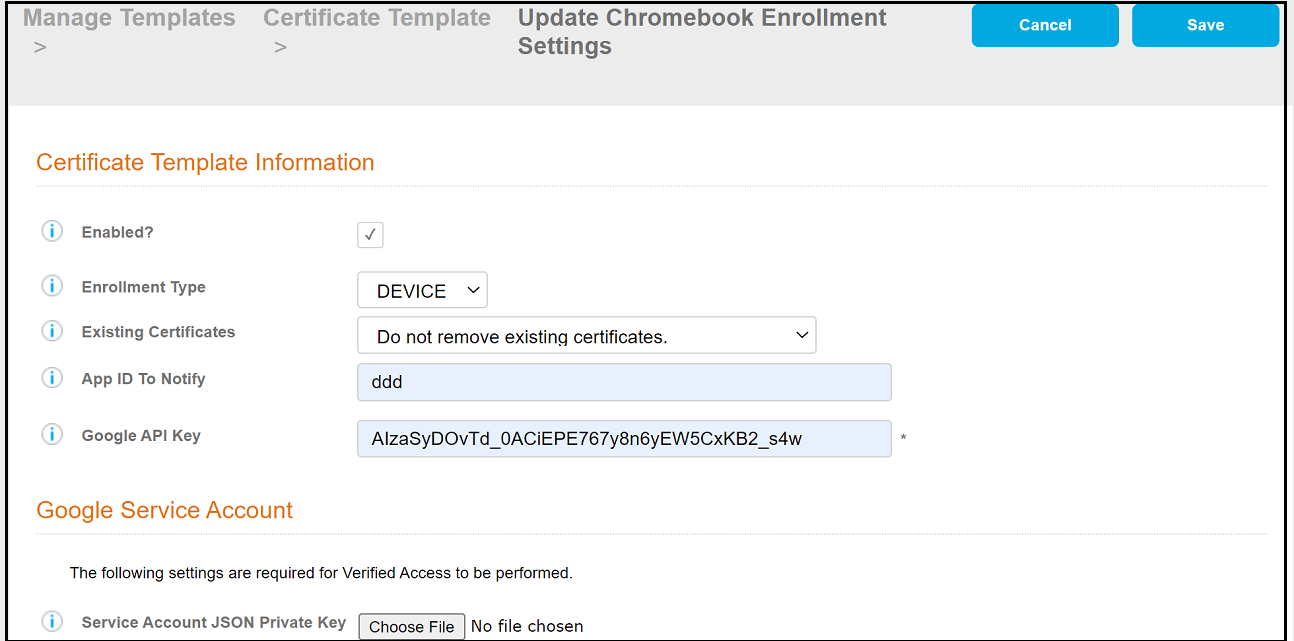
- On the ensuing screen, shown in the example screen below, check the Google API key to be sure it matches the API key configured on the Google console.
- If there is a mismatch, enter the correct value of the key, and retry the Chromebook enrollment.
If the process continues to hang, check that the time is correct on the Chromebook device and in Cloudpath for their respective timezones. For information about the commands to run to set the timezone or sync with the NTP server, refer to the Cloudpath Enrollment System Command Reference.