Import Certificates
After the certificates have been downloaded to the device, they must be imported to the certificate store
System Settings
Go to the System Settings for the device.
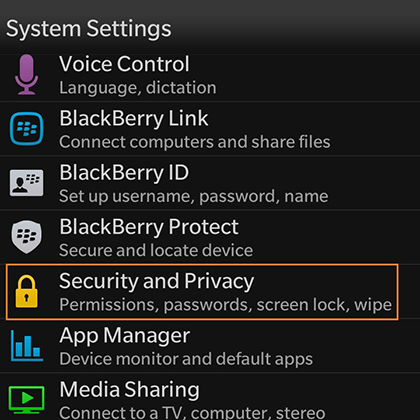
Security and Privacy Settings
Certificate settings are listed under Security and Privacy.
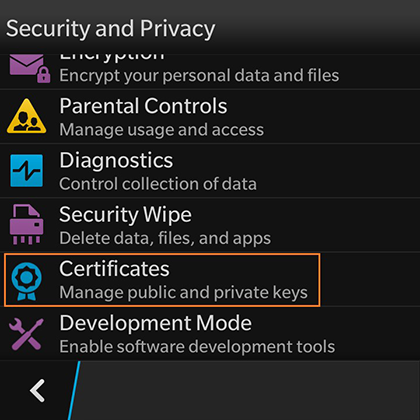
Add Certificate
The certificate store is displayed.
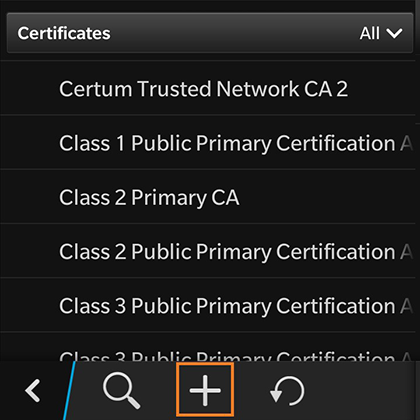
Click the plus sign to add a CA certificate.
Select Downloads Folder
On the Select Certificates screen, locate the Downloads folder.
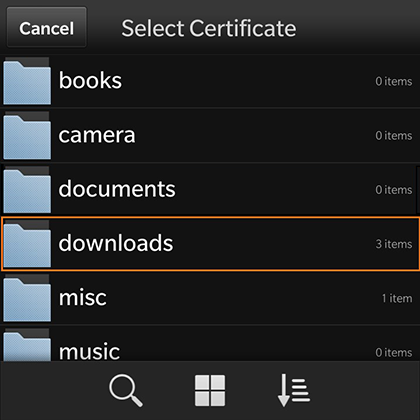
Tap the Downloads folder to view the certificates available for import.
Select CA Certificate
Select the CA certificate that was previously downloaded.
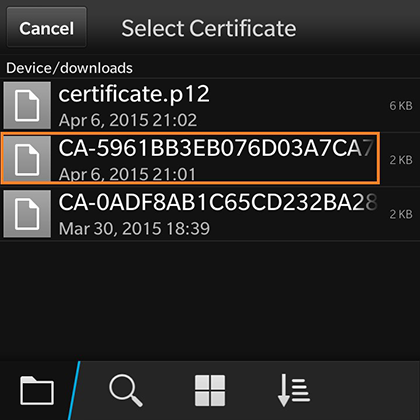
Tap the CA certificate to import.
CA Certificate Settings
On the Import Certificate screen, verify that you are importing the CA certificate that was listed on the configuration instructions. Leave the certificate usage restriction settings unchecked.
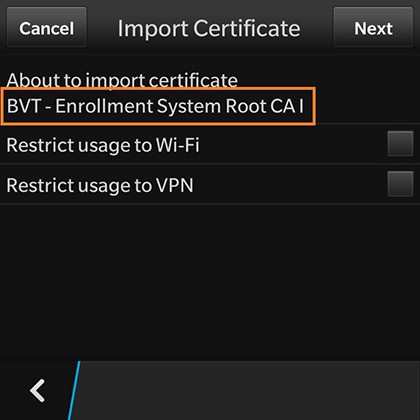
Tap the back arrow at the bottom left to return to the certificate store.
Certificate Imported
There is a brief message that indicates that the certificate was imported. The Certificates screen displays. Swipe the list to view your CA certificate.
Note: If your CA certificate contains both a Root and an Intermediate certificate, both are imported in to the certificate store.
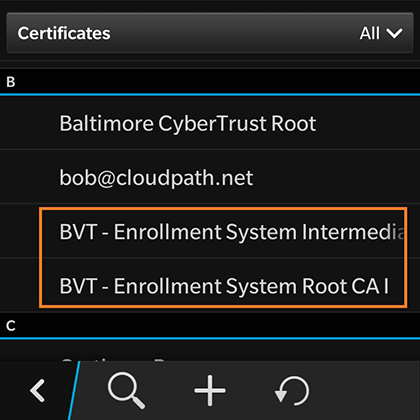
Click the plus sign to add the User certificate.
Select Downloads Folder
On the Select Certificates screen, locate the Downloads folder.
Tap the Downloads folder to view the certificates available for import.
Select User Certificate to Import
Select the user certificate that was previously downloaded.
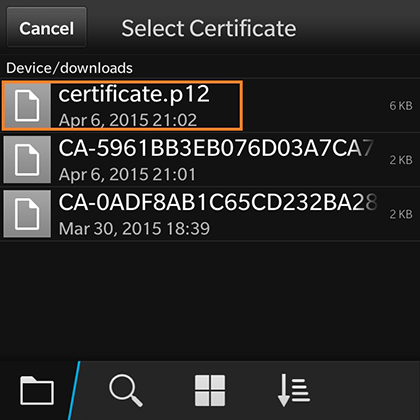
Tap the user certificate to import.
Enter User Certificate Password
The BlackBerry OS requires that you enter a password to import user certificates.
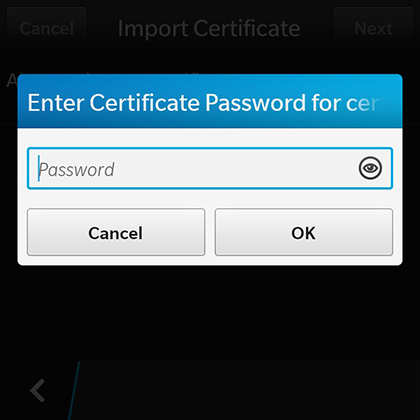
Enter the password from your user credentials. For example, if your user credentials are username=bob and password=bob1, then enter bob1 for the user certificate password.
User Certificate Settings
On the Import Certificate screen, verify that you are importing the user certificate that was listed on the configuration instructions. Leave the certificate usage restriction settings unchecked.
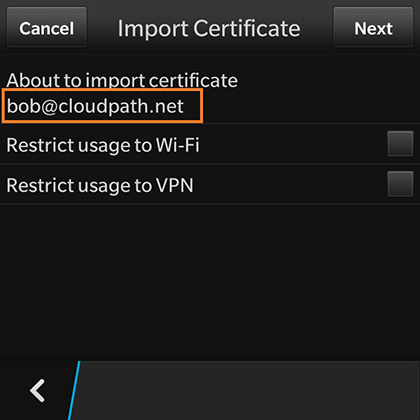
Tap the back arrow at the bottom left to return to the certificate store.
Certificate Imported
There is a brief message that indicates that the certificate was imported. The Certificates screen displays. Swipe the list to view your user certificate.
Tap the back arrow in the bottom left to return to the Security and Privacy screen, and then again to return to the System Settings screen.