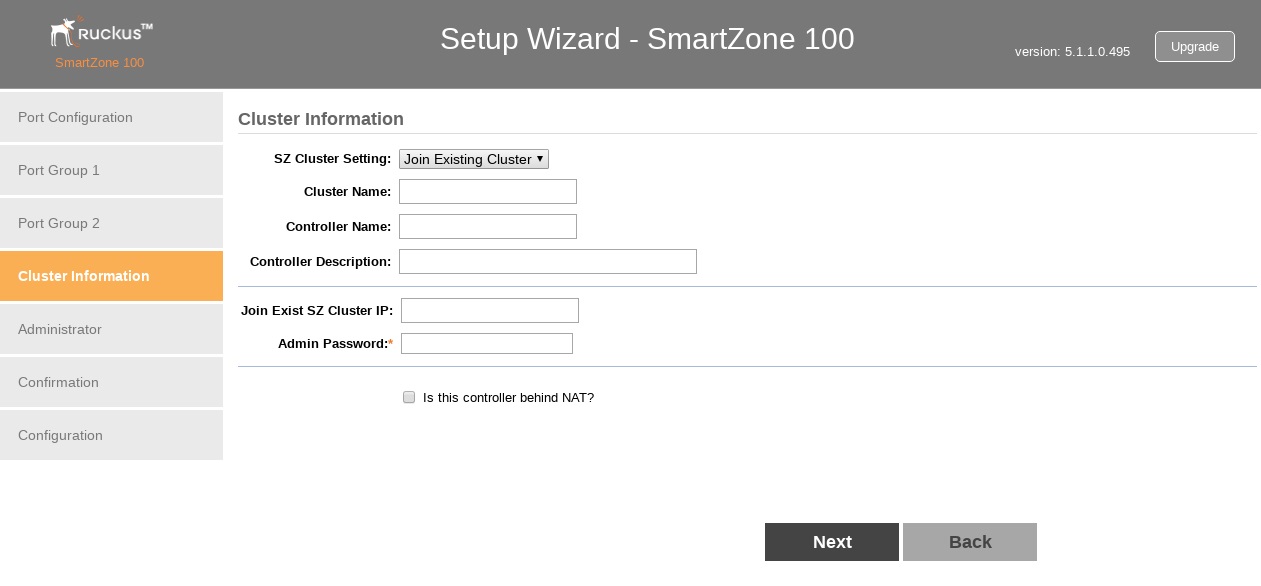
If This Controller Is Joining an Existing Cluster
If this is not the first controller cluster on the network, you can set up this controller to join an existing cluster.
Caution: To add this controller to an existing cluster, the entire target cluster must be in a healthy state (no node must be in “out of service” state). If any member node is out of service, the join request will fail. You will need to remove any out-of-service node from the cluster before you can add a new node successfully.
Note: When adding a new node into an existing cluster, any ARC signature files, AP or switch firmware, and AP patches on the existing cluster will be synchronised onto the new node. Kernel Space Program (KSP) patches must be independently uploaded to the new node. Refer to the KSP documentation to ensure whether the KSP patches are applied per node and whether the cluster needs to be reloaded.
Follow these steps to configure this controller to join an existing cluster.
- In Cluster Setting, click Join Existing Cluster.
- In SZ Cluster Setting, select the cluster configuration from the drop-down menu.
- In Cluster Name, type the name of the existing cluster that you want this controller to join.
- In Controller Name, type a name that you want to assign to this new controller.
- In Controller Description, type a description for this new controller.
- In Join Exist Cluster IP, type the IP address that has been assigned to the cluster.
- In Admin Password, type the existing password for the cluster. This is the password that you use to log on to the controller’s web interface.
- Click
Next to continue to the next Setup Wizard page. The
Confirmation page appears and displays a summary of the settings that you have configured.
Note: If the firmware version on this controller (shown in the lower left area of the Cluster Information page) does not match the firmware version of the cluster, a message appears and prompts you to upgrade the controller’s firmware. Click Upgrade, and then follow the prompts to perform the upgrade.