Navigating the Domain Portal

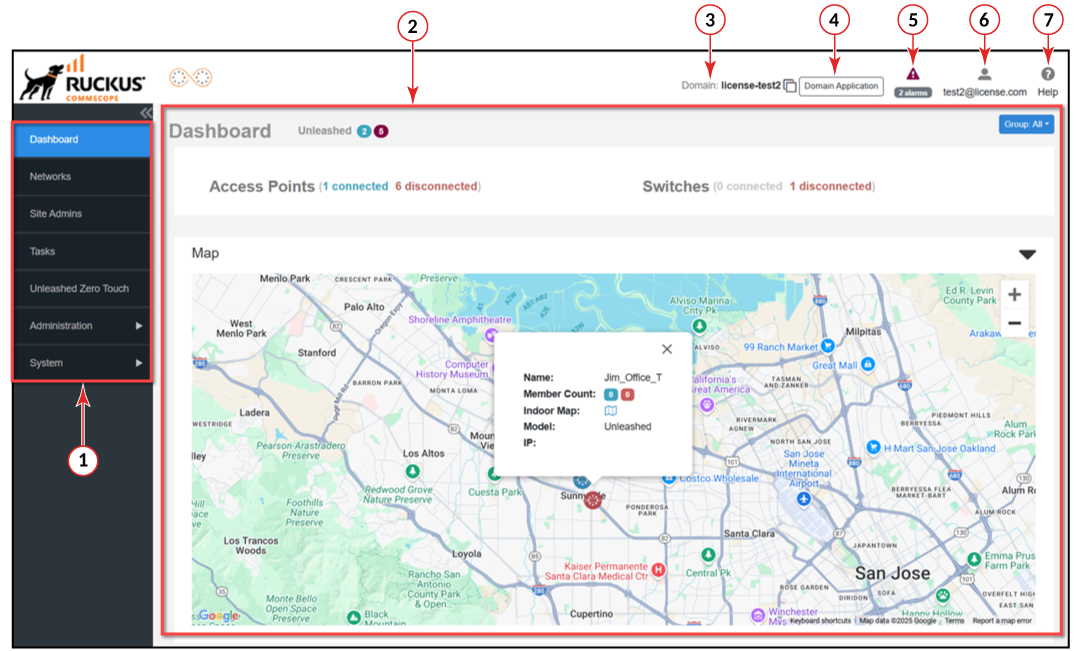
RUCKUS Remote Management Services for Unleashed is a graphical user interface (GUI) that is visually segmented to facilitate managing and monitoring your Unleashed networking devices.

GUI Elements

List of GUI Elements

Number Name Description
1 Main menu Use the navigation bar to navigate through the main pages of the portal, which include:
  • Dashboard
  • Networks
  • Site Admins
  • Tasks
  • Unleashed Zero Touch
  • Administration
  • System
2 Content area When you click an item on the navigation bar, the related information displays in the content area. The Group menu allows you to select the data you want to display on the Dashboard. You can select All or select any specific network group.
3 Domain Click to copy the URL for the Unleashed Master AP.
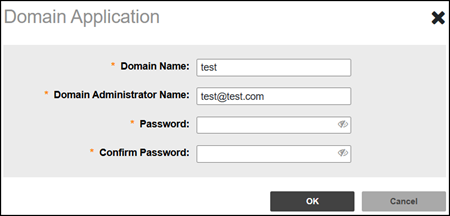
4 Domain Application Click the Domain Application to change the domain name, domain admin name and the password.
5 (Alarm) Indicates alarm notification along with alarm count (if enabled in System > Alarm Settings).
6 (Account) Allows you to change the password, language, time zone, and to log out of the Domain portal.

Displays the email address of the Domain Admin. When clicked, a menu displays the following options:

  • Change Password: Opens the Edit Your Profile page.
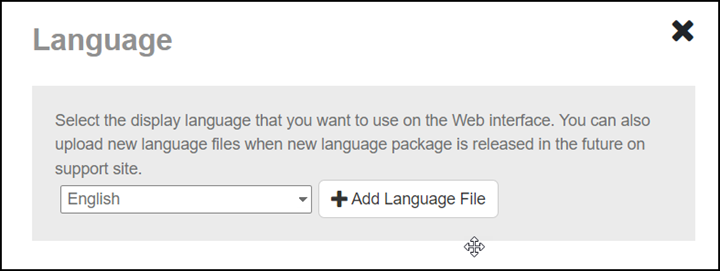
  • Language: Select any language provided in the system settings to be displayed on the web interface. The languages like English, Chinese traditional, and Chinese simplified are installed by default.
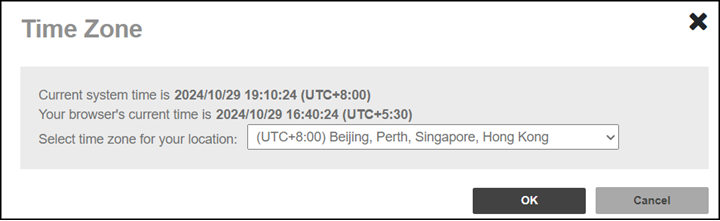
  • Time Zone: Displays the current Remote Management Services for Unleashed system time and your current browser time, and you can select the time zone for your location.
  • Log Out: Logs you out from RUCKUS Remote Management Services for Unleashed.
7 (Help) Click to view the complete online documentation for RUCKUS Remote Management Services for Unleashed.