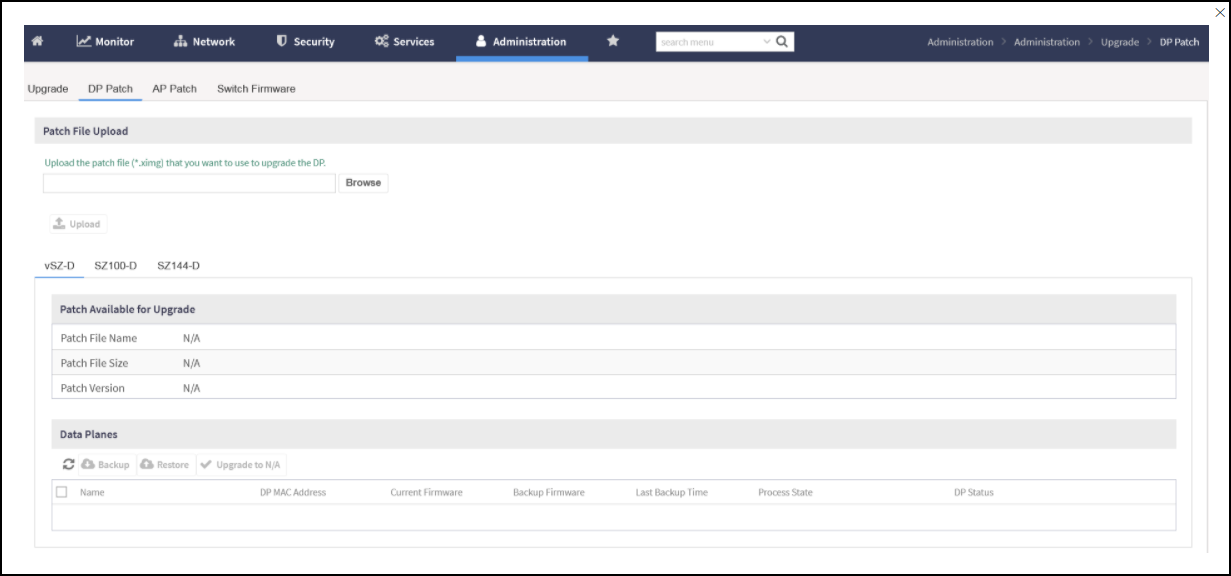
Procedure for upgrading to a new
vSZ-D/SZ100-D/SZ144-D version.
Controller and vSZ-D/SZ144-D Firmware Compatibility Matrix
The below table indicates the compatibility
matrix. In general, RUCKUS supports N-2 vSZ-D/SZ100-D/SZ144-D releases with vSZ.
Controller and SZ144-D
Firmware Compatibility Matrix
vSZ
SZ144-D
7.1.1
7.1.0
7.0.0
6.1.2
6.1.1
6.1.0
6.0.0
5.2.2
5.2.1
7.1.1
Yes
Yes
Yes
Yes
Yes
Yes
No
No
No
7.1.0
No
Yes
Yes
Yes
Yes
Yes
No
No
No
7.0.0
No
No
Yes
Yes
Yes
Yes
No
No
No
6.1.2
No
No
No
Yes
Yes
Yes
Yes
Yes
No
6.1.1
No
No
No
No
Yes
Yes
Yes
Yes
No
6.1.0
No
No
No
No
No
Yes
Yes
Yes
Yes
6.0.0
No
No
No
No
No
No
Yes
Yes
Yes
5.2.2
No
No
No
No
No
No
No
Yes
Yes
5.2.1
No
No
No
No
No
No
No
No
Yes
5.2.0
No
No
No
No
No
No
No
No
No
5.1.0
No
No
No
No
No
No
No
No
No
5.0.0
No
No
No
No
No
No
No
No
No
3.6.2
No
No
No
No
No
No
No
No
No
Controller and SZ100-D
Firmware Compatibility Matrix
vSZ
SZ100-D
Release
6.1.2
6.1.1
6.1.0
6.0.0
5.2.2
5.2.1
5.2.0
5.1.0
7.1.1
Yes
Yes
Yes
No
No
No
No
No
7.1.0
Yes
Yes
Yes
No
No
No
No
No
7.0.0
Yes
Yes
Yes
No
No
No
No
No
6.1.2
Yes
Yes
Yes
Yes
Yes
No
No
No
6.1.1
No
Yes
Yes
Yes
Yes
No
No
No
6.1.0
No
No
Yes
Yes
Yes
Yes
Yes
No
6.0.0
No
No
No
Yes
Yes
Yes
Yes
No
5.2.2
No
No
No
No
Yes
Yes
Yes
Yes
5.2.1
No
No
No
No
No
Yes
Yes
Yes
5.2.0
No
No
No
No
No
No
Yes
Yes
5.1.0
No
No
No
No
No
No
No
Yes
5.0.0
No
No
No
No
No
No
No
No
3.6.2
No
No
No
No
No
No
No
No
Note: From version 6.1.2 onwards, SZ100-D is end of life (EOL).
Controller and vSZ-D Firmware
Compatibility Matrix
vSZ
vSZ-D Release
7.1.1
7.1.0
7.0.0
6.1.2
6.1.1
6.1.0
6.0.0
5.2.2
5.2.1
5.2.0
5.1.0
5.0.0
3.6.2
7.1.1
Yes
Yes
Yes
Yes
Yes
Yes
No
No
No
No
No
No
No
7.1.0
No
Yes
Yes
Yes
Yes
Yes
No
No
No
No
No
No
No
7.0.0
No
No
Yes
Yes
Yes
Yes
No
No
No
No
No
No
No
6.1.2
No
No
No
Yes
Yes
Yes
Yes
Yes
No
No
No
No
Yes (*)
6.1.1
No
No
No
No
Yes
Yes
Yes
Yes
No
No
No
No
Yes (*)
6.1.0
No
No
No
No
No
Yes
Yes
Yes
Yes
Yes
No
No
No
6.0.0
No
No
No
No
No
No
Yes
Yes
Yes
Yes
No
No
No
5.2.2
No
No
No
No
No
No
No
Yes
Yes
Yes
Yes
No
Yes
5.2.1
No
No
No
No
No
No
No
No
Yes
Yes
Yes
No
Yes
5.2.0
No
No
No
No
No
No
No
No
No
Yes
Yes
No
Yes
5.1.0
No
No
No
No
No
No
No
No
No
No
Yes
Yes
Yes
5.0.0
No
No
No
No
No
No
No
No
No
No
No
Yes
Yes
3.6.2
No
No
No
No
No
No
No
No
No
No
No
No
Yes
Note: Before starting this procedure, you should have
already obtained a valid software upgrade file from RUCKUS® Support or an authorized reseller.
Note: * - Additionally 3.6.2 GD in 6.1.1 LT for special requirements is supported. (In
general, N-2 GD is only supported in GD release.)
Note: If you are upgrading both vSZ and
vSZ-D/SZ100-D/SZ144-D, RUCKUS® recommends
upgrading vSZ first before vSZ-D/SZ100-D/SZ144-D.
There is no order in upgrading the AP zone or
vSZ-D/SZ100-D/SZ144-D. During the vSZ upgrade, all tunnels stay up except the main
tunnel which moves to the vSZ. Once the upgrade procedure is completed, allow ten
minutes for the vSZ-D/SZ100-D/SZ144-D to settle.
Upgrade to R5.0 does not support data migration
(statistics, events, administrator logs). Existing system and network configuration
is
preserved. For further clarification, Contact RUCKUS support.
Follow these steps to upgrade the
vSZ-D/SZ100-D/SZ144-D version.
Copy the software upgrade file that you received
from RUCKUS® to the computer where you are
accessing the controller web interface or to any location on the network that
is
accessible from the web interface.
Go to Controller web
interface > Administration > Upgrade.
Upgrade
Section
Select the DP Patch tab. The
DP Patch page appears.
In the Patch File
Upload section, click the Browse button,
and then browse to the location of the software upgrade file.
The file name of the software
upgrade file for:
vSZ-D is vdp-{version}.ximg
SZ100-D is sz100d-installer_{version}.ximg
SZ144-D is sz144d-installer_{version}.ximg
Click Upload to upload
the software upgrade file.
The
controller automatically identifies the Type of DP (vSZ-D or SZ100-D or
SZ144-D) and switches to the specific Tab page. Uploads the file to its
database, and then performs file verification. After the file is verified,
the Patch
Available for Upgrade section is populated with information
about the upgrade file.
The following details are
displayed:
Patch File
Name: Displays the name of the patch file.
Patch File
Size: Displays the size of the patch file.
Patch
Version: Displays the version of the patch file.
In Data Planes, identify the
data plane you want to upgrade, and then choose the patch file version from the
Select upgrade version.
Click Apply to apply the patch
file version to the virtual data plane.
A notification prompting data plane
backup is displayed.
Click Upgrade Anyway to proceed without a data plane
backup or click Backup to create a backup.
The following information
about the virtual data plane is displayed after the patch file upgrade is
completed.
Name:
Displays the name of the virtual data plane.
DP MAC
Address: Displays the MAC IP address of the data
plane.
Current
Firmware: Displays the current version of the data
plane that has been upgraded.
Backup
Firmware: Displays the backup version of the data
plane.
Last Backup
Time: Displays the date and time of last backup.
Process
State: Displays the completion state of the patch
file upgrade for the virtual data plane.
DP
Status: Displays the DP status.
To verify if the upgrade is
successful after a reboot:
Go to Controller
web interface > Administration > Upgrade > DP Patch to view a confirmation message that the data plane
firmware upgrade is complete.
Go to Controller
web interface > Network > Cluster to view a confirmation message that the data plane is
managed with an upgrade firmware version.
Note: To have a copy of the data plane
firmware or move back to the older version, you can select the data plane from
the
list and click Backup or
Restore respectively.