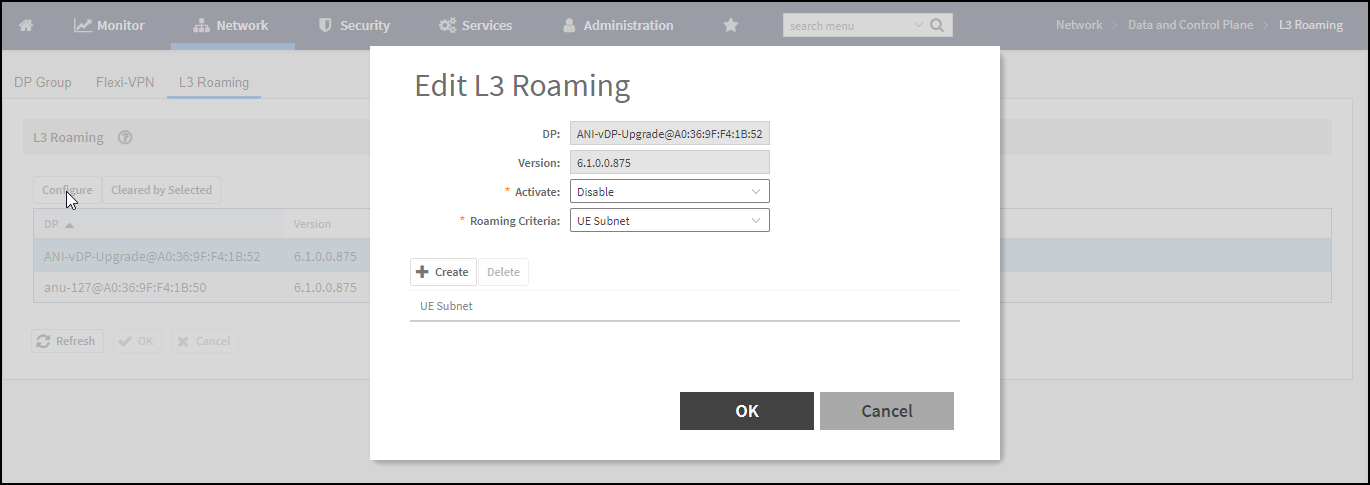
Editing L3 Roaming for a vSZ-D/SZ100-D/SZ144-D
For L3 roaming to work without session break, the data planes between which the roaming
happens must both be enabled with the L3 Roaming feature.
Note: If the IP address of the UE changes, then the session breaks.
- Go to .
- Select L3 Roaming.
- Click
Configure to edit the L3 roaming settings.
The Edit L3 Roaming page is displayed.
- From Activate, you can enable the feature for the DP by selecting Enable or Disable from the drop-down menu.
- From the Roaming Criteria list, select one of the following options to define the data format to establish connection between DPs: UE Subnet or WLAN VLAN.
- Click
OK.
You have successfully enabled L3 roaming, and also set the roaming criteria based on which DPs would connect within the network.