Managing Segments and Segment Groups
At the Segment Group level, you can edit
the name of a Segment Group or delete a Segment Group. Within a Segment Group, you
can edit
the configuration of a specific Segment or delete a Segment when it is no longer
needed.
Complete the following steps to edit or delete a Segment Group or a specific Segment:
- From the navigation bar, select
.The My Services page is displayed.
- In the My
Services page, click the Segment Group
tile.The Segment Group page is displayed, listing all of the Segment Groups defined in the RUCKUS One account.
- Name: Displays the name of the Segment Group.
- # of Segments: Displays the total number of segments contained in the Segment Group.
- DHCP: Indicates whether DHCP services are enabled (On) or disabled (Off) for the Segment Group.
- Edge Clusters: Displays the number of Edge clusters currently associated with the Segment Group.
- Update Available: Indicates whether a newer service version is available for the Segment Group.
- Service Version: Displays the version of the Edge service currently running on the Segment Group.
You can customize which fields appear in the table by clicking the
 icon and selecting or deselecting the desired column names. Drag and drop
individual column names up or down the list to customize the left‑to‑right
column display in the table. Optionally, you can click Reset to
default to restore the default subset of
columns.
- Select the checkbox alongside a Segment Group name to access the following options:
- In the Name column, click on the name of the Segment
Group to edit the segments in that group.The selected Segment Group details page is displayed.
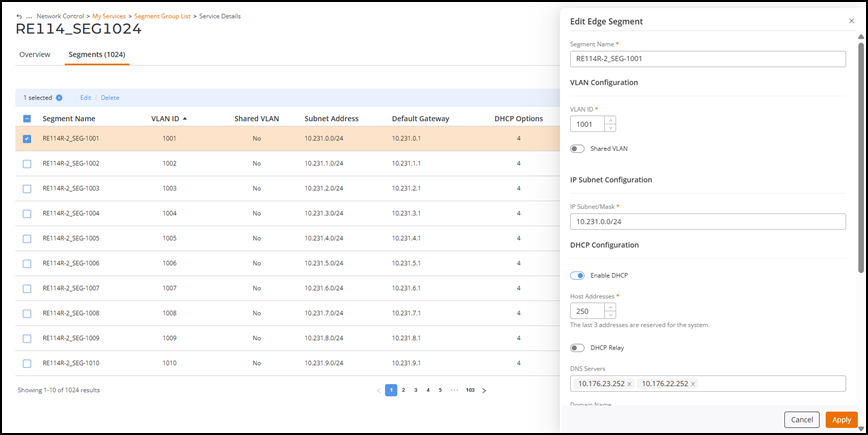
- Select the Segments tab.The segments in the Segment Group are listed.
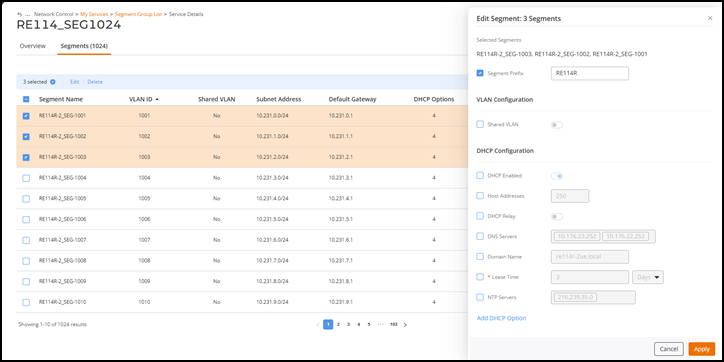
- Select the checkbox alongside the segment name to access the following options:
- Click Edit to modify a
segment configuration.Refer to Creating a Segment Group for more information.Note: You can select multiple segments and modify their configuration simultaneously.
- Click Delete to delete a segment.