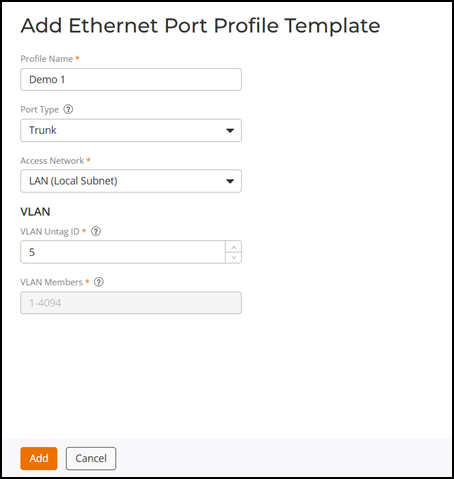
Creating an Ethernet Port Profile Template
The Ethernet Port Profile Template
provides the Layer 2 settings that the venue LAN port configuration references.
Important: An Ethernet Port Profile template that is
assigned to a venue template LAN port cannot be deleted. Before deleting the
template, remove all references to the template from every associated venue template
LAN port.
Note: Create separate Ethernet Port Profile templates when
different LAN ports require different VLAN handling or port modes.
- Trunk - A trunk port carries multiple VLANs, allowing traffic from different VLANs to pass through a single physical connection between network devices.
- Access - An access port connects a device to a single VLAN, allowing traffic only from that VLAN to pass through.
- Selective Trunk - A Trunk port type that allows you to define VLAN members values.
Complete the following steps to create an Ethernet Port Profile Template.
- On the navigation bar, select
Templates.The Configuration Templates page is displayed.
- Click .
- Configure the following details
and click Add.
- Profile Name: A name to identify the profile.
- Port
Type: Ethernet port type;
- Access Port: Use when connecting a single device or a downstream switch that requires a single untagged VLAN.
- Trunk Port: Use when connecting a downstream switch that carries traffic for multiple VLANs.
- Selective Trunk Port: Use when connecting a downstream switch that carries traffic for a specific set of VLANs.
- Access Network: Select the access network to associate traffic received on the Ethernet port with the appropriate network segment and policies.
- VLAN: VLAN ID.