Onboarding a Cluster for Active-Active High-Availability Deployment
An active-active high-availability
cluster must have a minimum of two nodes and a maximum of four nodes.
- Log in to the RUCKUS One web user interface with your credentials.
- Create the Venue for adding the device.
- On the RUCKUS One navigation
bar, click .This displays the RUCKUS Edge page.
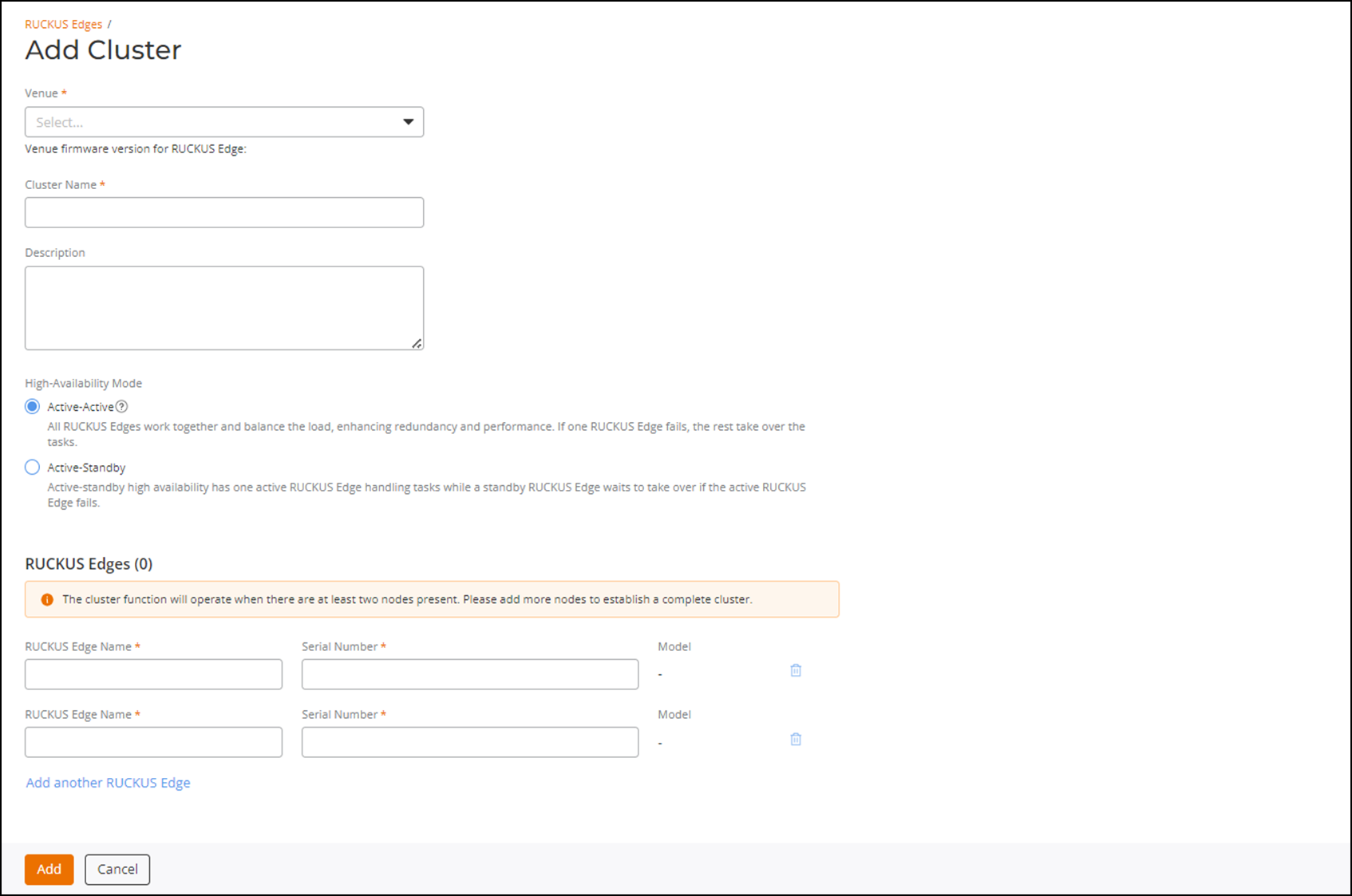
- In the RUCKUS Edge page, click Add and select Cluster. This displays the Add Cluster page.
- In the Add
Cluster page, enter the following details:
- Venue: Click the drop-down arrow to select a site for the new cluster.
- Cluster Name: Enter a meaningful name for the cluster profile.
- Description: Enter a purposeful statement for the device.
- High-Availability
Mode: Select the Active-Active option.
All RUCKUS Edge nodes collaborate to balance the load, boosting both redundancy and performance. If one RUCKUS Edge node fails, the others seamlessly take over its tasks.
- In the RUCKUS Edges
section, define a minimum of two Edge devices as two nodes are required to
establish a complete cluster. You can add a maximum of four nodes per cluster.
Enter the RUCKUS Edge
Name and Serial Number of
the first Edge device in the available fields. To add more Edge devices to the
cluster, click the Add
another RUCKUS Edge option and enter the RUCKUS Edge Name
and Serial
Number.
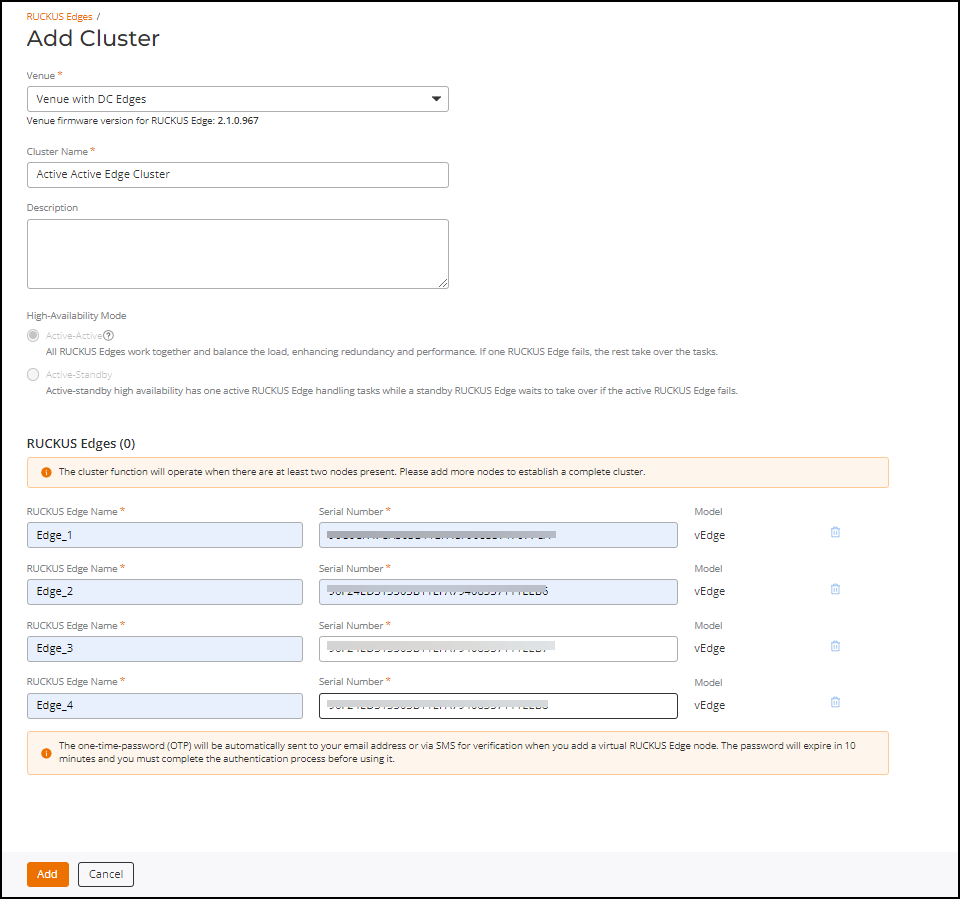
- RUCKUS Edge Name: Enter a meaningful name for the nodes.
- Serial Number: Enter the serial number of the Edge device. You can obtain the serial number by logging in to the Edge CLI or by looking at the label on the physical Edge device.
- Model: After the serial number is entered, the model name is displayed automatically.
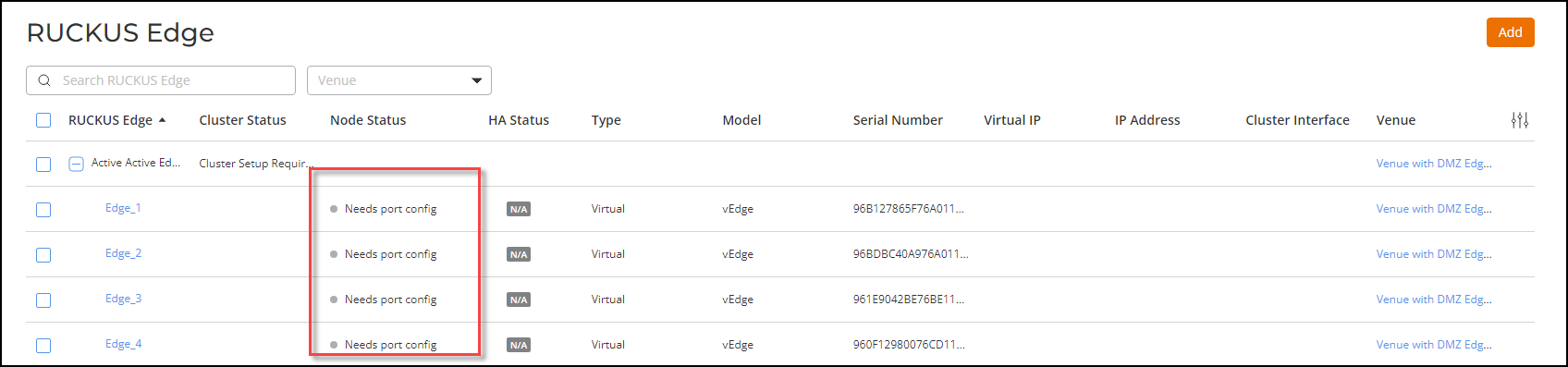
Note: The one-time password (OTP) is automatically sent to your email address or through the SMS for verification when you add a virtual Edge node (each Edge added as part of the Add Cluster receives an OTP for verification). The password expires in 10 minutes and you must complete the authentication process before the OTP expires; otherwise, you have to request a new OTP. - Click Add.