Adding DPSK Service
Dynamic Pre-Shared Key is a encryption
technology developed to provide robust and secure wireless access.
- On the RUCKUS One navigation bar, hover on Network Control and click My Services.
- Click
DPSK option in the menu.This displays DPSK page.
- Click Add DPSK
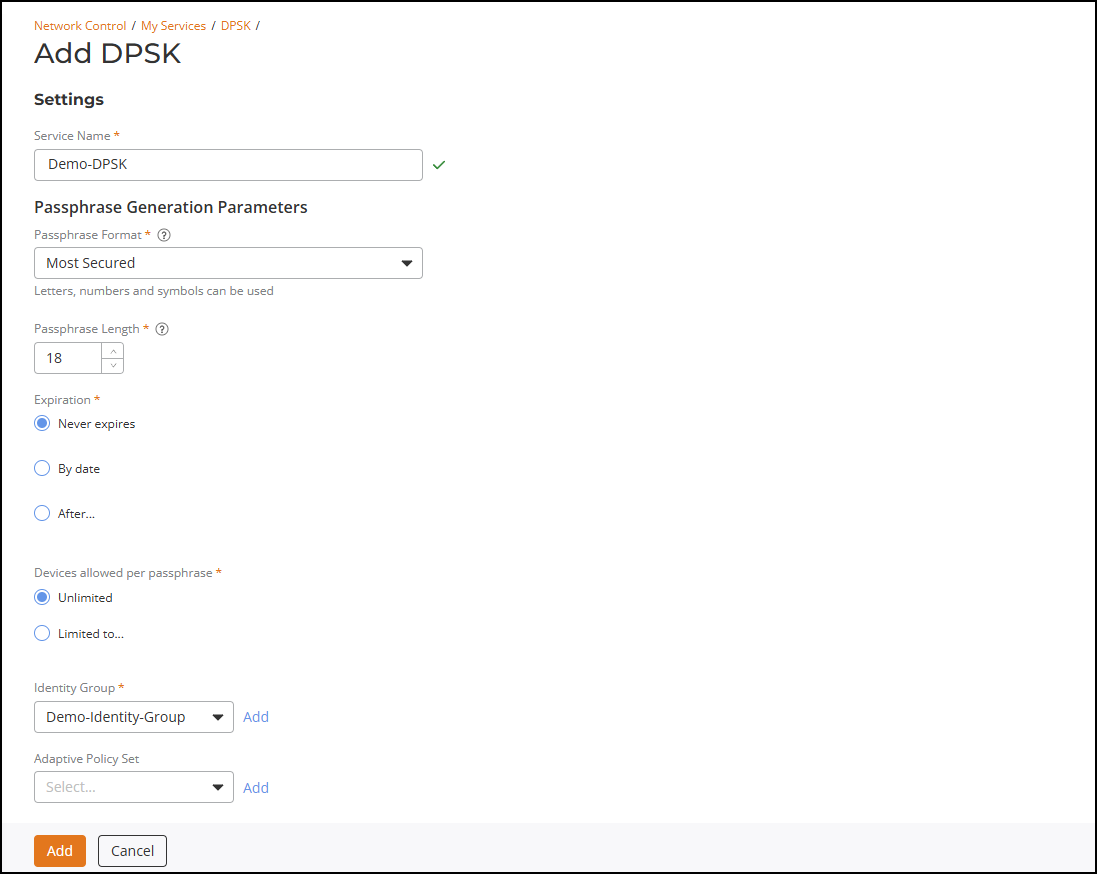
Service.This displays Add DPSK Service page.
- In the Add DPSK
Service page, enter the following details:
Under Settings enter the service name
Under Passphrase Generation Parameters enter the following details:
- Passphrase Format - Click on the drop-down menu and select the passphrase format.
- Passphrase Length - Enter the passpharse length. Valid range 8 to 63.
- Expiration - Select the expiration type,
- Devices Allowed per Passphrase - Select the number of devices to be allowed per passphrase.
- Identity Group - Select the identity group from the drop-down list or click Add to create a new Identity Group. Refer to Creating a New Identity Group for more information.
- Adaptive Policy Set - Select the policy set from the drop-down list.
After entering all the fields, click Add. The newly created DPSK service is added to the list.