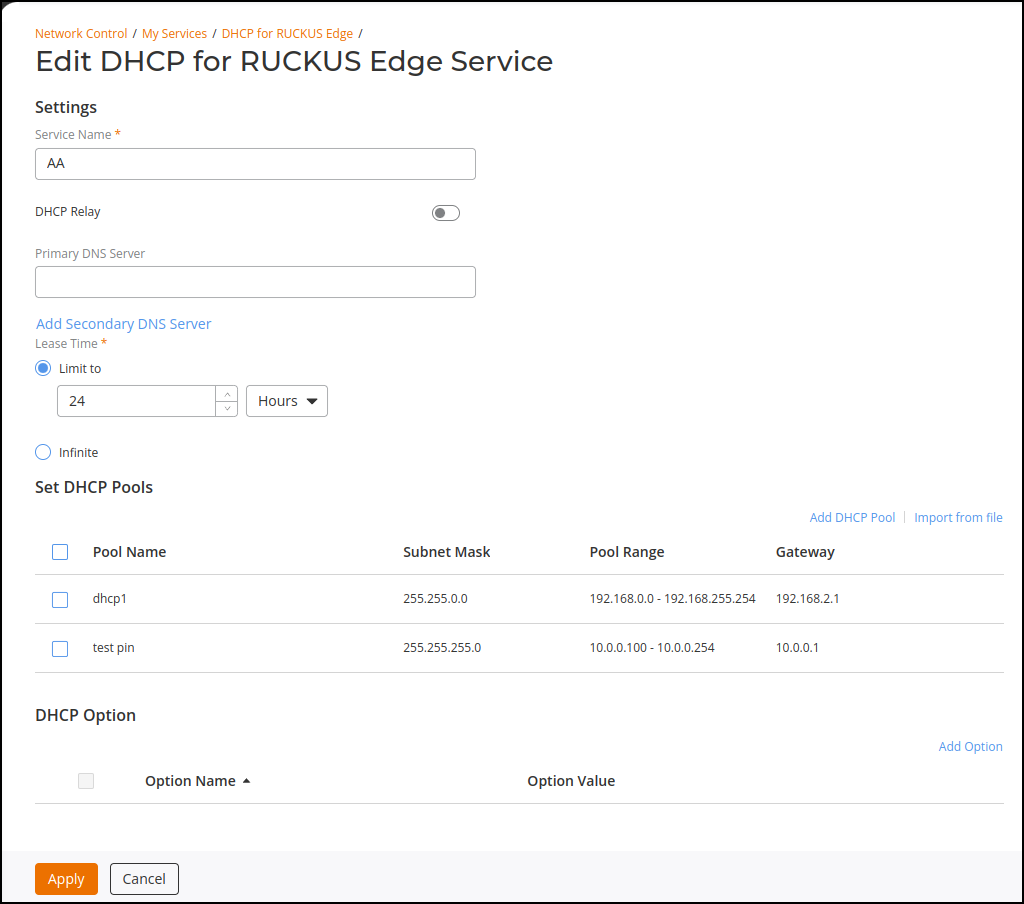
Editing a DHCP for RUCKUS Edge Service
- On the RUCKUS One navigation
bar, hover on Network
Control and click My Services.This displays the My Services menu.
- Click DHCP for RUCKUS
Edge.This displays the list of DHCPs in the DHCP for RUCKUS Edge Service.
- Select check box corresponding to the name of the DHCP for RUCKUS Edge Service.
- Click Edit.
- Edit the DHCP settings as required and click Apply. A confirmation message is displayed and the selected DHCP is updated with the new information.