Creating a New Tunnel Profile
Tunnel profile allows the user to verify
connectivity between VPN peers. Configuring tunnel interface can be used to ping a
destination IP at specified intervals if the communication across the tunnel is
broken.
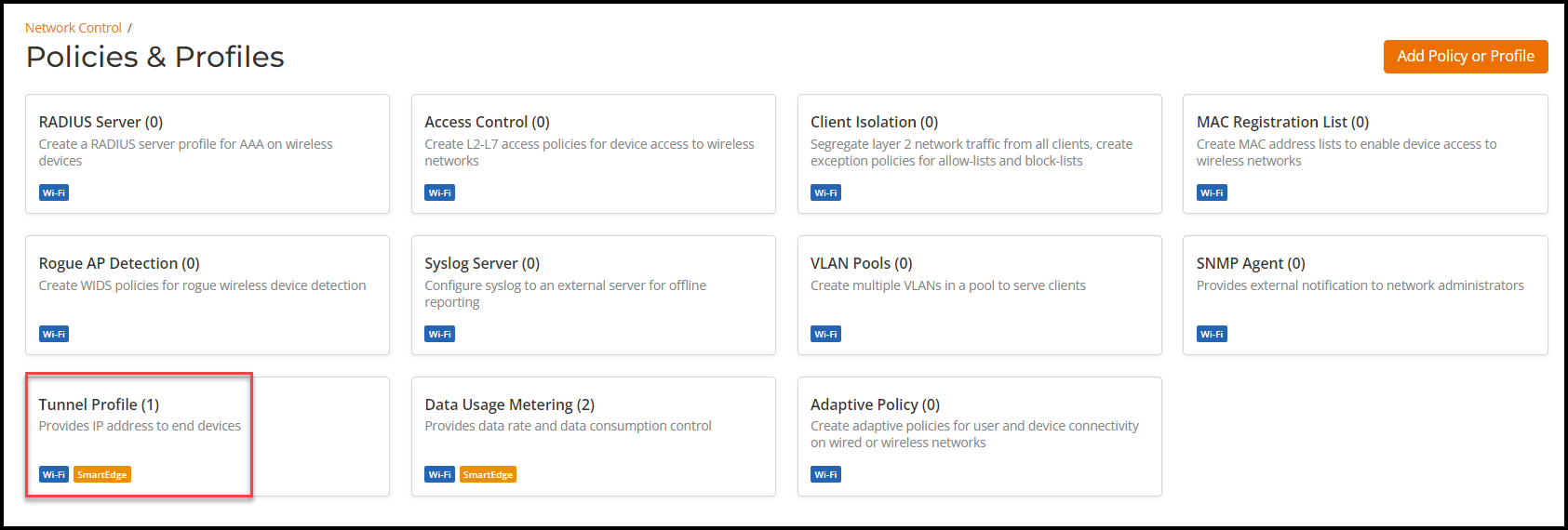
- On the RUCKUS One navigation
bar, hover mouse on Network Control and select
Policies and Profiles. . This displays Policies and Profiles page.
- In the Policies and Profiles page, click Tunnel Profile.
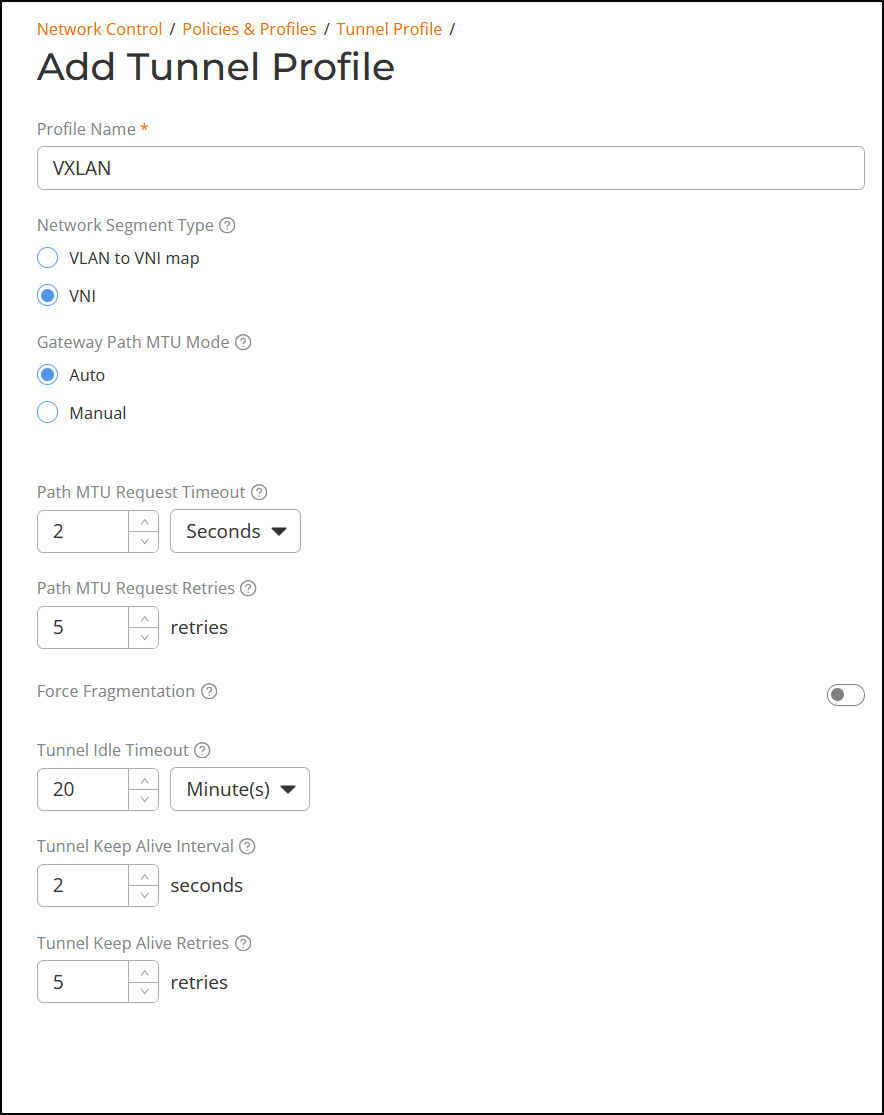
- Click Add Tunnel
Profile and enter the following details:
- Profile Name: Enter the name for the tunnel policy.
- Network Segmentation Type: The VLAN to VNI map option is selected by default. The SD-LAN service maps the VLAN ID to the VNI for tunneling. The VNI option is used for the PIN feature.
- Gateway Path MTU Mode: Select one of following options:
- Path MTU Request Timeout: The maximum wait time for a response to a path MTU request. Range: 10 milliseconds to 10 seconds; default is 2 seconds.
- Path MTU Request Retries: The maximum number of Path MTU requests sent to test one MTU value. Range: 3 through 64; default is 5 retries.
- Force Fragmentation: When enabled, the AP or Edge device will automatically fragment packets, ignoring the Don't Fragment (DF) bit in the IP header of the packets. Forced packet fragmentation can reduce congestion and improve network throughout, but it may lead to fragment loss, packet reassembly issues, and memory exhaustion. This option is disabled by default. Toggle the switch to ON to enable.
- Tunnel Idle Timeout: The amount of time a tunnel is allowed to remain active without any traffic. Select Minutes, Days, or Weeks from the drop-down list and then enter the duration or use the up/down arrows to set the value. Range: 5 through 10080 minutes, 1 through 7 days, or 1 week; default is 20 minutes.
- Tunnel Keep Alive Interval: Defines the interval between two consecutive keepalive request messages. Range: 1 through 5 seconds, with a default value of 2 seconds.
- Tunnel Keep Alive Retries: Defines the maximum number of consecutive keepalive requests that can fail before the AP determines the Edge device is unreachable. Range: 3 through 10 retries, with a default value of 5.
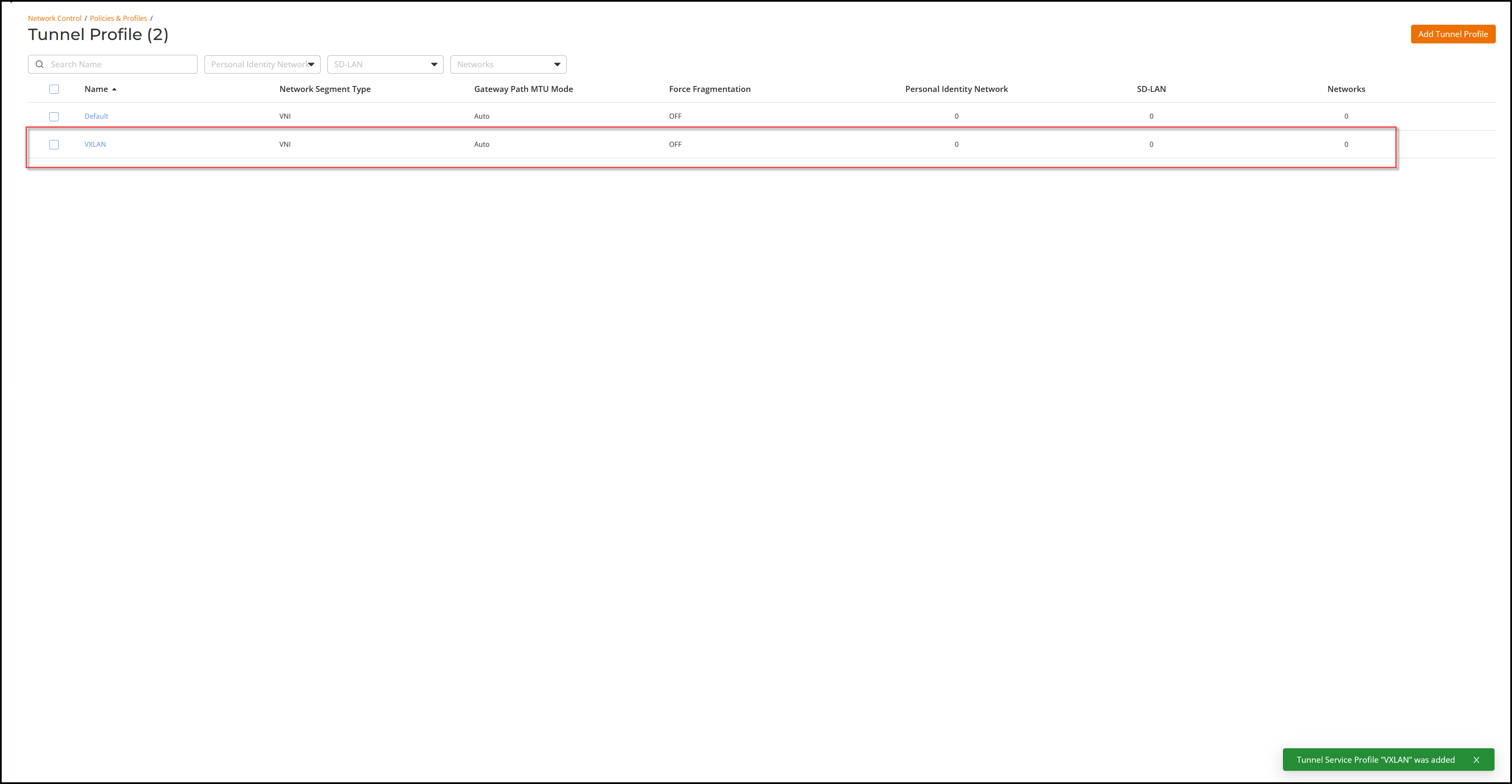
- After entering all the fields, click Add.