Logging In to RUCKUS IoT Controller
- Log in to the console of the RUCKUS IoT Controller using the username "admin" and password "admin".
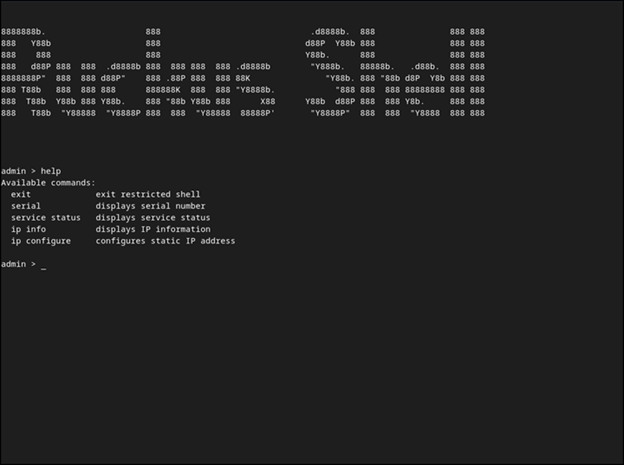
- Enter help at the admin prompt to view the list of available commands.
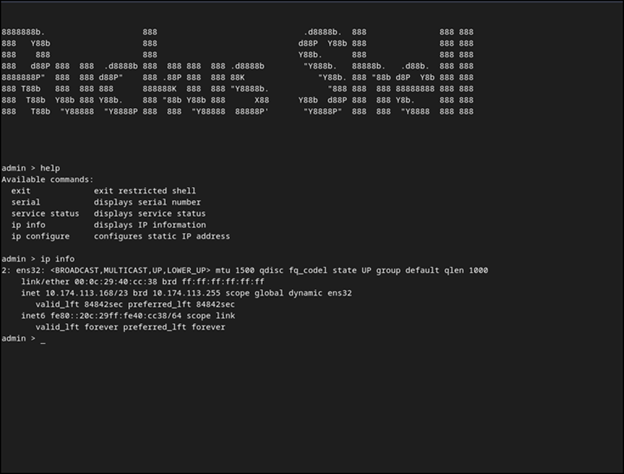
- Enter ip info at the admin prompt to get the IP address of the virtual machine.
- Open a web browser, enter the IP address in the address bar, and press Enter.
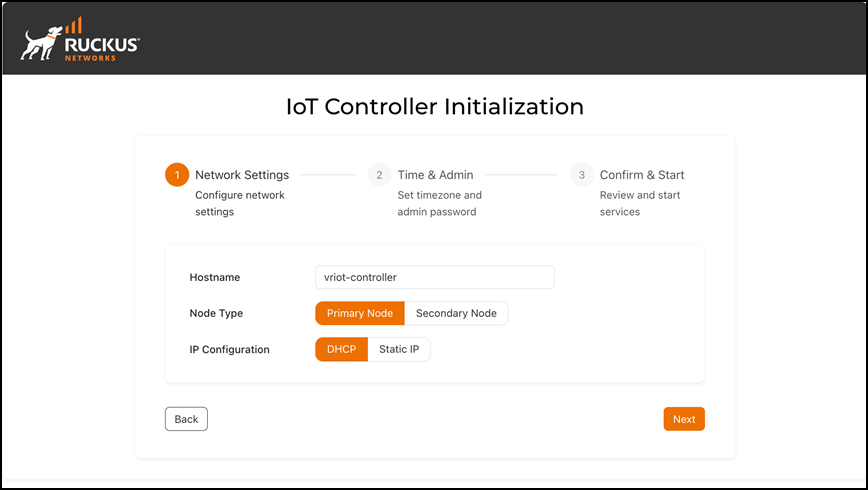
- Configure the Network Settings. Enter the Hostname. Select Primary Node to configure the controller as standalone or select Secondary Node to add the controller to the HA cluster. Select the IP Configuration (DHCP or Static), and click Next.
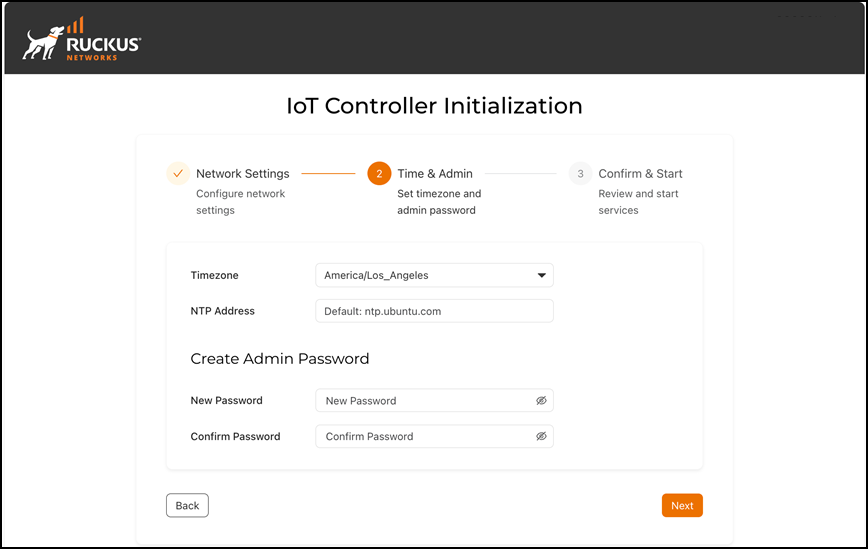
- Configure the Time & Admin. Enter the values for Timezone and NTP Address. In the Create Admin Password, enter new password and re-enter the new password in the Confirm Password field. Click Next.
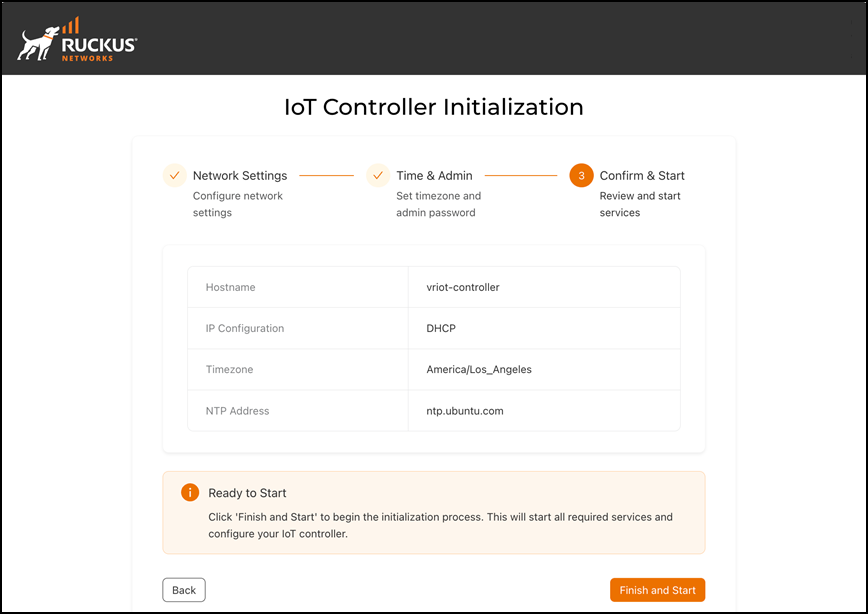
- Review the configurations and click Finish and Start.
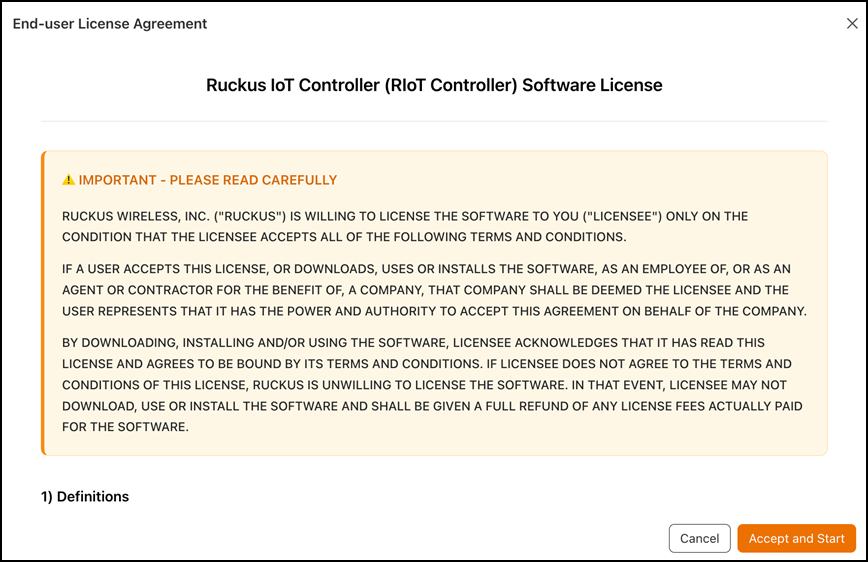
- The End-user License Agreement page is displayed. Click Accept and Start to accept the RUCKUS IoT Controller license.
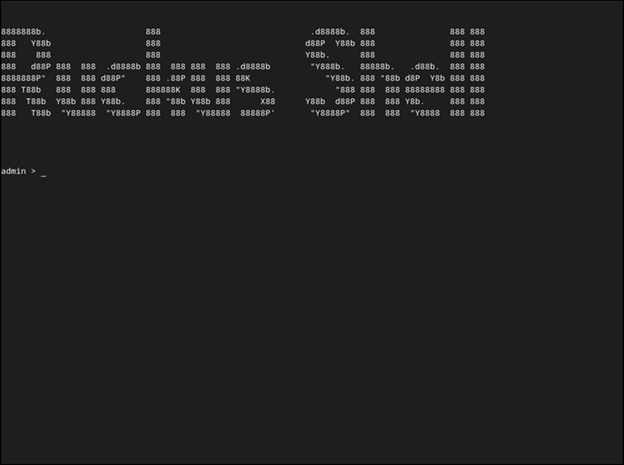=GUID-54BF4085-78C3-44BA-B69C-915CF7489C3A=1=en-US=Low.png "Displaying the CLI Window")

=GUID-66BADA96-0EAA-4CB6-9DBD-31E4B8F45F81=2=en-US=Low.png)