Activating and Editing the Eddystone Plugin
Activate the plugin to manage iBeacons.
The RUCKUS IoT Controller securely routes all the beacon data to the configured
endpoints.
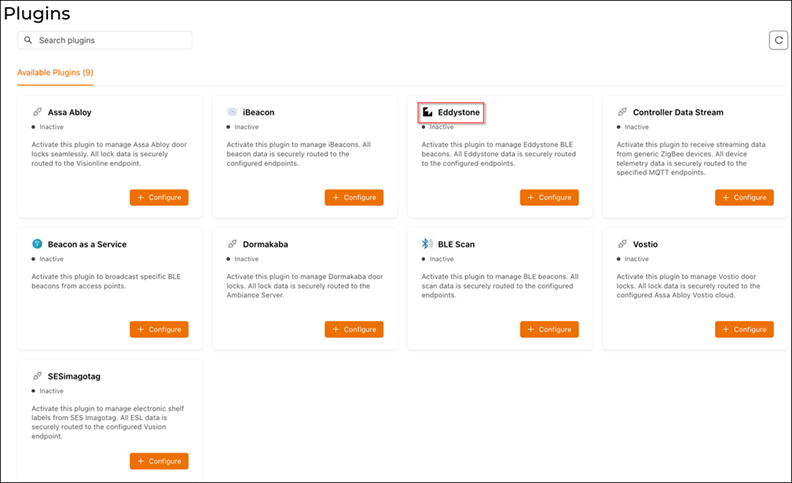
- From the main menu, select .
- Click Plugins.
- Click the Available Plugins tab.
- In the Eddystone tile,
click +
Configure to activate the plugin.The Eddystone Configuration sidebar is displayed.
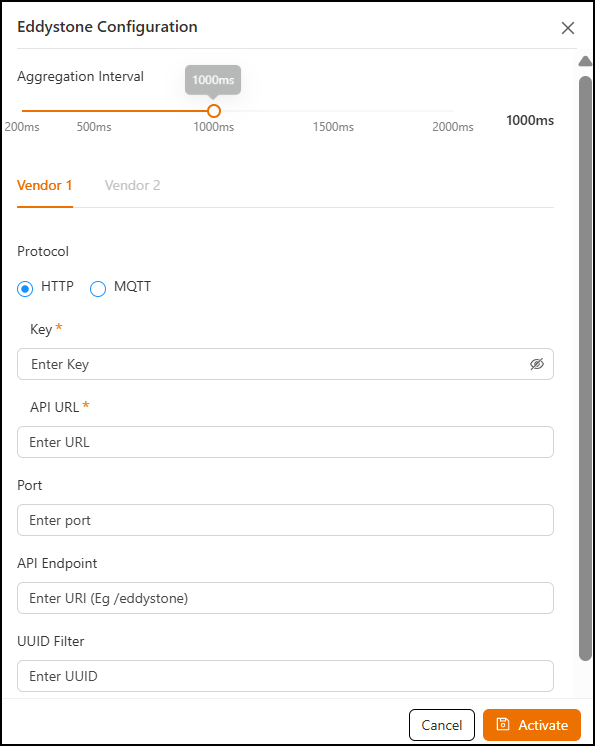
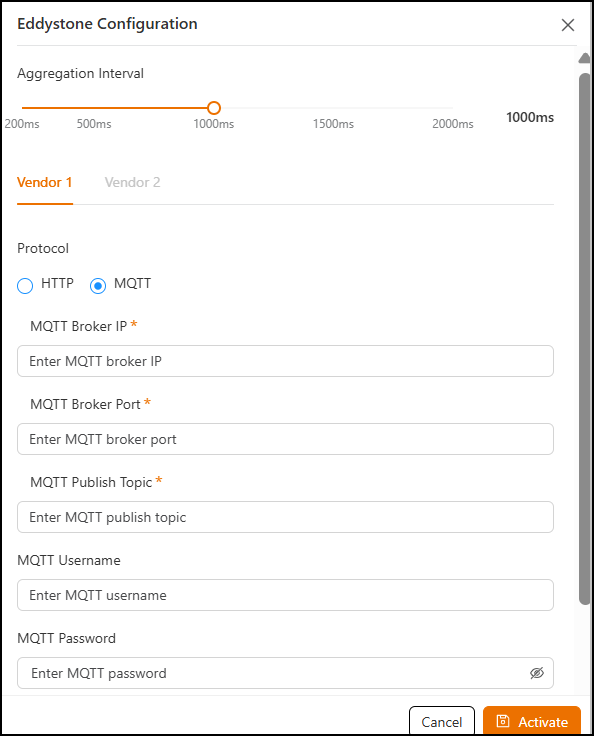
- Select either the HTTP or
MQTT
protocol option.
- Aggregation Interval: Allows you to set the time interval between the two packets.
- Key: Enter the Key.
- API URL: Enter the API URL.
- Port: Enter the Port number.
- API Endpoint: Enter the API Endpoint.
- UUID
Filter: Enter the UUID Filter.The filter allows only the BLE ADV packets with the specified UUID to be passed on to the vendor application.
- Enable
heartbeat: Click the toggle to enable periodic heartbeat
messages, which is useful for monitoring connection health. This option
is disabled by default.Enabling heartbeat allows the vendor application to receive the IoT AP status, such as online or offline.
- For MQTT Broker
IP, enter the IP address or hostname of the
broker.This is a mandatory field.
- For MQTT Broker
Port, enter the port number.This is a mandatory field.
- For MQTT Publish
Topic, topic where messages from this device/system will
be published.This is a mandatory field.
- For MQTT Username, enter the username for authenticating with the MQTT Broker.
- For MQTT Password, enter the password for authenticating with the MQTT Broker.
- For UUID
Filter, enter the required UUID filter.The filter allows only the BLE ADV packets with the specified UUID to be passed on to the vendor application.
- For Enable heartbeat, click the toggle to enable periodic heartbeat messages, which is useful for monitoring connection health. This option is disabled by default.
- Click Activate to save the changes.
- (Optional) Click Configure to edit the existing configuration.
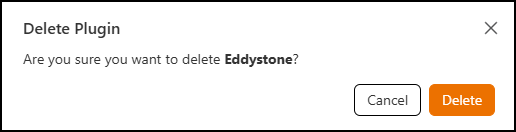
- (Optional) Click Delete to delete the plugin.