Activating and Editing the Controller Data Stream Plugin
Activate this plugin to receive
streaming data from generic ZigBee devices. When enabled, device telemetry data
is securely
routed to the specified MQTT endpoints.
To establish a connection to a partner infrastructure, the administrator must perform the following steps.
- From the main menu, select Admin.
- Click Plugins.
- Click the Available Plugins tab.
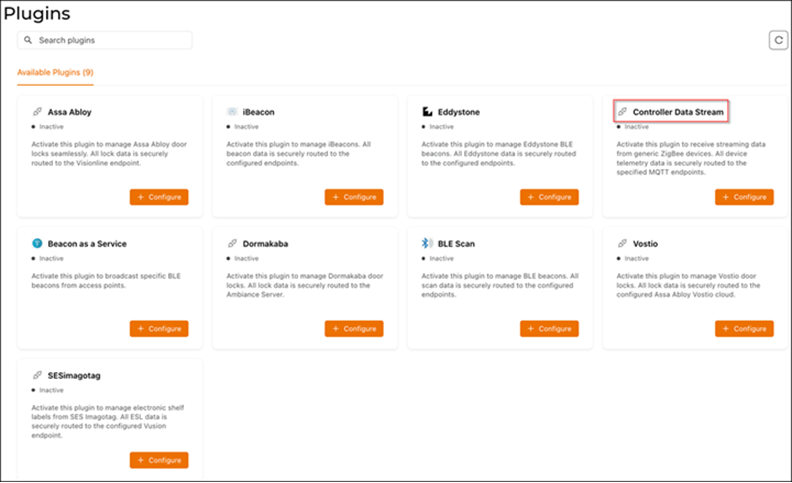
- In the Controller Data
Stream tile, click + Configure to
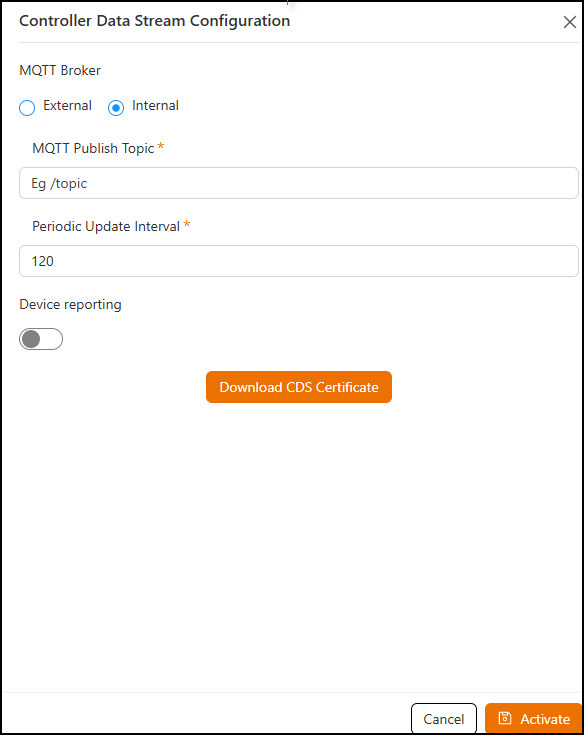
activate the plugin.The Controller Data Stream Configuration sidebar is displayed.
- Select either the External or Internal option.
- If the External option
is selected, configure the following parameters.
- MQTT Broker IP: Enter the IP address of your MQTT broker.
- MQTT Broker Port: Enter the network port to which you want to connect.
- MQTT Publish Topic: Enter the topic name as a simple string that is hierarchically structured with forward slashes (/) as delimiters. An MQTT client can publish messages as soon as it connects to a broker.
- Periodic Update Interval: Enter the interval to receive MQTT publications.
- Device Reporting: Enable Device Reporting and specify the topic where messages will be published, ensuring they are forwarded exactly as received from the device.
- Validate Server Certificate: Enable to secure the connection with SSL.
- MQTT Publish Topic: Enter the topic name as a simple string that is hierarchically structured with forward slashes (/) as delimiters. An MQTT client can publish messages as soon as it connects to a broker.
- Periodic Update Interval: Enter the interval to receive MQTT Publish.
- Device Reporting: Enable Device Reporting and specify the topic where messages will be published, ensuring the controller forwards them exactly as received from the device.
- Download CDS Certificate: Click to download the
certificate.Note: The CDS certificate is the security certificate used for secure data streaming between the controller and the MQTT broker.
- Click Activate to save the changes.
- (Optional) Click Configure to edit the existing configuration.
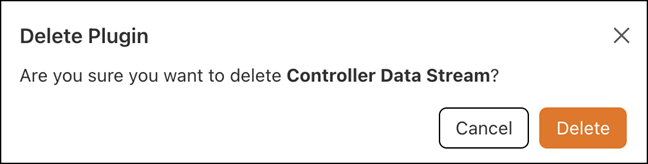
- (Optional) Click Delete to delete the plugin.