Customizing Web Authentication Pages
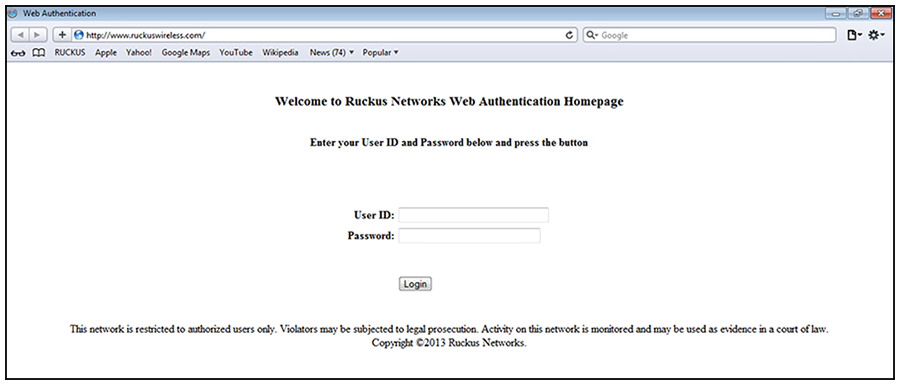
You can customize the following objects in the Web Authentication pages:
You can use the
show webauth
and
show webauth vlan
vlan-ID webpage commands to determine what text has been configured for Web Authentication pages.
The following figure shows the placement of these objects in the Login page.
Customizing the Title Bar
You can customize the title bar that appears on all Web Authentication pages. To do so, enter a command such as the following.
device(config-vlan-10-webauth)# webpage custom-text title "Ruckus Secure Access Page"
You can enter up to 128 alphanumeric characters for the title bar. The default title bar is "Web Authentication".
To reset the title bar to the default value, enter the
no webpage custom-text title command.
Customizing the Banner Image (Logo)
You can customize the banner image (logo) that appears on all Web Authentication pages.
To customize the banner image, use the TFTP protocol to upload an image file from a TFTP server to the FastIron switch. The image file can be in the .jpg, .bmp, or .gif format, and must be 64Kb or less. If you upload a new image file, it will overwrite the existing image file.
To replace the existing logo with a new one, enter a command such as the following.
device(config-vlan-10-webauth)# webpage logo copy tftp 10.10.5.1 ruckuslogo.gif
webpage
logo
copy
tftp command downloads the image file and stores it in the device flash memory. Therefore,
it is not necessary to follow this command with a
write memory command.
Use the
no webpage logo command to delete the logo from all Web Authentication pages and remove it from flash
memory.
Aligning the Banner Image (Logo)
You can configure the placement of the logo that appears on all Web Authentication pages. By default, the logo is left-aligned at the top of the page. To center the logo at the top of the page, enter the following command.
device(config-vlan-10-webauth)# webpage logo align center
To right-justify the log at the top of the page, enter the following command.
device(config-vlan-10-webauth)# webpage logo align right
Use the
no webpage logo align
command to reset the logo back to its default position.
Customizing the Header
You can customize the header that appears on all Web Authentication pages.
To customize the header, enter a command such as the following.
device(config-vlan-10-webauth)# webpage custom-text top "Welcome to Network One"
You can enter up to 255 alphanumeric characters for the header. The default text is "Welcome to Ruckus Wireless, Inc. Web Authentication Homepage".
To reset the header back to the default text, enter the
no webpage custom-text
top command.
Customizing the Text Box
You can customize the text box that appears on the Web Authentication login page. By default, the text box is empty and is not visible. To create a text box or to replace the existing one, upload an ASCII text file from a TFTP server to the FastIron switch. The text file size must not exceed 2Kb.
To create or replace a text box, enter a command such as the following.
device(config-vlan-10-webauth)# webpage terms copy tftp 10.10.5.1 policy.txt
webpage
terms
copy
tftp command downloads the text file and stores it in the device flash memory. Therefore,
it is not necessary to follow this command with a
write memory command.
To revert back to the default (no text box), enter the
no webpage terms command.
Customizing the Login Button
You can customize the Login button that appears on the bottom of the Web Authentication Login page. To do so, enter a command such as the following.
device(config-vlan-10-webauth)# webpage custom-text login-button "Press to Log In"
You can enter up to 32 alphanumeric characters for the Login button text. The default Login button text is "Login".
To reset the Login button to the default value, enter the
no webpage custom-text
login-button command.
Customizing the Footer
You can customize the footer that appears on all Web Authentication pages.
To customize the footer, enter a command such as the following.
device(config-vlan-10-webauth)# webpage custom-text bottom "Network One Copyright 2010"
You can enter up to 255 alphanumeric characters for the footer text. The default text is "This network is restricted to authorized users only. Violators may be subjected to legal prosecution. Activity on this network is monitored and may be used as evidence in a court of law. Copyright 2018 Ruckus Wireless, Inc."
To reset the footer to the default text, enter the
no webpage custom-text
bottom.