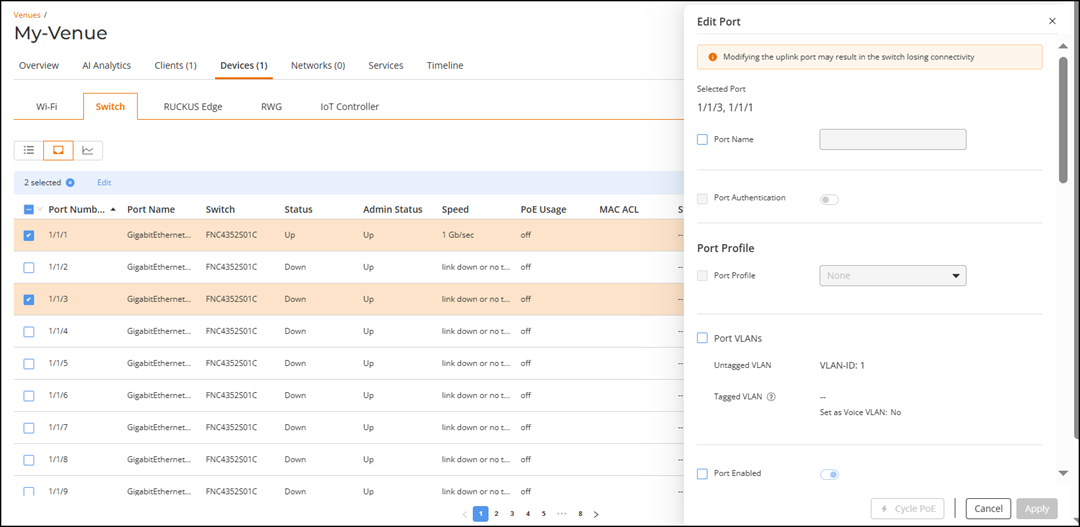
Viewing the Switch Ports in a Venue
- On the navigation bar, click
Venues.The Venues page is displayed.
- Click a specific Venue name and then from the Overview page, click . Alternatively, click the number displayed in the Switches column.
- Click the Port List icon to
view the ports.The Port List view displays the following information about each switch port:
- Port Number: Displays the port number of the switch.
- Port Name: Displays the port name of the switch.
- Switch: Displays the name of the switch.
- Status: Displays the status of the switch. For example, if the switch is powered on and is providing networking service to clients, a green check mark appears with the word Operational next to it.
- Admin Status: Displays the admin status of the switch port (Up or Down).
- Speed: Speed of the switch port.
- PoE Device Type: Displays the PoE type used in the switch.
- PoE Usage: Displays the PoE usage level in each port of the switch.
- VLANs: Displays the VLAN assigned to each port of the switch.
- Neighbor Name: Displays the name of the next neighbouring device.
- Ext. IP Address: External IP address of the switch.
You can customize which fields must appear in the Ports table by clicking the
 icon and selecting or deselecting the desired column names. Optionally,
you can click Reset to default to have the default subset of columns
appear in the Ports table.
icon and selecting or deselecting the desired column names. Optionally,
you can click Reset to default to have the default subset of columns
appear in the Ports table.To search for a specific port, enter the Port Name, Port Number, or Neighbor Name in the Search field, all matching entries are displayed.
You can filter the list of ports using the Status and VLANs drop-down lists.
You can sort the list of switch ports by clicking the associated column header.