Managing a Property Unit and Associated Identities
RUCKUS One property management allows you
to manage the configuration and availability of a specific Property Unit, as well
as manage
the individual Identities associated with the property unit.
- Property Management must already be enabled for the venue and one or more units are already added to the property. Refer to Creating a Property Management and Property Unit for more information.
- An Identity Group must already be associated with the venue and Identities must already have been created and associated with the Identity Group. Refer to Managing Identity Groups and Managing an Identity.
- Identities have already been added to the Property Unit. Refer to Adding Multiple Identities to a Property Unit for more information.
- On the navigation bar, click
Venues.The Venues page is displayed.
- Click on the specific
Venue Name.By default, the Overview tab for the venue is displayed.
- Select the Property Units tab.
- Click on a unit name in the Unit Name column.
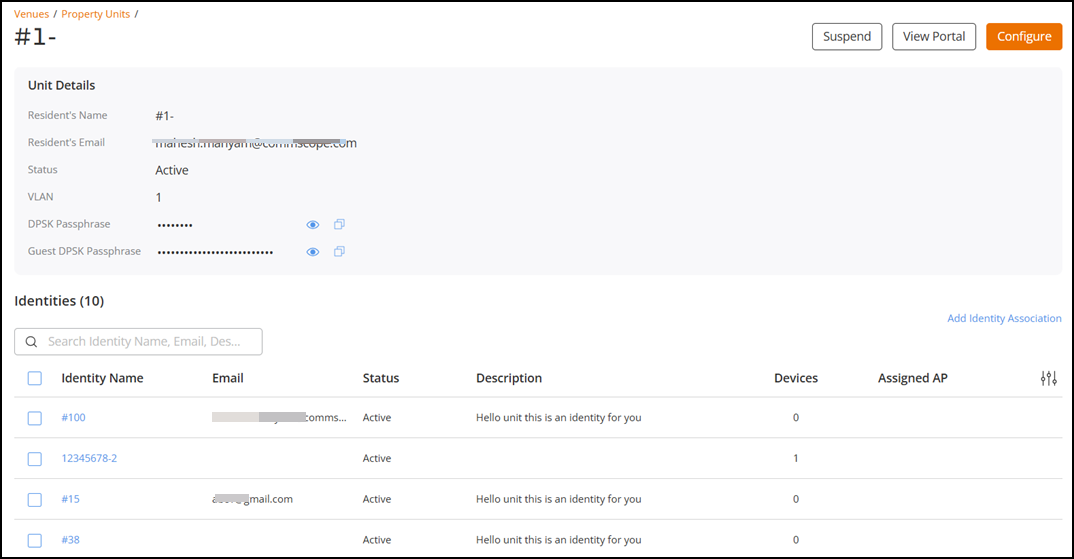
- (Optional) Remove the association of an Identity with the unit. In the Unit Details page, under Identities, click the checkbox for a specific identity name to display the Remove Association option. Click Remove Association; click Remove Association in the confirmation box to remove the identity from the property unit.
- (Optional) Block an identity associated with the unit. In the Unit Details page, under Identities, click the checkbox for a specific identity name to display the Block option. Click Block; click Block in the confirmation box to block the user from accessing the property unit network.
- Suspend the property unit. On the upper-right corner of the Unit Details page, click Suspend. Click Suspend in the confirmation box to confirm suspension of the property unit.
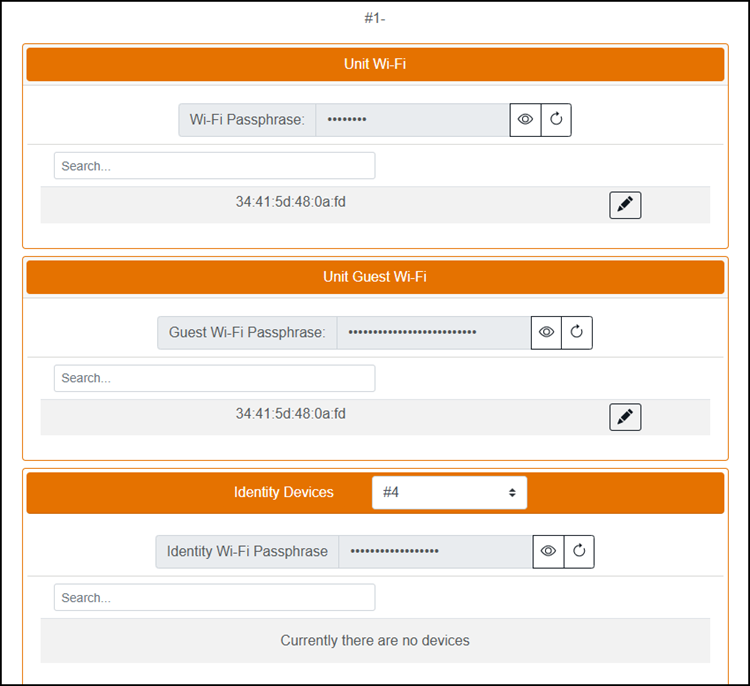
- (Optional) Access and manage the resident's portal.