Viewing Switches Assigned to a Venue
From the RUCKUS One web interface, you can view the switches that are assigned to
a
venue.
- On the navigation bar, click
Venues.The Venues page is displayed.
- Click . Alternatively, click Number displayed in the Switches column.
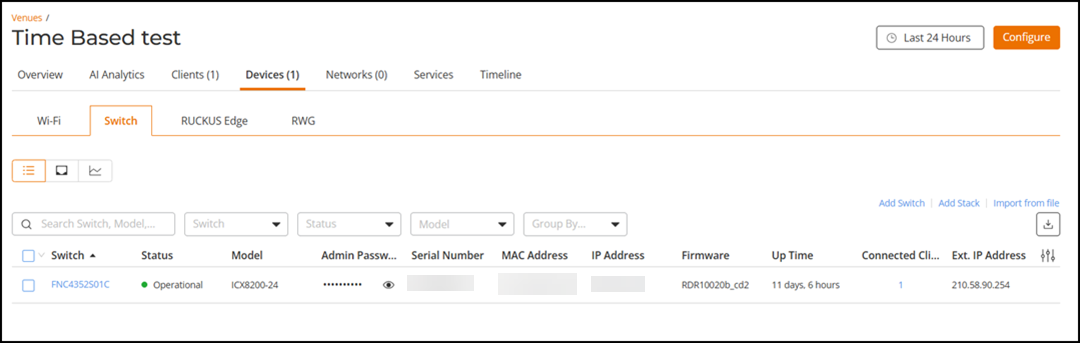
- Click List icon.The List tab for the venue appears and displays the following information about each switch that is assigned to the venue:
- Switch: Name of the switch.
- Status: Indicates the status of the switch. For example, if the switch is powered on and is providing networking service to clients, a green check mark appears with the word Operational next to it.
- Model: Model number of the switch.
- Admin Password: Admin password of the switch.
- Serial Number: Serial number of the switch.
- MAC Address: MAC address of the switch
- IP Address :IP address of the switch
- Venue: The name of the venue to which this switch is physically connected.
- Up Time : Days and time since when the switch has been providing service.
- Connected Clients: Number of clients currently associated with the switch.
- Click Port icon.
added step 4. Need SME inputs for some fields.The Port tab for the venue appears and displays the following information about each switch that is assigned to the venue:
- Port Number: Port number of the switch.
- Port Name: Port name of the switch.
- Switch: Name of the switch.
- Status: Status of the switch.
- Admin Status: Admin status of the switch.
- Speed: Speed of the switch.
- PoE Device Type: PoE type used in the switch.
- PoE Usage: PoE usage level in each port of the switch.
- VLANs: VLAN assigned to each port of the switch.
- Bandwidth IN: Incoming bandwidth
- Bandwidth OUT: Outgoing bandwidth
- LAG Name: Name of the Link Aggregation Group (LAG)
- Neighbor Name: Name of the next neighboring device.
- Outgoing Multicast Packets: Number of Outgoing Multicast Packets
- Incoming Broadcast Packets: Number of Incoming Broadcast Packets
- Outgoing Broadcast Packets: Number of Outgoing Broadcast Packets
- In Errors: Errors reported for incoming packets
- Out Errors: Errors reported for outgoing packets
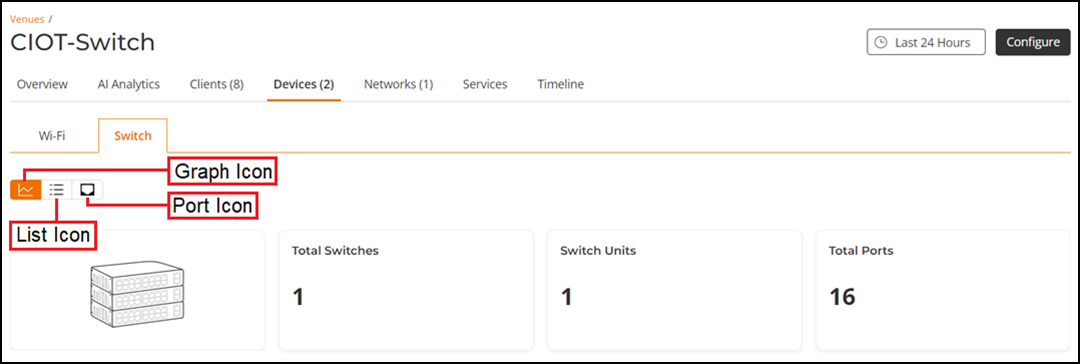
- Click the Graph icon.
added step 5.