Cloning a Venue
You can clone an existing venue to quickly
create a new venue with similar settings. During cloning, you can update only a few
fields,
while all other configurations are copied automatically.
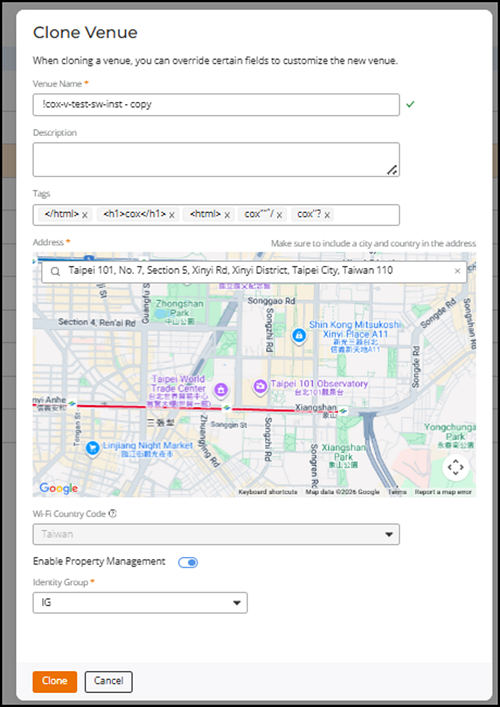
- Cloning a venue creates a new venue using an existing venue as the source and copies its configuration and associated settings. Only the venue name, address, tags, description, and identity group can be changed; all other settings are copied automatically.
- Non-default AP groups are cloned, and the related Wi-Fi, Switch, and Property Management configurations are applied without requiring manual reconfiguration. Default AP groups are not duplicated.
- The clone operation may take longer to complete than other venue actions. After cloning is complete, the new venue is created as a separate, editable entity, and changes made to it do not affect the source venue.
- If SD‑LAN features associated with RUCKUS Edge are enabled on the source venue,
you must disable them before you clone the venue. The system prevents cloning
until SD‑LAN is turned off.
ACX-111181.Deleted Cloning is not supported for venues that include RUCKUS Edge. The cloned venue reuses the same Property Management configuration (ACX-102797- Added per Zam Huang’s request.)
- The clone does not copy the
following settings: Property Management System (PMS) attribute, Wi‑Fi DHCP
Service settings for Multiple AP DHCP, Wi‑Fi DHCP Service settings for
Hierarchical AP DHCP, and Edge PIN settings. You can review and configure them
on the cloned venue if required.
Note: Only the PMS attribute is excluded during cloning. All other Property Management settings, including the Identity Group, are copied to the cloned venue. You can configure the PMS attribute on the cloned venue after cloning.
- From the navigation bar, click
Venues. The Venues page is displayed.
- Click the checkbox alongside the venue name, then click the Clone option that appears above the table.
- Enter a name in the Venue Name field.
- (Optional) Enter a description in the Description field.
- (Optional) Add relevant tags in the Tags field.
- (Optional) Enter or edit the Address. Include the city and country details. The embedded map automatically updates based on the entered location.
- (Optional) Enable Property Management, if required.
- Select an identity group from the Identity Group drop-down list. This is required if Property Management is enabled.
- Click Clone.
ACX-111181