Venue Details: Switch
- On the navigation bar, click
Venues.The Venues page is displayed.
- For a specific Venue Name, click the number displayed in the Switches column. Alternatively, click a specific Venue Name and then from the Overview page, click .
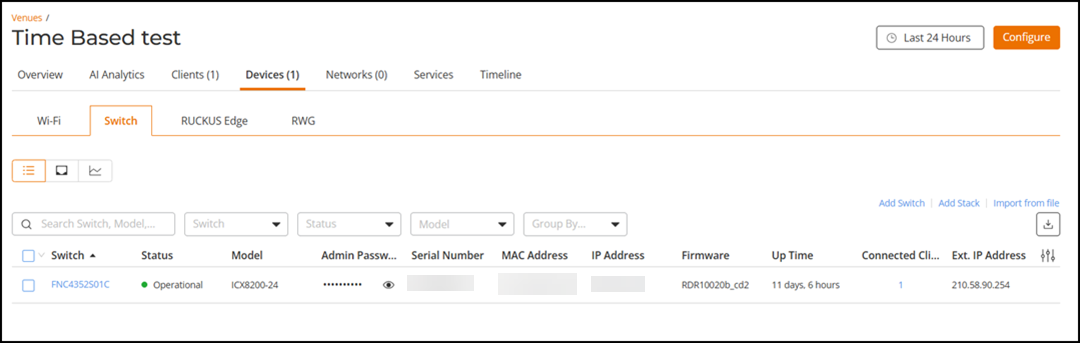
- Click the Device List icon.
The following switch information is displayed:
- Switch: Displays the name of the switch.
- Status: Displays the status of the switch. For example, if the switch is powered on and is providing networking service to clients, a green dot appears with the word Operational next to it.
- Model: Displays the model number of the switch.
- Admin Password: Displays the admin password of the switch.
- Serial Number: Displays the serial number of the switch.
- MAC Address: Displays the MAC address of the switch.
- IP Address: Displays the IP address of the switch.
- Firmware: Displays the firmware version running on the switch.
- Up Time: Displays the amount of time (in days and hours) that the switch has been providing service.
- Connected Clients: Displays the number of clients currently associated with the switch.
- Ext. IP Address: Displays the external IP address of the switch.
You can customize which fields must appear in the Device List table by clicking the
 icon and selecting or deselecting the desired column names. Optionally,
you can click Reset to default to have the default subset of columns
appear in the Device List table.
icon and selecting or deselecting the desired column names. Optionally,
you can click Reset to default to have the default subset of columns
appear in the Device List table.To search for a specific switch, enter the Switch Name, Model, Serial Number, MAC Address, IP Address, or Ext. IP Address in the Search field, all matching entries are displayed.
You can filter the list of switches using the Switch, Status, Model, and Group By drop-down lists. You can make multiple model selections to filter the Device List table.
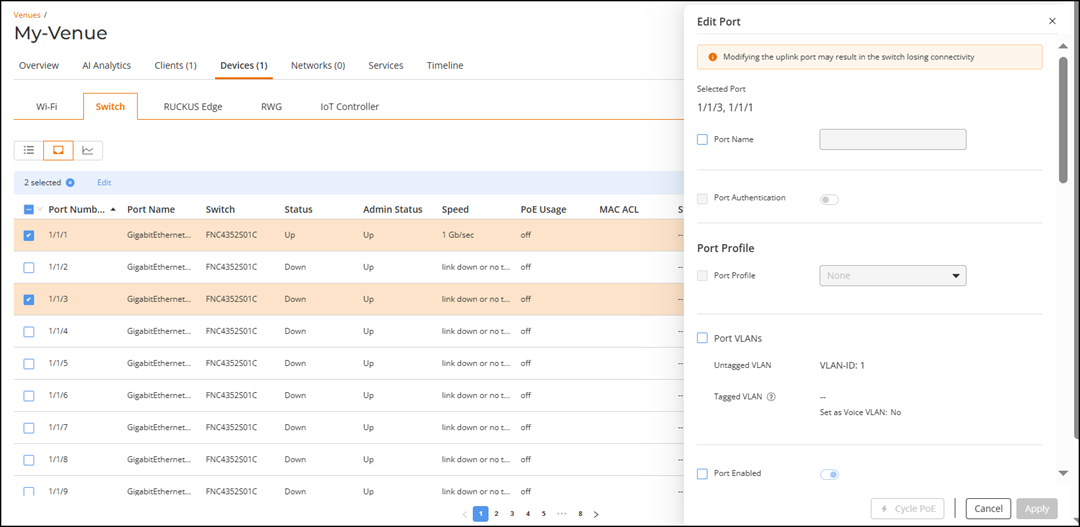
- Click the Port
List icon.
The following switch port information is displayed:
- Port Number: Displays the port number of the switch.
- Port Name: Displays the port name of the switch.
- Switch: Displays the name of the switch.
- Status: Displays the status of the port.
- Admin Status: Displays the admin status of the port.
- ErrDisabled: Specifies whether the port is in an error-disabled state (Yes or No).
- ErrDisable Reason: Displays the reason for the port to be in the error-disabled state.
- Speed: Displays the speed of the switch port.
- PoE Device Type: Displays the type of device connected to the PoE port.
- PoE Usage: Displays the PoE usage level in each port of the switch.
- Port Profile Name: Displays the name of the port profile associated with the port.
- Port Profile Type: Displays the type of the port profile (Dynamic or Static).
- MAC ACL: Displays the name of the MAC ACL bound to the port.
- Sticky MAC: Displays the number of learned MAC addresses bound to the port. Pause your cursor over the number to view the list of learned MAC addresses.
- VLANs: Displays the VLAN assigned to each port of the switch.
- Neighbor Name: Displays the name of the next neighboring device.
- Bandwidth IN (%): Displays the percentage of incoming bandwidth utilization on the port relative to the available bandwidth.
- Bandwidth OUT (%): Displays the percentage of outgoing bandwidth utilization on the port relative to the available bandwidth.
- LAG Name: Displays the name of the LAG associated with the port.
- PoE Schedule: Displays the PoE schedule for each port of the switch (Custom Schedule or -- (meaning no schedule).
- PoE Capability: Displays the PoE capability for each port of the switch (PoE or Non-PoE).
- Optics: Displays the speed and type of optical transceiver in use for the port (examples: 25 Gbits per second fiber, 1 Gbits per second copper)
- Incoming Multicast Packets: Displays the number of incoming Multicast Packets received on the port.
- Outgoing Multicast Packets: Displays the number of outgoing Multicast Packets transmitted from the port.
- Incoming Broadcast Packets: Displays the number of incoming Broadcast Packets received on the port.
- Outgoing Broadcast Packets: Displays the number of outgoing Broadcast Packets transmitted from the port.
- In Errors: Displays the number of errors encountered while receiving (incoming) packets on the port.
- Out Errors: Displays the number of errors encountered while transmitting (outgoing) packets on the port.
- CRC Errors: Displays the number of packets with Cyclic Redundancy Check (CRC) errors on the port.
- In Discards: Displays the number of incoming packets that were discarded due to errors, congestion, or other issues.
- Ingress ACL (IPv4): Displays the configured Ingress ACL for IPv4 traffic on the port.
- Egress ACL (IPv4): Displays the configured Egress ACL for IPv4 traffic on the switch port.
- Ingress ACL (IPv6): Displays the configured Ingress ACL for IPv6 traffic on the port.
- Egress ACL (IPv6): Displays the configured Egress ACL for IPv6 traffic on the port.
- Tags: Displays labels associated with the port to manage and organize network traffic.
You can customize which fields must appear in the Port List table by clicking the
icon and selecting or deselecting the desired
column names. Optionally, you can click Reset to
default to have the default subset of columns appear in the
Port List table.To search for a specific port, enter the Port Name, Port Number, or Neighbor Name in the Search field; all matching entries are displayed.
You can filter the list of ports using the Status, VLANs, and PoE Capability drop-down lists.
You can sort the list of switch ports by clicking the associated column header.
- Click the Report View icon.