Adding and Managing a DHCP Service Profile for Wi-Fi
You can add a DHCP service profile and
add the profile to a venue.
- Add the DHCP service to your tenant account. From the navigation bar, select . Alternatively, you can select , then click Add Service.
- Find the
DHCP tile and click Add. The Add DHCP Service page is displayed.
- From Add DHCP Service, select Wi-Fi (default) and Click Next.
- Complete the following
fields:
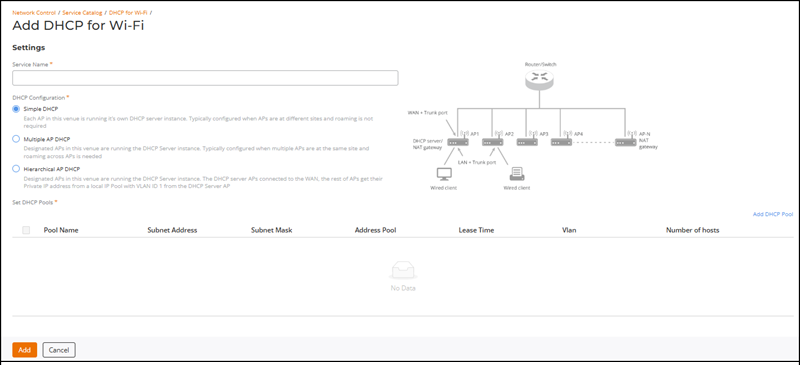
- Service Name: Enter a DHCP profile name.
- DHCP
Configuration: Select from the following options.
- Simple DHCP: Each AP in this venue is running it’s own DHCP server instance. In general, simple DHCP is configured when APs are at different sites and roaming is not required.
- Multiple AP DHCP: Designated APs in this venue are running the DHCP Server instance. In general, multiple AP DHCP is configured when multiple APs are at the same site and roaming across APs is needed.
- Hierarchical AP DHCP: Designated APs in this venue are running the DHCP Server instance. The DHCP server APs connected to the WAN, the rest of APs get their Private IP address from a local IP Pool with VLAN ID 1 from the DHCP Server AP.
- Set DHCP
Pools: Select the DHCP Pools from the table below or to
add a new DHCP pool, click Add DHCP
Pool. The Add DHCP
Pool dialog box is displayed.
Note: Select the Add another pool option, if you want to add more than one pool. This does not close the Add DHCP Pool dialog box.
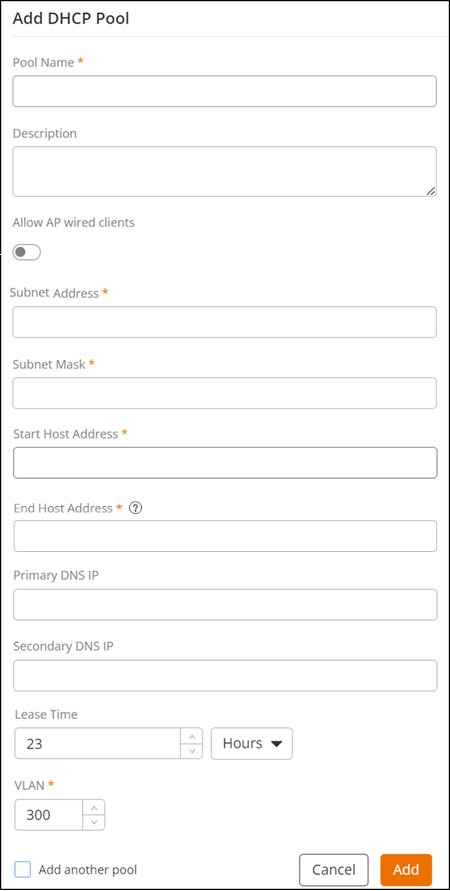
Complete the following fields and click Add:
- Pool Name: Enter a pool name.
- Description: Enter description about pool.
- Allow AP
wired clients:
YusukeEnable this option to allow wired clients connected to the AP to obtain addresses from the DHCP pool. You must enable this field when you configure Hierarchical AP DHCP.
- Subnet Address: Enter the subnet address.
- Subnet Mask: Enter the subnet mask address.
- Start Host Address: Enter the start host IP address.
- End Host Address: Enter the end host IP address.
- Primary DNS IP: (Optional) Enter the primary DNS IP address.
- Secondary DNS IP: (Optional) Enter the secondary DNS IP address.
- Lease Time: Enter the lease period in hours or in minutes.
- VLAN: Enter VLAN ID.
- Click Add in the
Add DHCP for Wi-Fi page. You can see the DHCP for Wi-Fi service added in the DHCP table (). The following information is displayed:
- Name: Displays the name of the DHCP for Wi-Fi service.
- DHCP Pools: Displays the number of DHCP pools associated with each DHCP service. Hover the cursor over the number to view more details.
- Venues: Displays the number of associated venues. Hover the cursor over the number to view more details.
You can edit or delete a DHCP for Wi-Fi profile by selecting the checkbox for a specific profile and clicking Edit or Delete, respectively.
To search for a specific DHCP for Wi-Fi profile, enter the partial (at least two characters) or full DHCP for Wi-Fi profile name in the Search field. All matching profiles are displayed. You can filter the list of DHCP profiles by Venues. You can sort the list of DHCP profiles by profile name by clicking the associated column header.