Viewing the Clients List
To view a list of currently connected wireless clients, click on the Clients component on the dashboard.
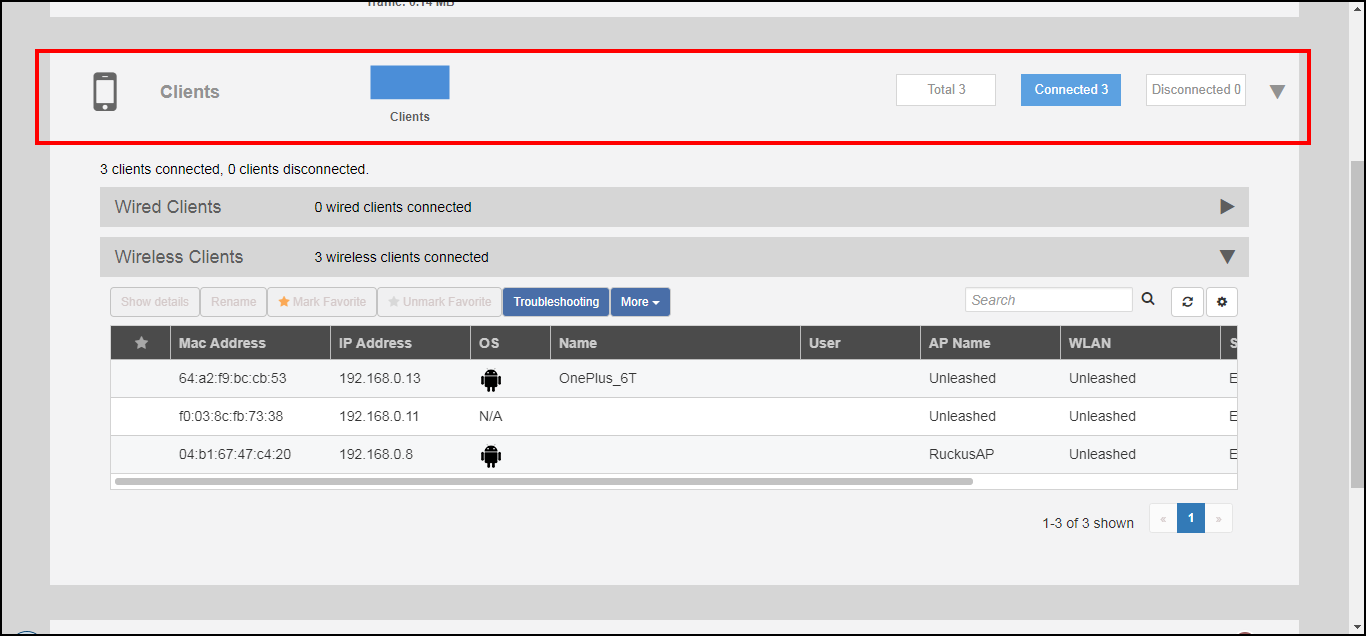
The clients list displays the number of connected
and disconnected clients, along with a table that includes detailed information
about
the client. You can customize which fields must appear in the Wireless
Clients table by clicking the  icon and
selecting or deselecting the desired column names in Columns. You can
customize the search criteria using all or any of the key
words in Rows.
icon and
selecting or deselecting the desired column names in Columns. You can
customize the search criteria using all or any of the key
words in Rows.
You can sort the clients list table by clicking the associated column header.
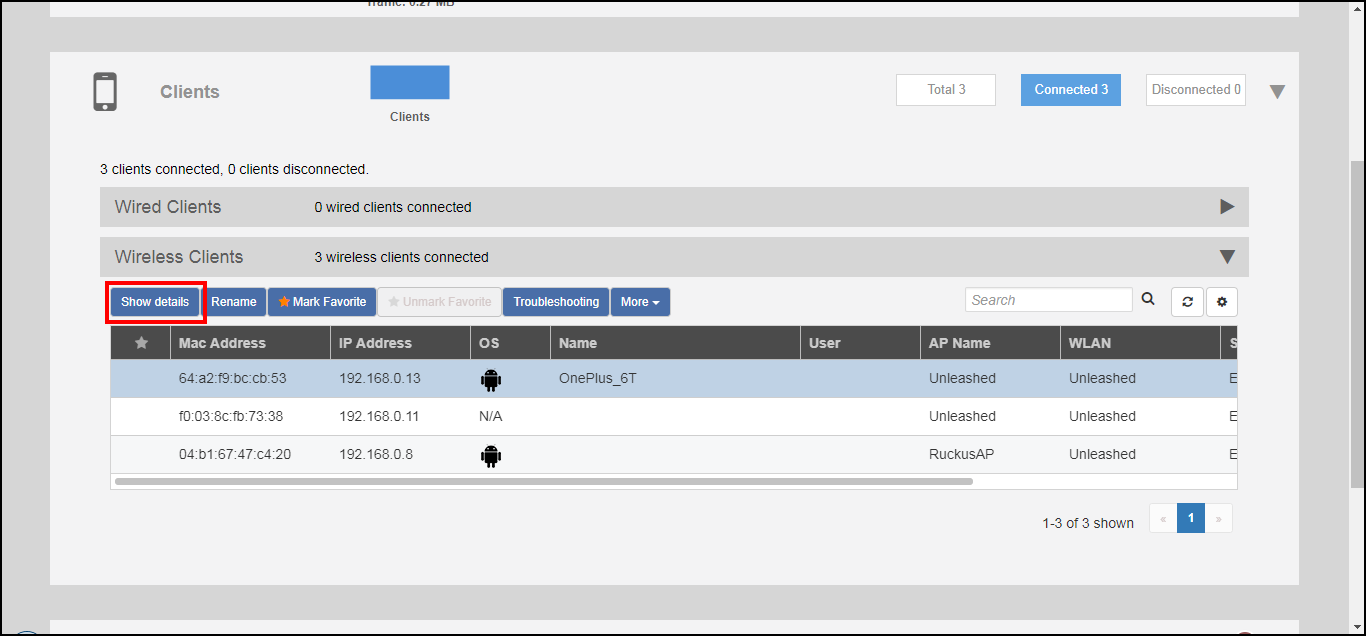
To view additional details about a specific client, select the row and click Show Details.
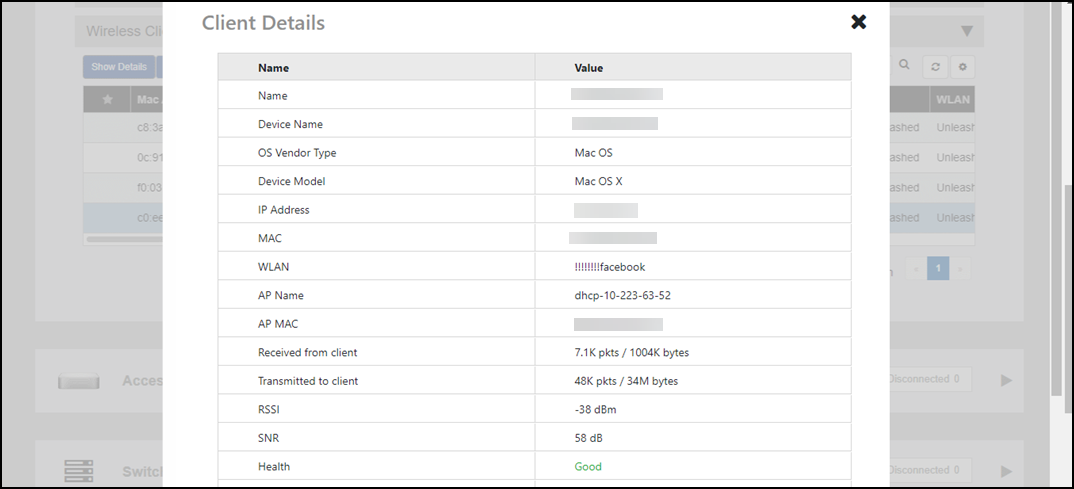
The following client information is displayed:
- Name: Displays the name or the unique identifier for the device, typically the MAC address of the client device.
- Device Name: Displays the name assigned to the device, often the same as the MAC address.
- OS Vendor Type: Displays the operating system vendor, such as macOS, iOS, or Android.
- Device Model: Displays the specific model of the device.
- IP Address: Displays the IP address assigned to the device.
- MAC: Displays the MAC address of the device.
- WLAN: Displays the WLAN name the device is connected to.
- AP Name: Displays the name of the AP the device is connected to.
- AP MAC: Displays the MAC address of the AP.
- Received from client: Displays the amount of data received by the AP from the client device (in packet/bytes).
- Transmitted to client: Displays the amount of data sent from the AP to the client device (in packet/bytes).
- RSSI: Displays the signal strength received by the device (in dBm).
- SNR: Displays the quality of signal received by the device (in dB).
- Health: Displays the overall health status of the connection (Excellent, Good, Poor).
- BSSID: Displays the MAC address of the AP radio.
- VLAN: Displays the VLAN ID the device is on.
- Username: Displays the username associated with the device, if applicable.
- Role: Displays the role assigned to the device or user in the network.
- Radio: Displays the radio frequency the device is using.
- Radio Type: Displays an icon indicating the type of Wi-Fi network connection protocol the device is using.
- Radio Band: Displays the frequency band (2.4 GHz, 5 GHz, or 6 GHz) the device is operating on.
- Auth Method: Displays the authentication method used by the device.
- Encryption: Displays the encryption type used for the connection.
- Auth Status: Displays the current authentication status of the device.
- Channel: Displays the specific channel the device is using.
- Channelization: Displays the channel width used for the connection.
- TX drops due to retry failure: Displays the number of transmission drops due to retry failures.
- Connected Since: Displays the time since the device has been connected.
- Duration: Displays the total duration of the connection.
- AP Rx Signal (dB): Displays the received signal strength at the AP.
- AP Tx Data Rate: Displays the data rate at which the AP is transmitting to the device.