Configuring Email Server Settings
In order for Unleashed to send guest pass codes to guest users via email, it needs
to have an email server configured.
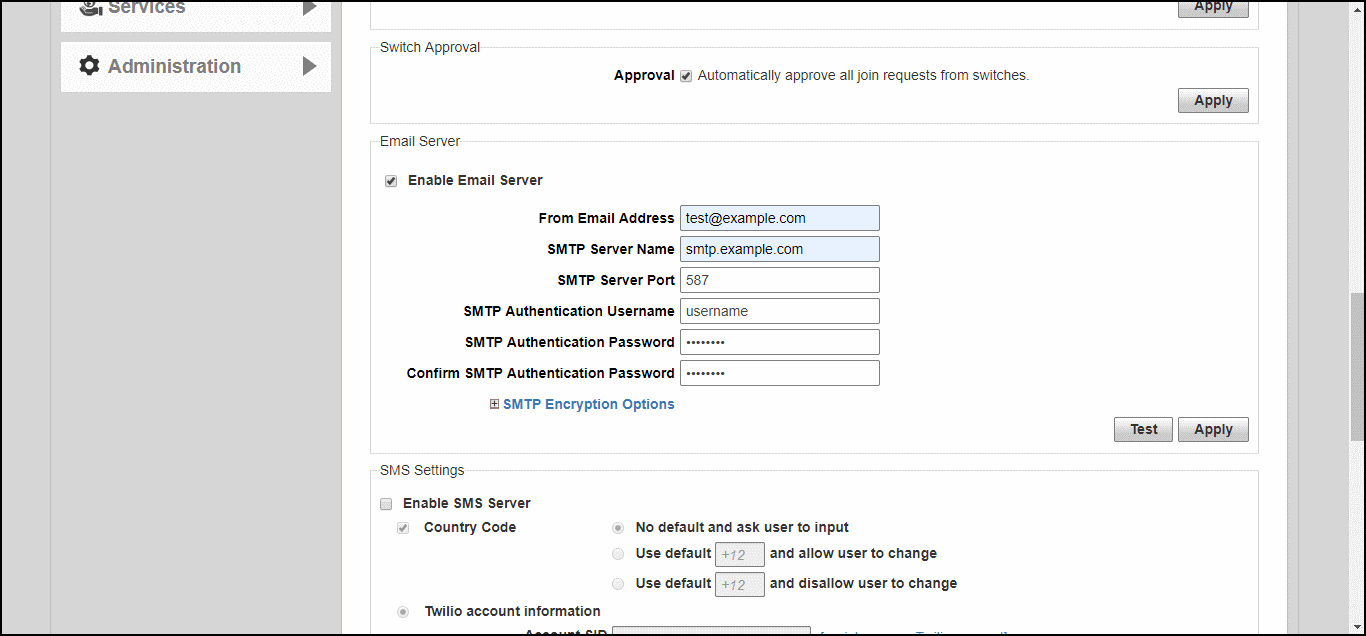
To configure email server SMTP settings:
- Go to Admin & Services > System > System Info.
- In the
Email Server section, enable the
Enable Email Server check box, and then enter the following:
- From email address: Type the email address from which Unleashed will send email messages.
- SMTP Server name: Type the full name of the server provided by your ISP or mail administrator. Often, the SMTP server name is in the format smtp.company.com.
- SMTP Server port: Type the SMTP port number provided by your ISP or mail administrator. Often, the SMTP port number is 465 or 587. The default SMTP port value is 587.
- SMTP Authentication username: Type the user name provided by your ISP or mail administrator. This might be just the part of your email address before the @ symbol, or it might be your complete email address. If you are using a free email service (such as Hotmail or Gmail), you typically have to type your complete email address.
- SMTP Authentication password: Type the password that is associated with the user name above.
- Confirm SMTP Authentication password: Retype the password you typed above to confirm.
- SMTP Encryption Options: If your mail server uses TLS encryption, click the SMTP Encryption Options link, and then select the TLS check box. Additionally, select the STARTTLS check box that appears after you select the TLS check box. Check with your ISP or mail administrator for the correct encryption settings that you need to set.
- To verify that Unleashed can send email messages using the SMTP settings you configured,
click the
Test button.
- If Unleashed is able to send the test message, the message
Success!appears at the bottom of the Email Notification page. - If Unleashed is unable to send the test message, the message
Failed!appears at the bottom of the Email Notification page. Go back to the previous step, and then verify that the SMTP settings are correct.
- If Unleashed is able to send the test message, the message
- Click Apply. The email server settings you configured become active immediately.