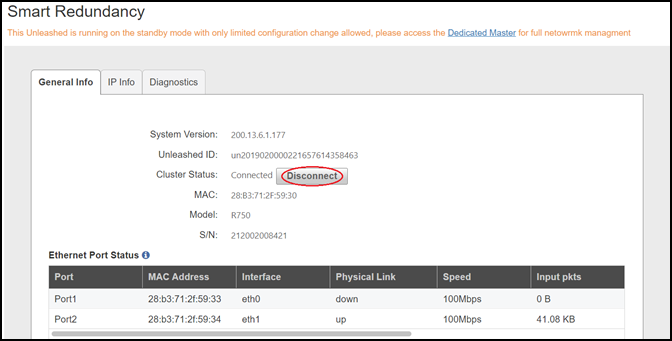
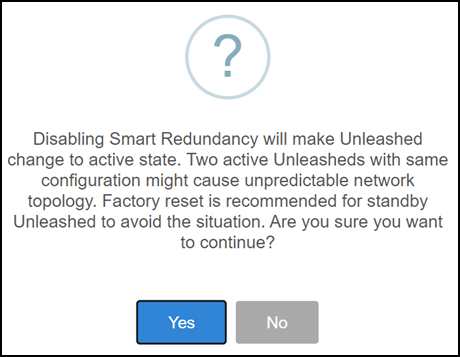
Disabling Smart Redundancy from the Standby Dedicated Master Complete the following steps to disable Smart Redundancy from the standby Dedicated Master.From the standby Dedicated Master web interface on the General Info tab, click the Disconnect button in Cluster Status. Disabling Smart Redundancy from the Standby Dedicated Master Click Apply to save the changes.A confirmation message is displayed.Confirmation Message: Disabling Smart Redundancy Click Yes to confirm. The standby Dedicated Master web interface auto-refreshes and switches to active mode. Parent topic: Disabling Smart Redundancy