Configuring Guest Subnet Restrictions
By default, Guest Pass users are
automatically blocked from the network subnet (format: A.B.C.D/M) and the subnet
of the AP
to which the guest user is connected.
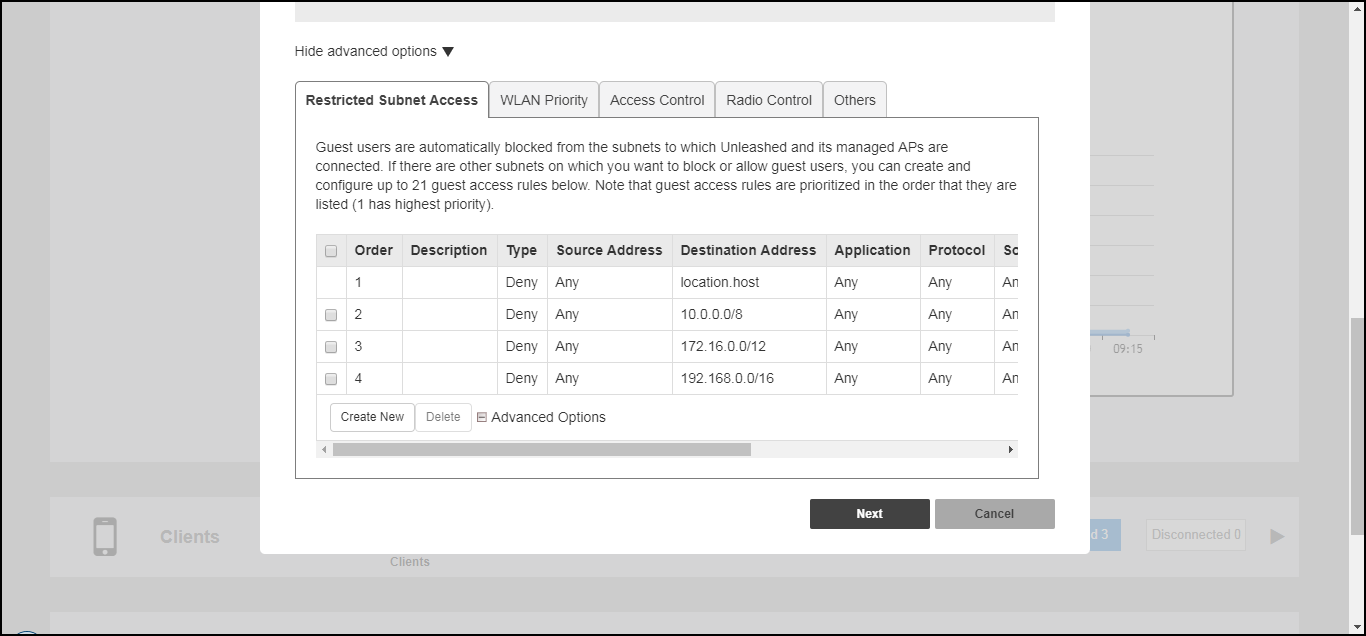
If you want to create additional rules that allow or restrict guest users from specific subnets, use the Restricted Subnet Access tab.
You can create up to 21 subnet access rules, which will be enforced on both the Master AP and all connected member APs.
Complete the following steps to create a guest access rule for a subnet:
Difference in UI label for Unleashed and RUCKUS
Blue
- Go to Wi-Fi Networks and click Create to create a new guest WLAN or Edit to modify an existing guest WLAN.
- For Usage Type, ensure that Guest Access is selected.
- Click the arrow next to Show Advanced Options to expand the advanced options section.
- Click the Restricted Subnet Access tab.
- Click Create New to create a new subnet restriction. Text boxes are displayed under the table columns in which you can enter parameters that define the access rule.
- Under Description, enter a name or description for the access rule that you are creating.
- Under Type, select Deny if this rule will prevent guest users from accessing certain subnets, or select Allow if this rule will allow them access.
- Under Source Address, enter the IP address and subnet mask (format: A.B.C.D/M) from which you want to allow or deny users access.
- Under Destination Address, enter the IP address and subnet mask (format: A.B.C.D/M) to which you want to allow or deny users access.
- If you want to allow or restrict subnet access based on the application, protocol, or source or destination port used, click the Advanced Options link, and then configure the settings.
- Click Save to save the subnet access rule.
- Repeat Steps 5 through 11 to create up to 21 subnet access rules.