Configuring Device Access Policies
In response to the ever-growing numbers of personally owned mobile devices such as
smart phones and tablets being brought into the network, IT departments are requiring
more sophisticated control over how devices connect, what types of devices can connect,
and what they are allowed to do once connected.
Using the Device Access Policy settings, the Unleashed system can identify the type of client attempting to connect, and perform control actions such as permit/deny and rate limiting based on the device type.
Once a Device Access Policy has been created, you can apply the policy to any WLANs for which you want to control access by device type. You could, for example, allow only Apple iOS devices on one WLAN and only Linux devices on another.
To create a Device Access Policy:
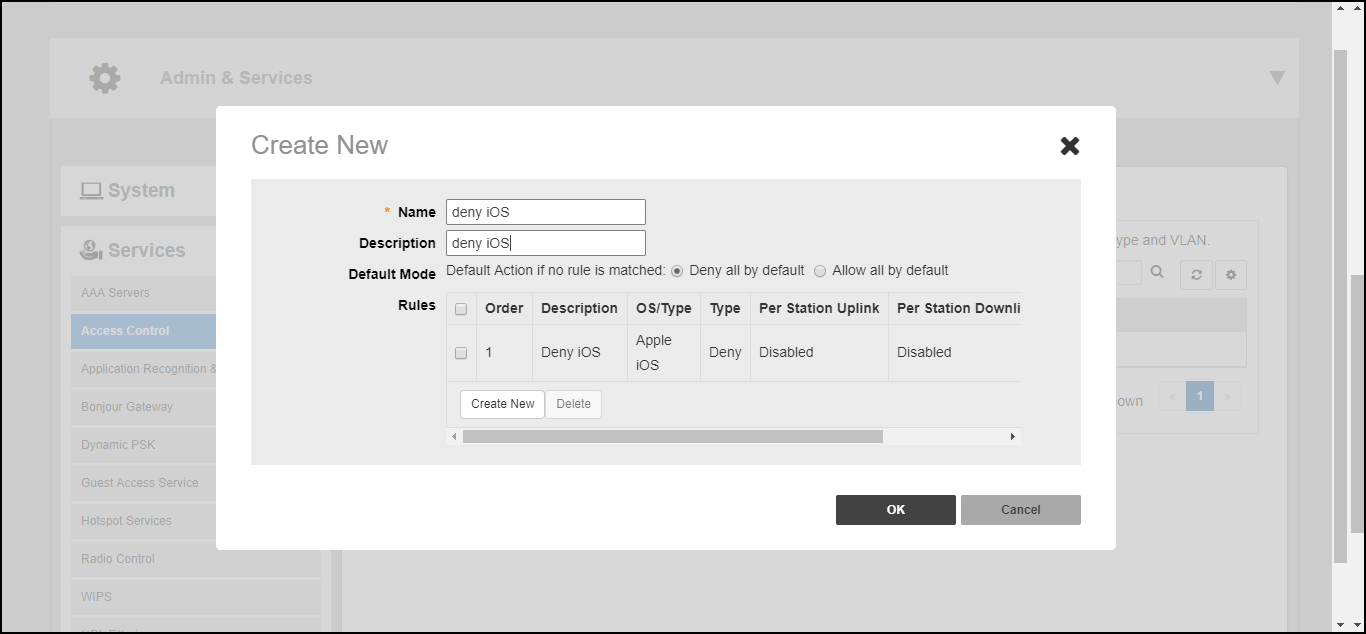
- Go to Admin & Services > Services > Access Control > Device Access Policy.
- Click Create New.
- Enter a Name and optionally a Description for the access policy.
- In Default Mode, select Deny all by default or Allow all by default.
- In Rules, you can create multiple OS-specific rules for each access policy.
- Click Save to save the rule you created. You can create up to nine rules per access policy (one for each OS/Type).
- To change the order in which rules are implemented, click the up or down arrows in the Action column. You can also Edit or Clone rules from the Action column.
- To delete a rule, select the box next to the rule and click Delete.
- Click OK to save the access policy. You can create up to 32 access policies (one access policy per WLAN).