Access Point (AP)
Click AP to display detailed information on this AP. The AP info page displays general information about the AP, including the radio channels in use, Mesh type, maximum number of clients, and firmware version. The Support Logs and Speed Test buttons are also available.
Click the download icon next to Support Logs to downlaod the log file (.txt) of the current AP on your computer, which can be used for troubleshooting. Click Speed Test to measure the connection performance of the AP.
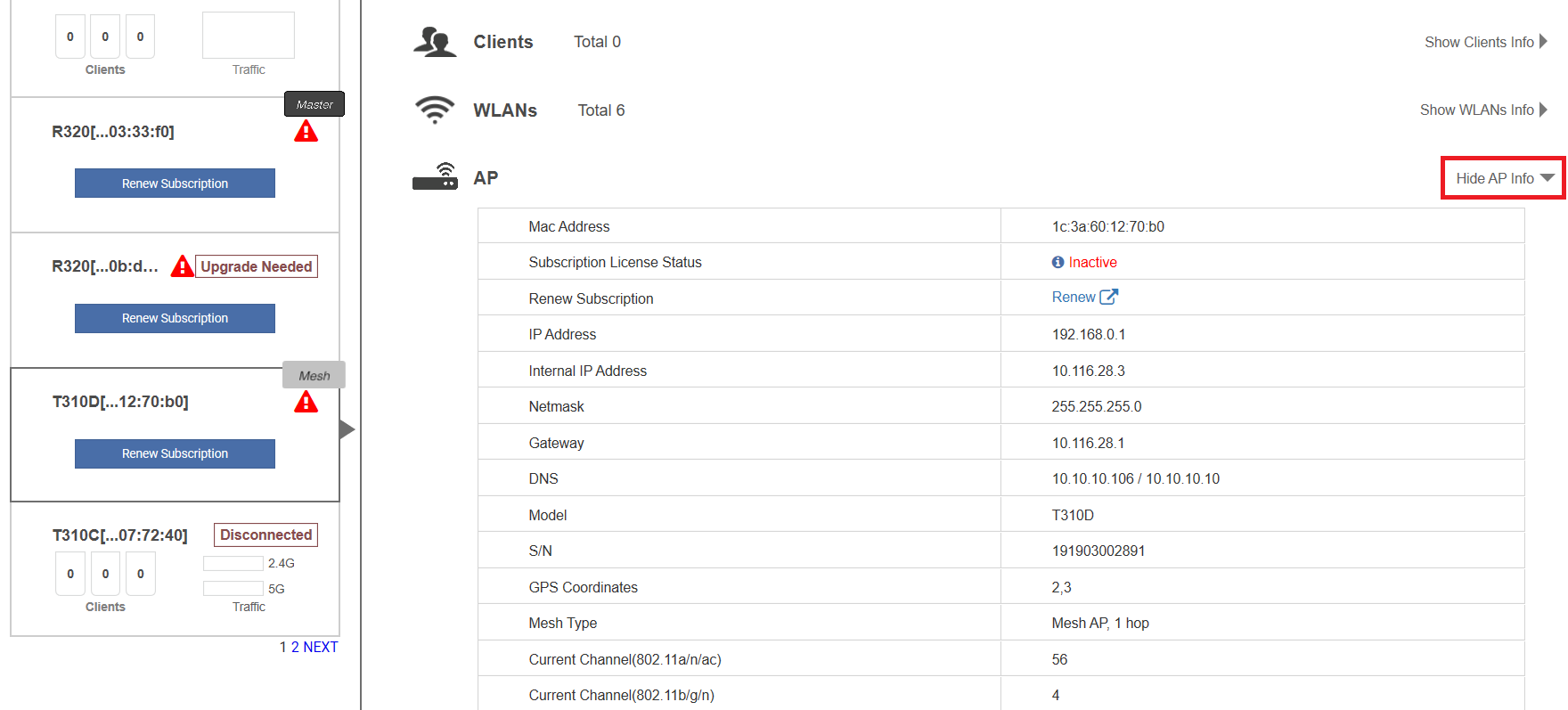
Click the download icon next to AP dump Logs to save the AP log (.tar) file on your computer.
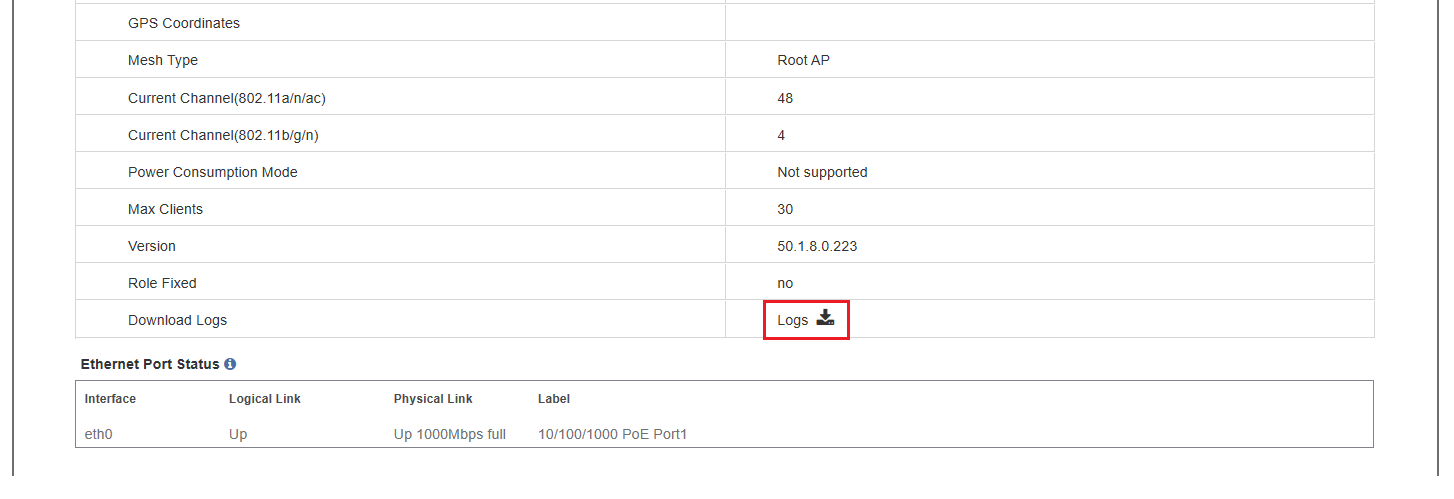
The table under Ethernet Port Status displays the current link status of the Ethernet ports on the AP. Pause the pointer over the "i" icon to display an illustration of the physical port locations on the AP.