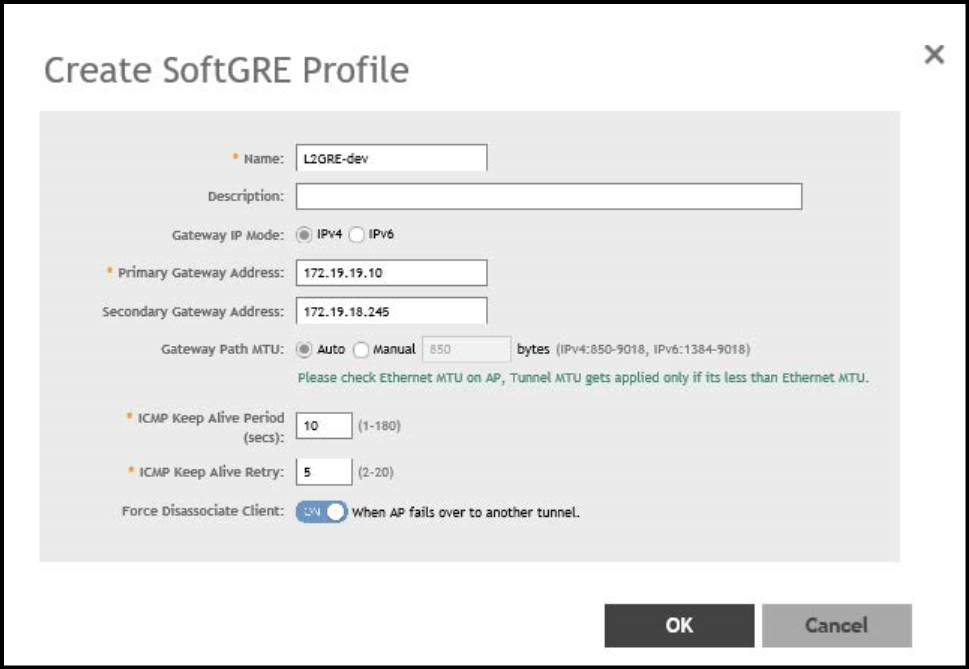
Creating a Soft GRE Profile
You can configure the Soft GRE tunnel profile of the controller to manage AP traffic.
- From the main menu go to .
- Select SoftGRE and click Create.
- Enter profile name and description.
- Under Gateway IP Mode, select IPv4 or IPv6 addressing.
- In the Primary Gateway Address field, enter the IP address or fully-qualified domain name (FQDN) of the primary gateway server.
- In the
Secondary Gateway Address field, enter the IP address or fully-qualified domain name (FQDN) of the secondary
gateway server.
Note: If the controller is unable to reach the primary gateway server, the controller automatically attempts to reach the secondary gateway address at the IP address specified by you.
- For Gateway Path MTU, set the maximum transmission unit (MTU) for the gateway path.
- In the
ICMP Keep Alive Period field, enter the time interval in seconds.
Note: Time interval is the time taken by the APs to send a keep alive message to an active third party WLAN gateway. The range is from 1 through 180 seconds. The default value is 10 seconds.
- In the ICMP Keep Alive
Retry field, enter the number of keep alive attempts. Note: Keep alive attempts are the number of attempts that the APs wait for a response from the active third party WLAN gateway before failing over to the standby WLAN gateway. The range is from 2 through 10 attempts. The default value is 5 attempts.
- Under Force Disassociate Client, enable Disassociate client when AP fails over to another tunnel if you want to disassociate the client when AP fails over to another tunnel.
- Click OK.