Configuring Multiple Tunnels for Zone
Multiple tunnels can be configured for a zone.
- From the main menu, go to , select Access Points, the Access Point page is displayed, select the AP from the list.
- From the System tree, select the
location where you want to create the zone. For example, System or Domain. Click
the
 icon.The Create Group page appears.
- Under Type, select Zone.
- Navigate to the AP GRE Tunnel section.
- For the Ruckus GRE Profile select a profile from the drop-down menu.
- Click the
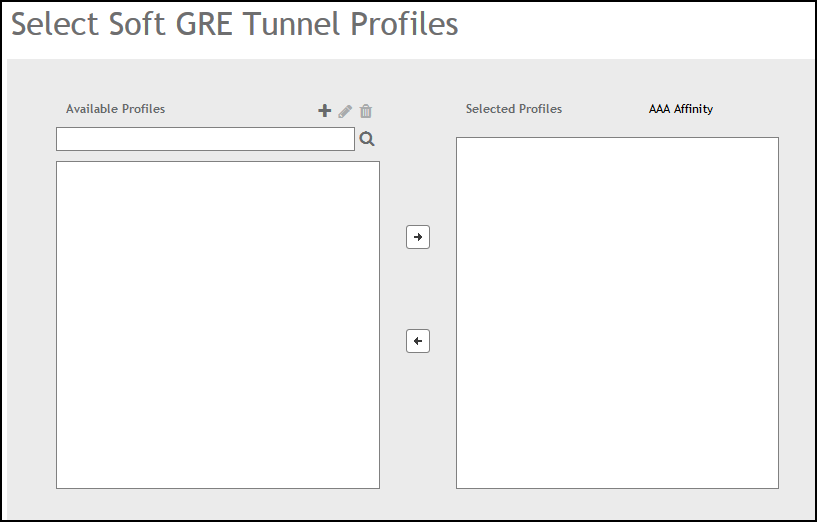
Select checkbox above the SoftGRE Profiles box.
A form appears from which you can select the SoftGRE profiles that you want to apply to the zone. The profiles you can select are displayed under Available Profiles. Select the profile and click the
 icon to choose it. The profile is now listed under the Selected Profiles
area.
You can also click the
icon to create a new SoftGRE profile. If you wish to deselect a profile, select it and click the
icon. The profile will be moved back to the
Available Profiles area and will not be
applied to that zone. - Click OK.Your multiple tunnel configuration for the zone is saved.