Upgrading the Data Plane
The web interface enables you to view and
upgrade the Data Plane version. When applied, it ensures the DP runs the latest
software,
allowing you to maintain optimal performance and security.
Note: The Data Plane version must match
the Access Point version to ensure compatibility and optimal performance.
- In the controller web UI, select .
- Select the DP Patch tab.
- In the Patch File Upload section, click Browse to select the patch file (.ximg file).
-
3.6.1 UpdateClick Upload. The patch file is uploaded.The controller automatically identifies the Type of DP (vSZ-D/ SZ100-D/ SZ144-D) and switches to the specific tab page, uploads the file to its database, and then performs file verification. After the file is verified, the Patch Available for Upgrade section is populated with information about the upgrade file. The following details are displayed:
- In Data
Planes, select the DP you want to upgrade and click Upgrade to
followed by the version number. A warning message pops up informing you that it is highly recommended to take a backup from the DP before continuing.
- Choose one of the following:
- Upgrade Anyway: Continue to upgrade without taking a backup. The upgrade is immediately started.
- Backup: Create a backup of the DP before upgrading. The UI returns to the DP Patch page while the backup process is automatically completed. Attempt to upgrade one more time after the backup is completed.
- Cancel: Close the warning pop-up window and return to the upgrade page.
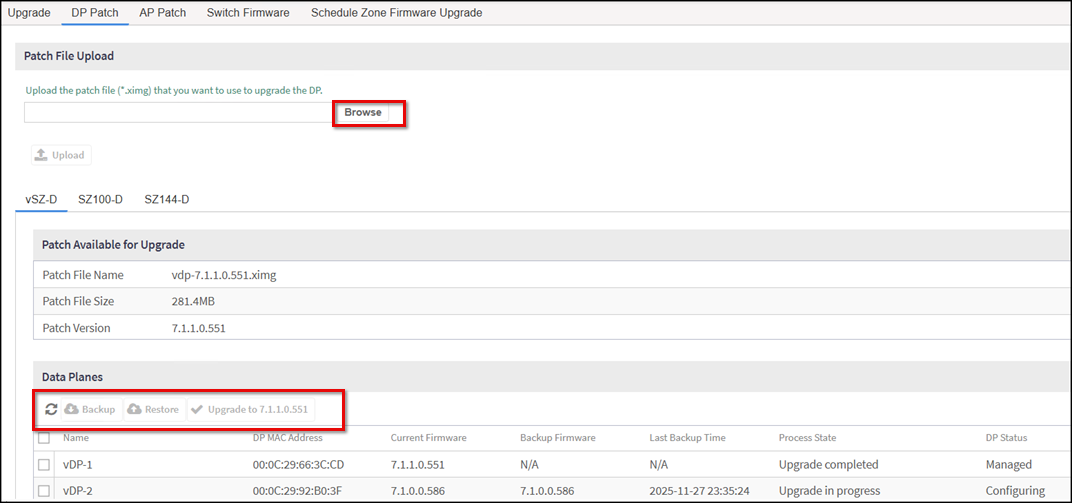
- Name: Displays the name of the virtual data plane.
- DP MAC Address: Displays the MAC address of the data plane.
-
5.1 UpdateCurrent Firmware: Displays the current version of the data plane that has been upgraded.
- Backup Firmware: Displays the backup version of the data plane.
- Last Backup Time: Displays the date and time of last backup.
- Process State: Displays the completion state of the upgrade for the DP.
- DP Status: Displays the DP status.
5.1 Update