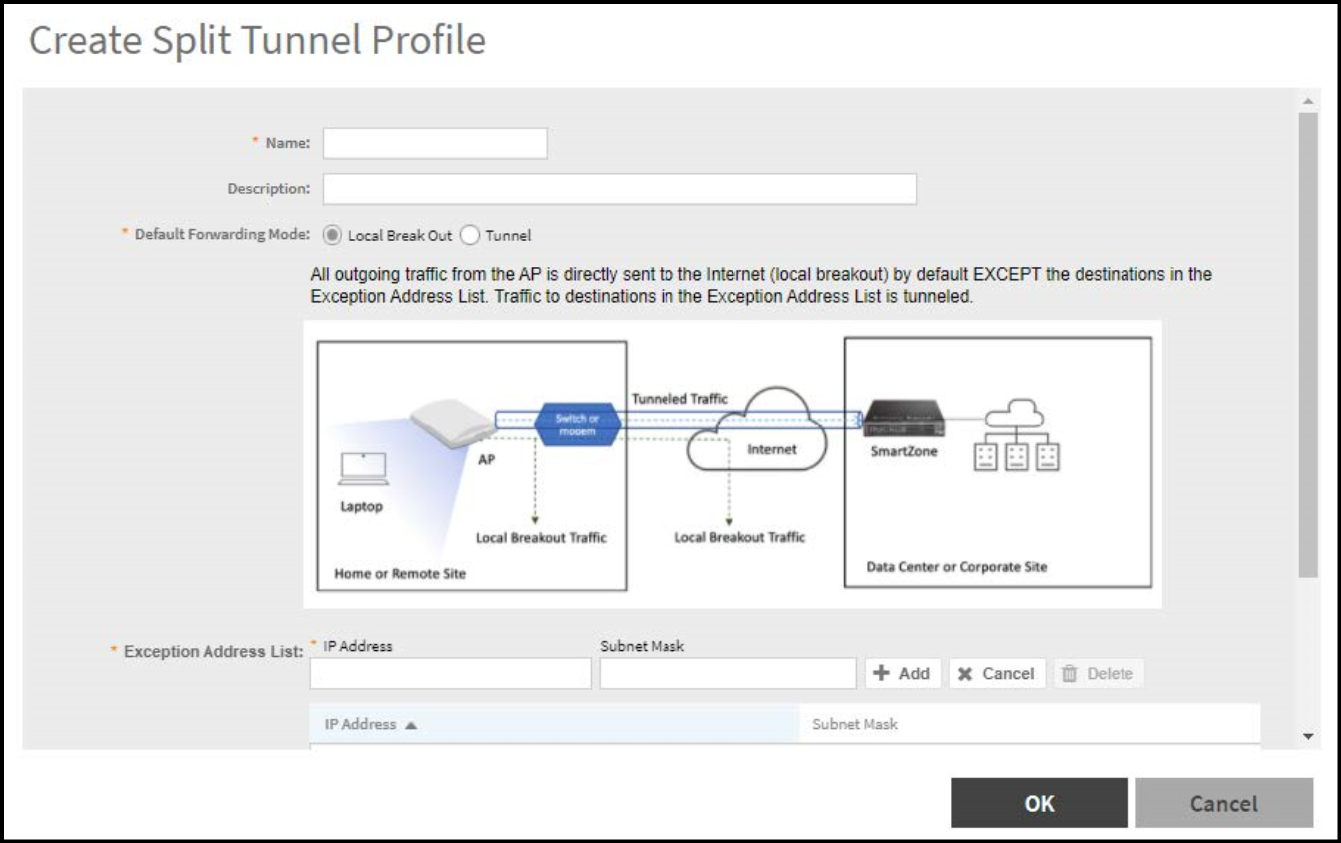
Creating a Split Tunnel Profile
When applied, the profile directs
corporate traffic to the Data Plane tunnel or to Local Breakout (LBO) according
to rule
entries, allowing you to optimize bandwidth and latency for specific
destinations.
Note: SoftGRE (or RUCKUS GRE, if available) must be enabled on the target
WLAN before you can map it to a Split Tunnel Profile.
- In the controller web UI, select .
- Select the zone for which you want to create the profile and click Create.
- In Name, enter a profile name.
- (Optional) In Description, enter a brief description.
- In Default Forwarding Mode, select one of the following options:
- In Exception Address List, complete the following fields to add exceptions to the default forwarding mode configured in step 5:
- Repeat step 6 to add additional destinations as needed.
- Click OK to save the profile.Attention: Do not configure the same IP address in both a Walled Garden and the Split Tunnel Profile. The Walled Garden entry takes precedence and overrides split‑tunnel behavior.