Reviewing Your Flexi-VPN Profile Configuration
You can see a summary table listing all
configured Flexi-VPN profiles. This table provides a quick overview of how WLANs are
mapped
to Flexi-VPN tunnels across your network.
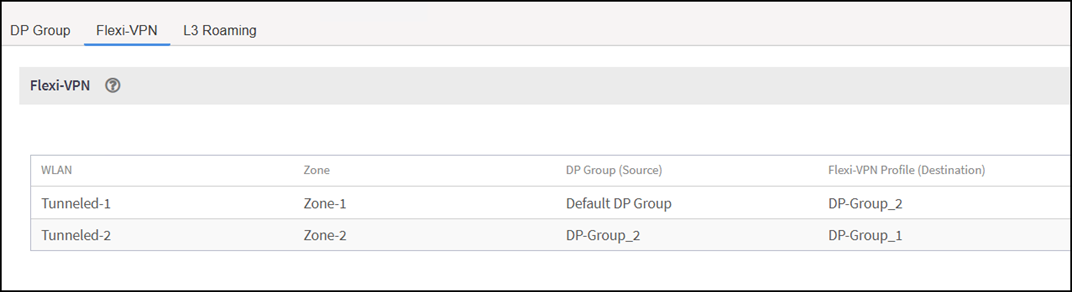
- In the controller web UI, select .The Flexi-VPN page is displayed with a list of the existing Flexi-VPN profiles. Each row in the table represents a specific Flexi-VPN configuration and includes the following columns:
- WLAN: The name of the Wireless LAN associated with a Flexi-VPN tunnel.
- Zone: The Zone to which the WLAN belongs.
- DP Group (Source): The Data Plane Group acting as the source for the tunnel.
- Flexi-VPN Profile (Destination): The destination Data Plane Group or profile where the tunneled traffic will be forwarded.
You have successfully reviewed the Flexi-VPN profile configuration.
- Note:
- This page is view-only: you cannot edit, delete, or create Flexi-VPN profiles directly from this table. The listed rows are for informational purposes only, allowing you to review your current Flexi-VPN mappings at a glance.
- To modify an existing Flexi-VPN profile or create a new one, you must do so from the Edit WLAN Config: page. For instructions, refer to Enabling Flexi-VPN. Changes made there will be reflected in this summary table.