Managing Application Logs
Events that are logged by the
application can be downloaded for debugging and troubleshooting purposes. AP discovery
log,
web log, logs of periodic sync up process such as cluster syncing, license syncing,
Backup
system syncing, and periodic SZ configuration backup and ND configuration backup
processes
are the application logs that are available for download. The log files are automatically
rotated every 15 minutes to avoid the older log files taking up too much of the
disk space.
Complete the following steps to download application logs.
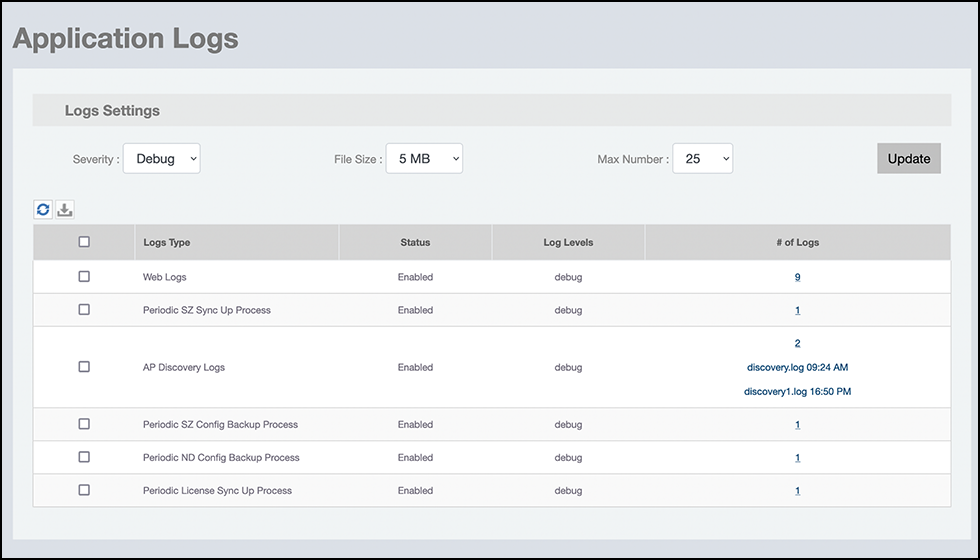
- On the menu, go to Admin > Application Logs.
- You can view the following
application log details.
Application Logs and Status Details
- Based on the requirement, update the following log settings to filter the logs and
click
Update to apply the changes:
- Severity:
Filter the logs based on different severity levels such as Error, Warn,
Info, Debug, and Silly.
Note: Silly log is a functionally related SQL syntax record that is used to debug issues.
- File Size: Specify the log file size.
- Max number: Specify the maximum log count limit for each log type. The range is from 1 through 10.
- Severity:
Filter the logs based on different severity levels such as Error, Warn,
Info, Debug, and Silly.
- Click the
 icon to refresh the log table.
 - Download the logs. Logs can be downloaded in the following ways:
- Download individual logs within each log type: Click the decimal value in the #of Logs column to view the log files. Click the file name of the required log to download individual logs.
- Download all logs within each log type: Select the
required log type and click the
 icon to download all the log files
associated with the log type.
icon to download all the log files
associated with the log type. - Download multiple logs from multiple log types: Select
all or multiple log types and click the icon to download all the log files
associated with the selected log types.