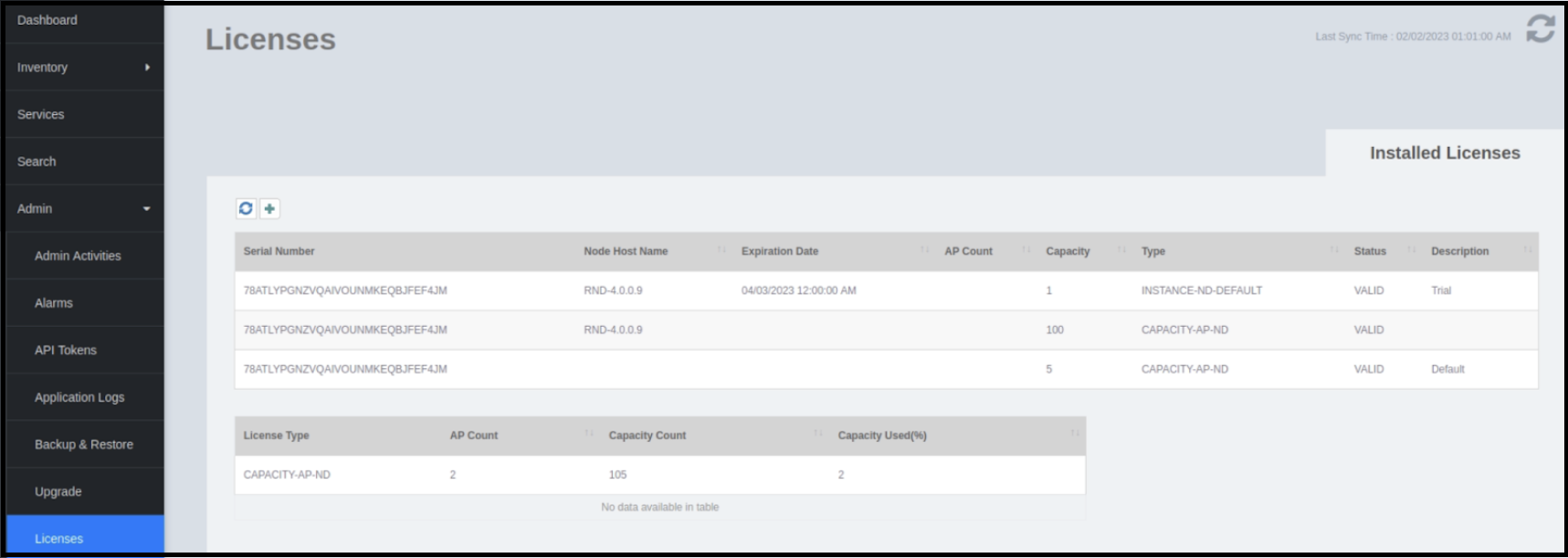
License Information and Synchronization
For operations beyond 90 days, a Right-to-Use (RTU) license must be purchased and is required to be activated. The RUCKUS Network Director license menu displays the auto-generated unique serial number of the ND instance that is used for purchasing the license. It also displays the details of the installed licenses such as the license status and number of supported devices. By default, will support five APs capacity count, user may map add-on capacity count through Flexera account, there is no upper limit on AP capacity count in total. When the current AP count equals or is larger than the capacity count, every AP onboarded through will be marked as rejected.
A newly installed RUCKUS Network Director instance does not check the license for 7 days. The user will have a 7-day usage period. After 7 days, the system will automatically activate the license mechanism and synchronize the license. If the serial number of the RUCKUS Network Director instance is not registered with LiMAN and the license is not activated, RUCKUS Network Director will obtain a 90-day trial license. If RUCKUS Network Director is already registered with LiMAN and synchronized the license, RND will obtain a permanent license.
When the trial license expires or the RTU license is not available, you can access the Licenses window to confirm license status and synchronize the license. If the trial license or RTU license is not obtained for more than 7 days, the system will determine that there is no license, the user can only access the Licenses window, and no action can be performed.
Under the following conditions, the UI display a warning and generates a log file informing the user that "Not enough device licenses are available for this operation":
- If there are insufficient device licenses available (when the current AP count already equals or is larger than capacity count) to onboard and manage the new APs.
- During a batch operation where only a limited number of licenses are available to onboard and manage the APs. The onboards the APs at random, leaving the other APs unmanaged or rejecting onboarding requests.
The admin can configure a threshold value and an event to set an alarm in the UI, so that if the available device license count falls below the threshold value, the alarm will be triggered. By default, the threshold value is 80%.
If a fails and the admin needs to move to a new , then the admin must login to their Flexera account and manually sync the device licenses count with Flexera.
The admin can move or reassign the APs capacity count to the individual RNDs from Flexera. This enables each to independently sync and manage the APs capacity count.
If is unable to obtain information updates from Flexera. The admin can download license file from Flexera and upload it to .
Depending on the scenarios mentioned above, appropriate warning messages are displayed on the top banner to indicate the license status. For more information about the warning messages, refer to Navigating the RUCKUS Network Director Web Interface.
For more information about system serial number registration with LiMAN and license activation, refer to the RUCKUS Network Director Installation Guide.
Complete the following steps to view the license information.
- On the menu, go to Admin > Licenses.
- The
Licenses window displays the following license
information:
- Serial Number: Displays the auto-generated unique serial number of the ND instance to be used for purchasing a license.
- Node Host Name: Displays the node host name.
- Expiration Date: Displays the time and date when the time-bound license expires.
- AP Count: Displays the AP count of this node.
- Capacity/Capacity Count: Displays the number of devices that the license account can support, you can map add-on capacity through Flexera account.
- Type/License Type: Displays the type of the license.
- Status: Displays the status of the license: valid, invalid, or expired.
- Description: Displays the description of the license type: permanent or trial.
- Last Sync Time: Displays the date and time at which the license was last synced. RND automatically synchronizes the license every 24 hours at 00:00 hrs.
- Capacity Used (%): Displays the percentage of the license capacity used.
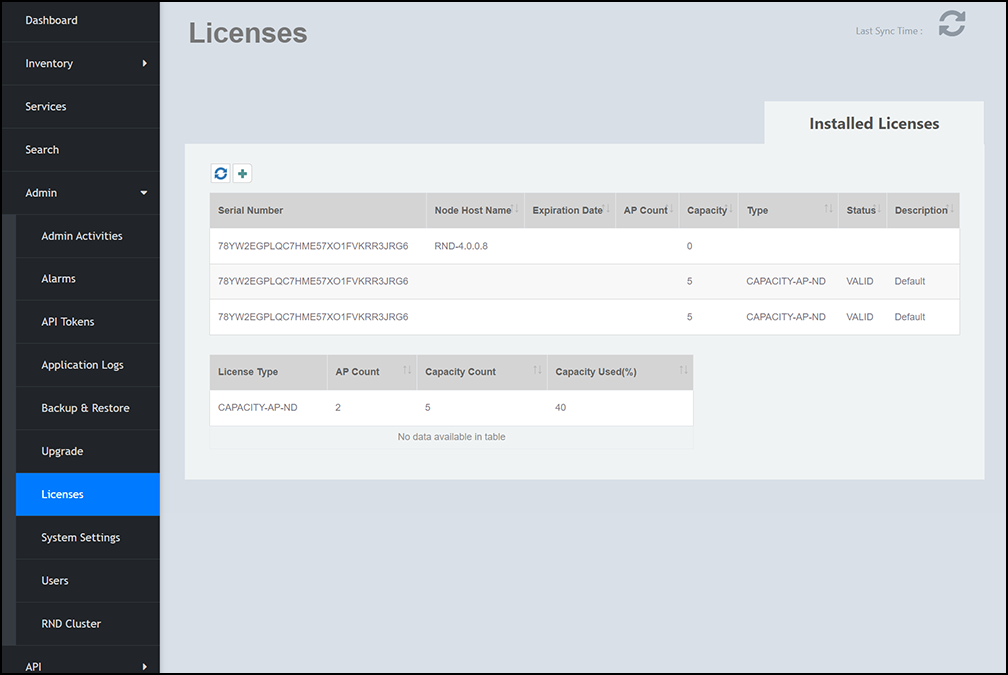
Synchronizing the License Data with the License Server
- On the menu, go to Admin >
Licenses. The Licenses window is displayed.
- Click the
 icon to manually synchronize the license data with the license server . A message is displayed to indicate that the license synchronization process is complete. If the previously saved license data is different from the latest license data on the server, the information in the Installed Licenses tab refreshes to reflect the latest data.