Importing RND 3.0 and RND 3.5 Configuration Data to the RND 4.0 Database
You can import RND 3.0 MongoDB or RND 3.5
PostgreSQL data to the RND 4.0 PostgreSQL database.
Complete the following steps to import data from RND 3.0 MongoDB or RND 3.5 PostgreSQL to the RND 4.0 database.
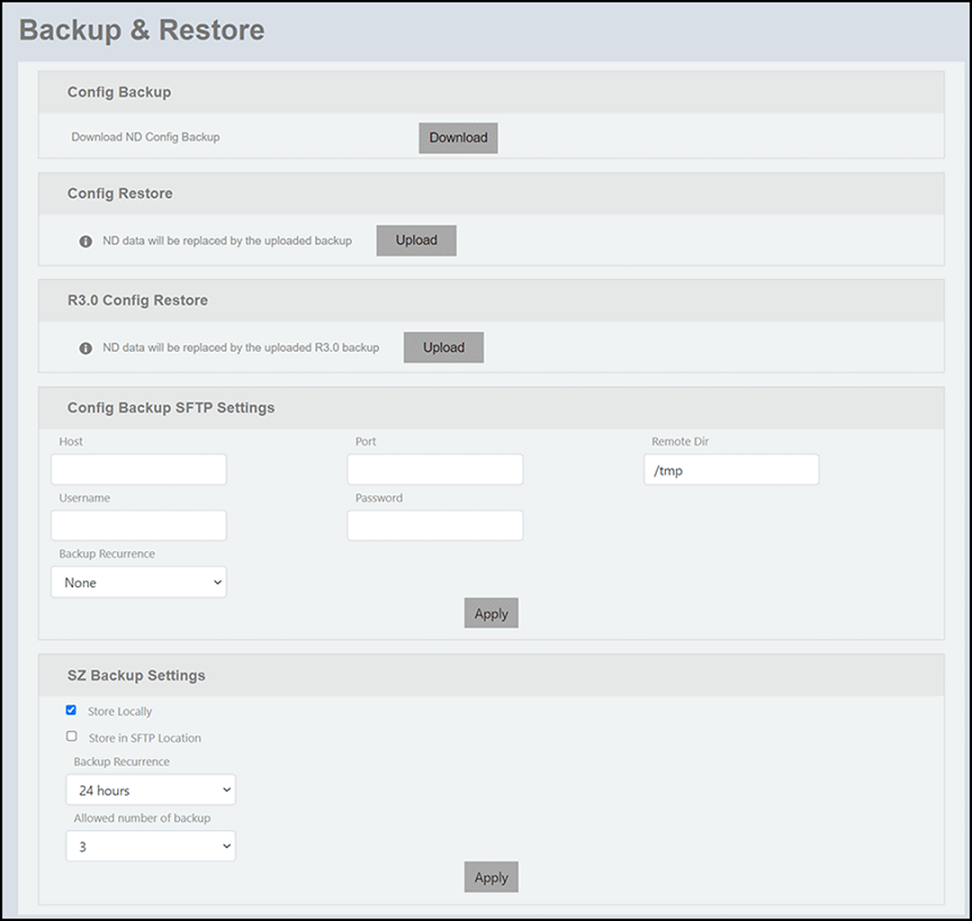
- On the menu, go to .
- To import RND 3.0 configuration
file, complete the following steps:
- In the R3.0 Config Restore pane, click Upload to import RND 3.0 configuration file.
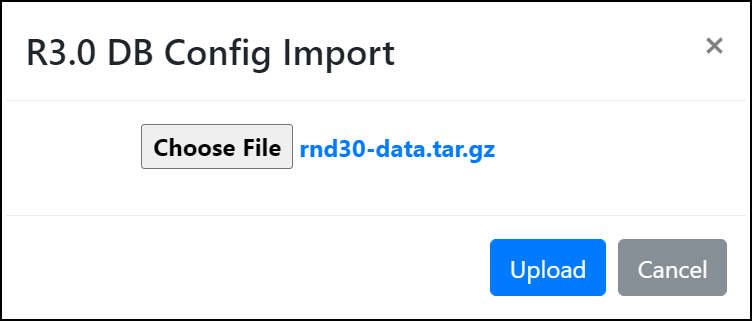
- In the R3.0 DB Config Import dialog box, click
Choose
File to navigate and choose the
rnd30-data.tar.gz file to import RND 3.0
configuration file. The R3.0 DB Config Import dialog box is displayed.
- Click Upload. A message is displayed to confirm whether you want to override the database configuration.
- Click OK to confirm. A confirmation message is displayed indicating that the RND 3.0 database configuration is successfully imported to the PostgreSQL database.
- To import the RND 3.5
configuration file, complete the following steps:
- In the Config Restore pane, click Upload to import RND 3.5 configuration file.
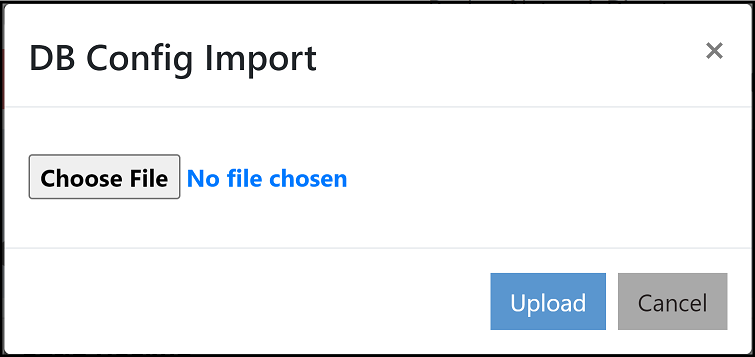
- In the DB
Config Import dialog box, click Choose
File to navigate and choose the
rnd-config-backup-(date).gz file to import RND
3.5 configuration file.The DB Config Import dialog box is displayed.
- Click Upload. A message is displayed to confirm whether you want to override the database configuration.
- Click OK to confirm. A confirmation message is displayed indicating that the RND 3.5 database configuration is successfully imported to the PostgreSQL database.